1
Next screen ↓
Open Shift Overview
Start from the calendar home screen. Tap Set up on the 'Same shifts every week?' banner.
Next screen ↓
ShiftFlowr / 4-on-4-off / Setup guide
Fixed 8-day pattern guide
This walkthrough uses every screen from a six-month setup. Choose the 4-on-4-off preset, anchor it to the real start of your cycle, preview the dates, and add the schedule.
Before you start
The anchor date determines every generated work and rest day. Match it to your employer's schedule rather than choosing today automatically.
This captured example uses a fixed Day-shift pattern. If your workplace alternates Days and Nights, build the sequence that matches your employer's actual rotation.
Start from the calendar home screen. Tap Set up on the 'Same shifts every week?' banner.
Select the 4-on-4-off preset. Its cycle is four work days followed by four rest days.
Select the Day, Early, Late, Back Shift, or Night option that matches the schedule you work.
Tap the current cycle-start date before choosing the day the repeating cycle actually began.
Choose the correct day in the date picker and confirm it before continuing. The captured example confirms Wednesday 1 July 2026.
Check the selected months and the generated shift count before previewing.
Once the selected months are correct, tap Preview schedule to generate the shift preview.
Screens 9-14
Nothing has been added yet. Scroll through every generated month and confirm that the work dates follow the expected four-on, four-off cycle.
The preview starts with July and the beginning of August.
Scroll through the generated dates without adding anything yet.
August runs straight into September.
Confirm the four-on, four-off cycle continues across the month boundary.
Check the later months before applying the schedule.
Review the final selected months. Tap Add to Calendar when the complete preview is correct.
Screens 15-20
After adding the schedule, inspect July through December in Manage Shifts. Each month remains individually available below and opens at full resolution.
The applied July calendar shows the generated Day shifts.
Move forward to confirm the pattern continues through August.
Review the September dates and rest-day spacing.
Confirm October continues the same eight-day cycle.
Review the generated November schedule.
Finish the month-by-month check with December.
Shift Templates shows one saved 4-on-4-off pattern and confirms that 92 shifts were added.
Open the saved pattern card to see its eight-day cycle and available Apply action.
After the pattern is live
Once applied, the Shift Overview shows your next shift with its wake-up alarm and leave-home time already attached - for every shift in the 4-on-4-off cycle, not just the first one.
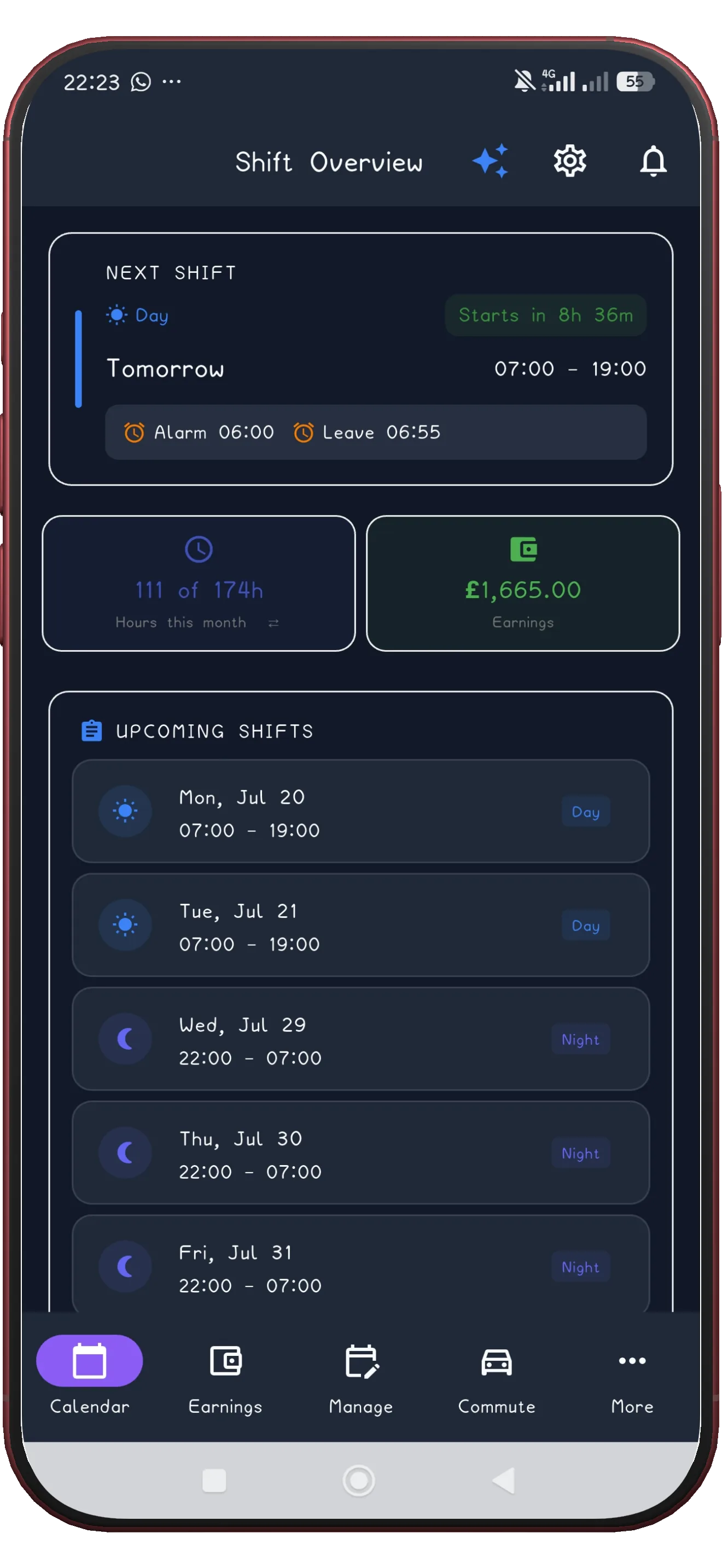
ShiftFlowr turns the repeating eight-day cycle into a calendar you can inspect before and after applying it, with reminders and wake-up alarms attached to every shift.
Get ShiftFlowr