ShiftFlowr / 3-week rotation / Setup guide

Step-by-step guide

Setting up a 3-week rotation — every supplied screen, in order.

This rotation is a 21-day cycle: a Monday-to-Friday week of Days, then a week of Lates, then a week of Nights, with weekends off. 22 real screenshots: choose the pattern, set the anchor date, select months, preview the cycle, apply it, check the next shift, and confirm the saved pattern.

Free on Android · Early access
Before you start

Follow the 3-week rotation flow one decision at a time

This walkthrough separates setup, preview, applied-calendar, home-summary, and saved-pattern states. Intermediate preview screens stay clean; only the final Add to Calendar action is highlighted.

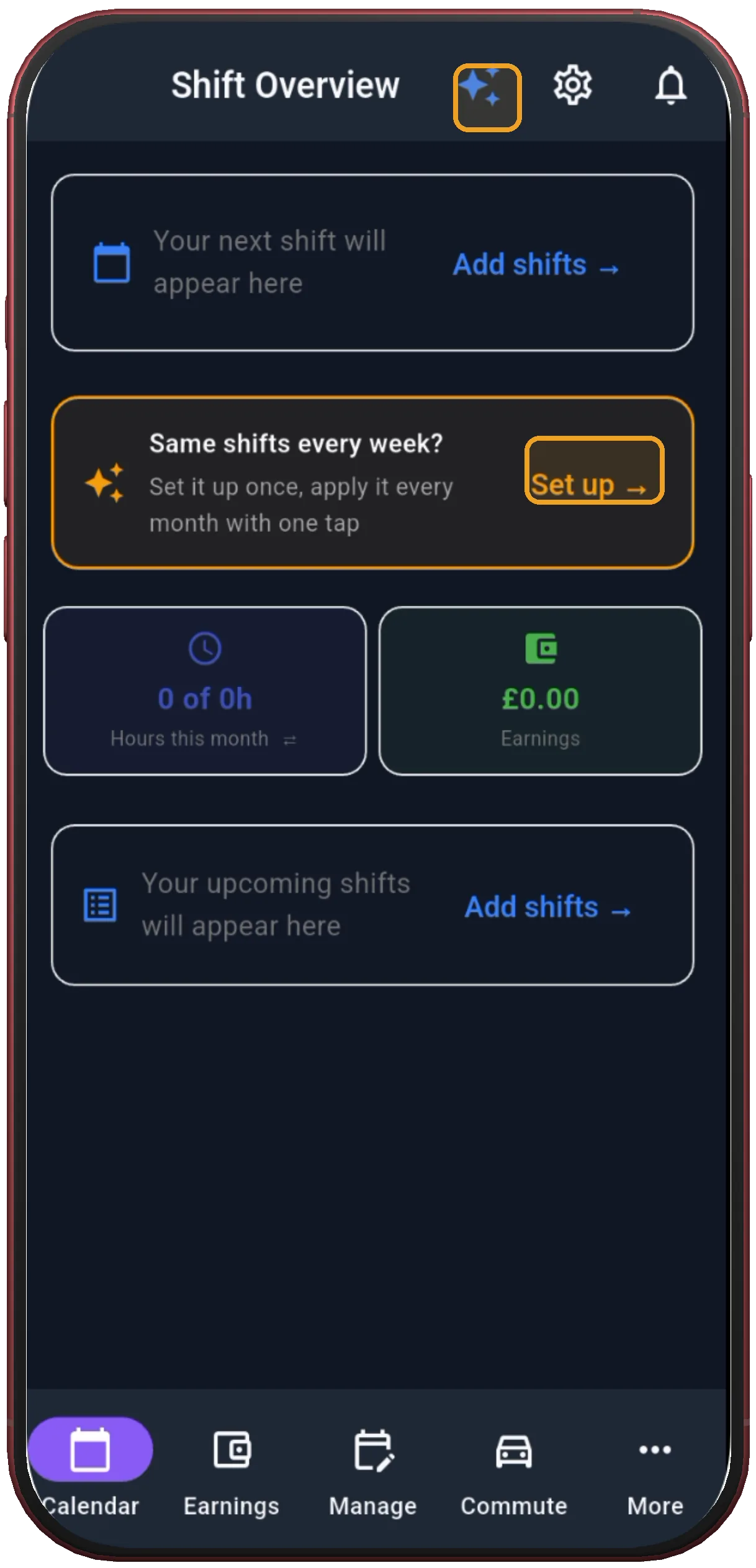
Shift Overview with Set up
1

Tap Set up

Shift Overview is the entry point for building a repeating shift pattern.

Next step ↓
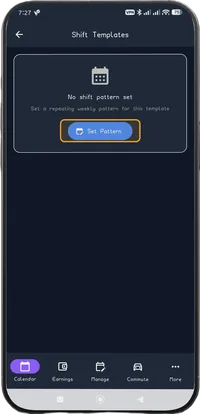
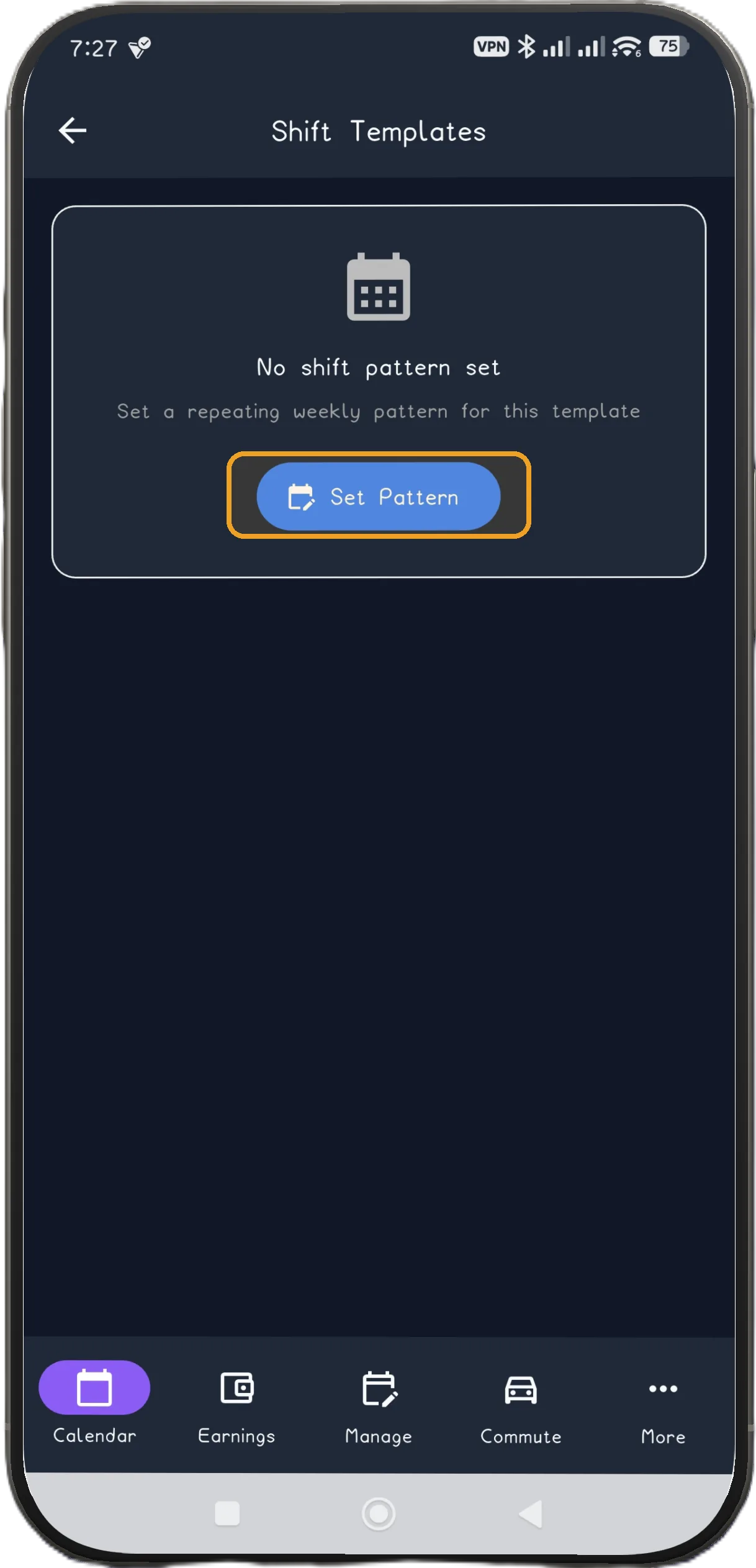
Shift Templates with Set Pattern
2

Tap Set Pattern

Open the pattern library from Shift Templates.

Next step ↓
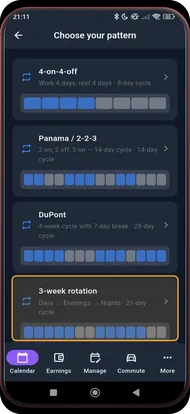
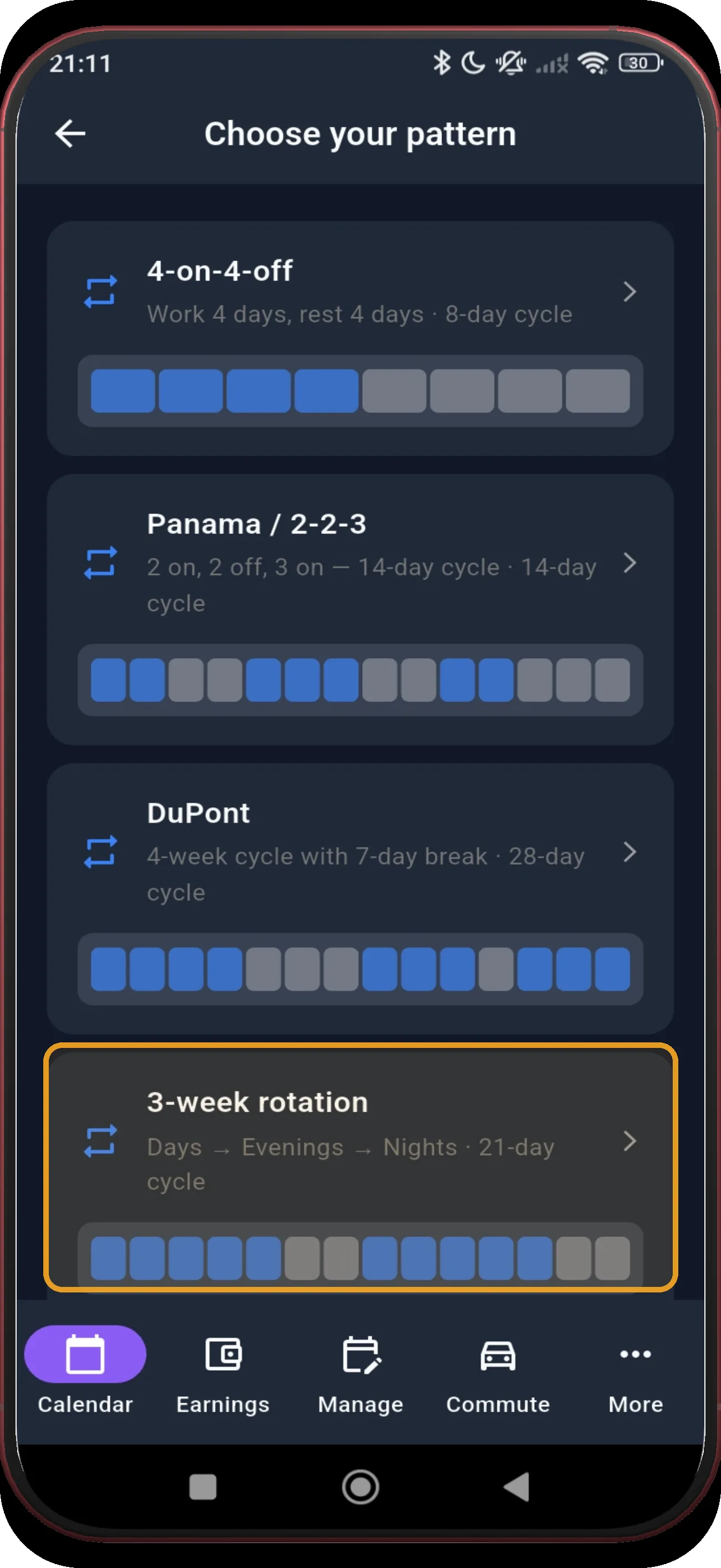
Pattern library with 3-week rotation highlighted
3

Choose 3-week rotation

Choose the 3-week rotation card: Days, Evenings, and Nights across a 21-day cycle.

Next step ↓
3-week rotation screen 4
4

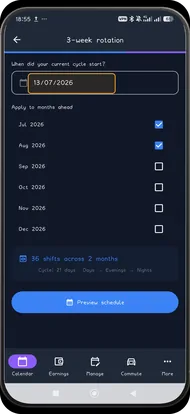
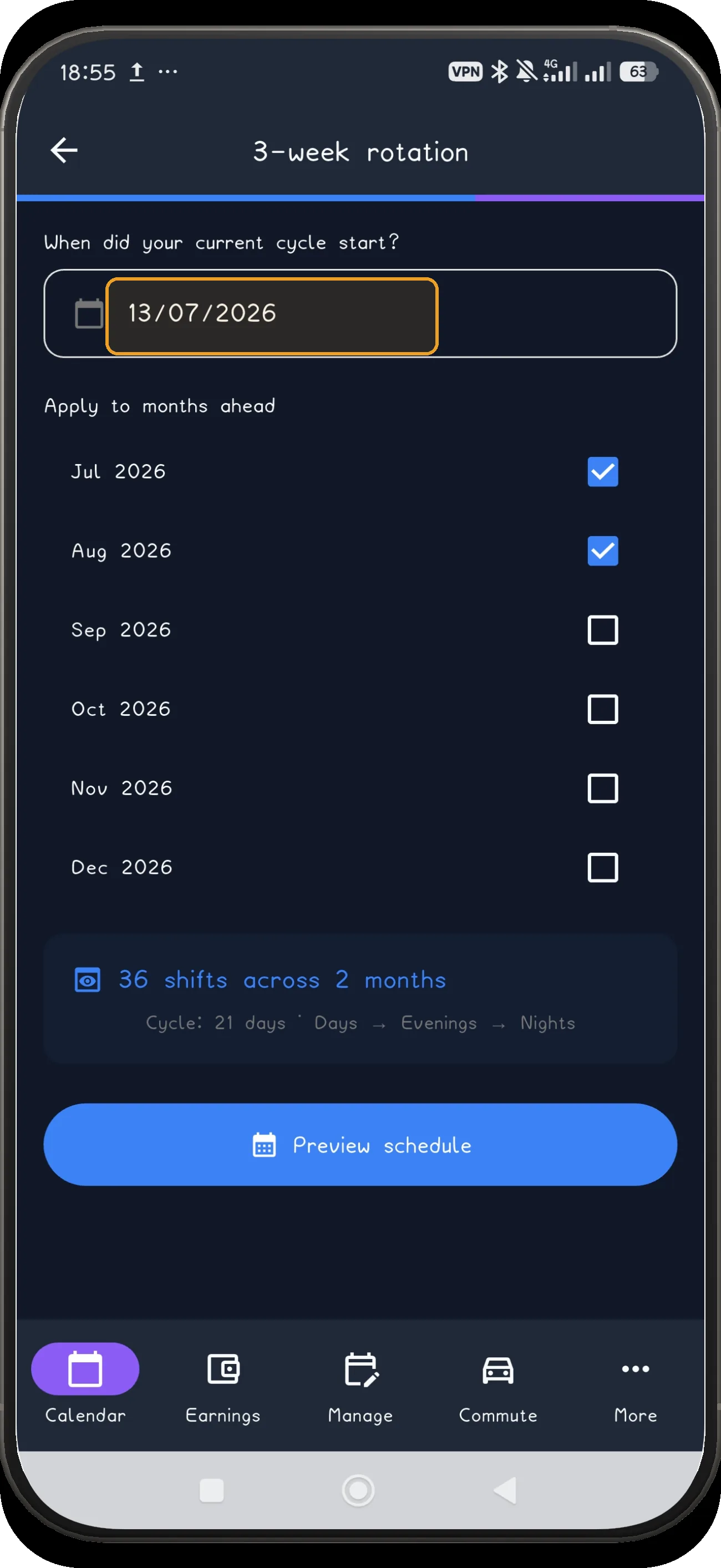
Open the anchor date

Open the anchor-date field to set the date the rotation is anchored to.

Next step ↓
3-week rotation screen 5
5

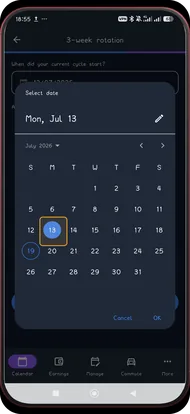
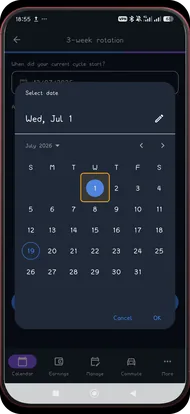
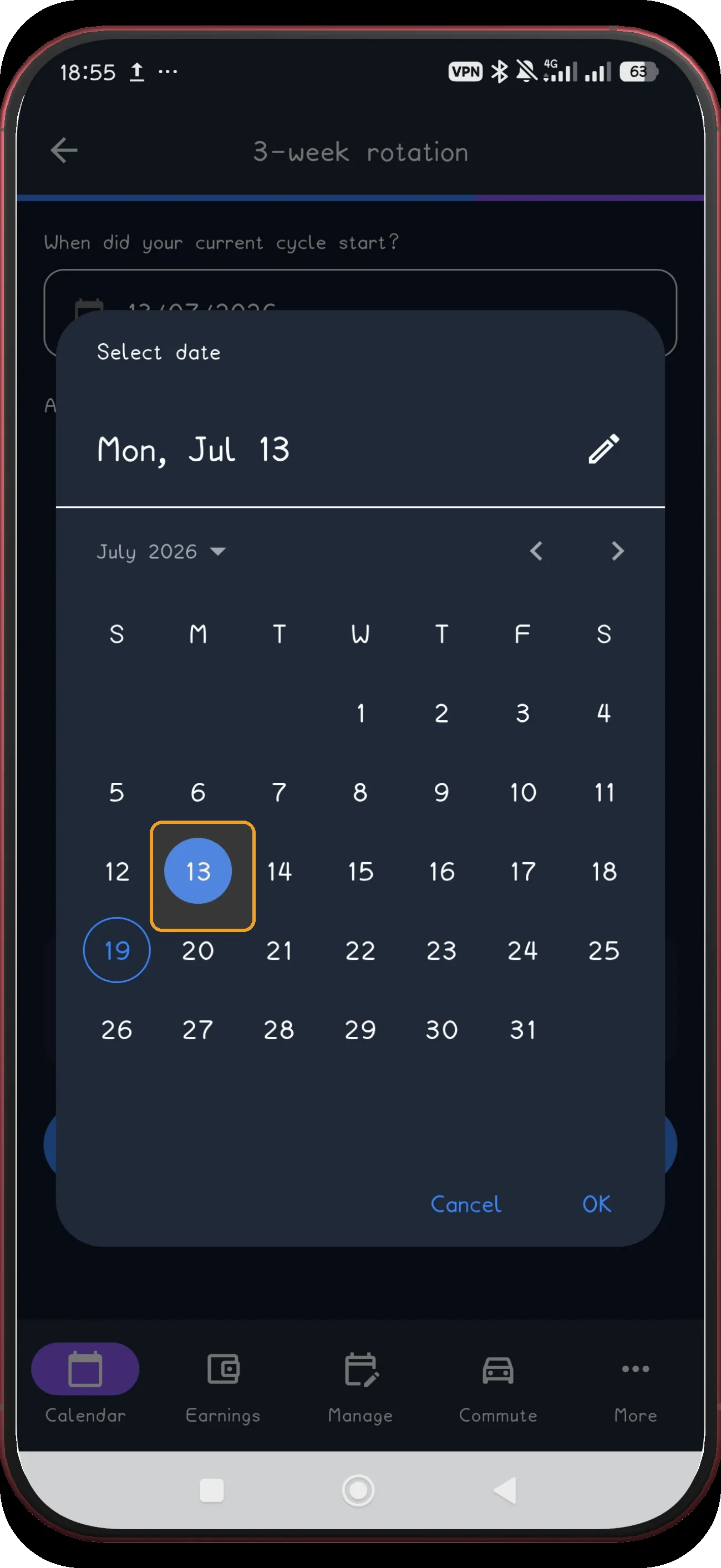
Choose the first anchor date

Choose the first of the two anchor dates in the picker.

Next step ↓
3-week rotation screen 6
6

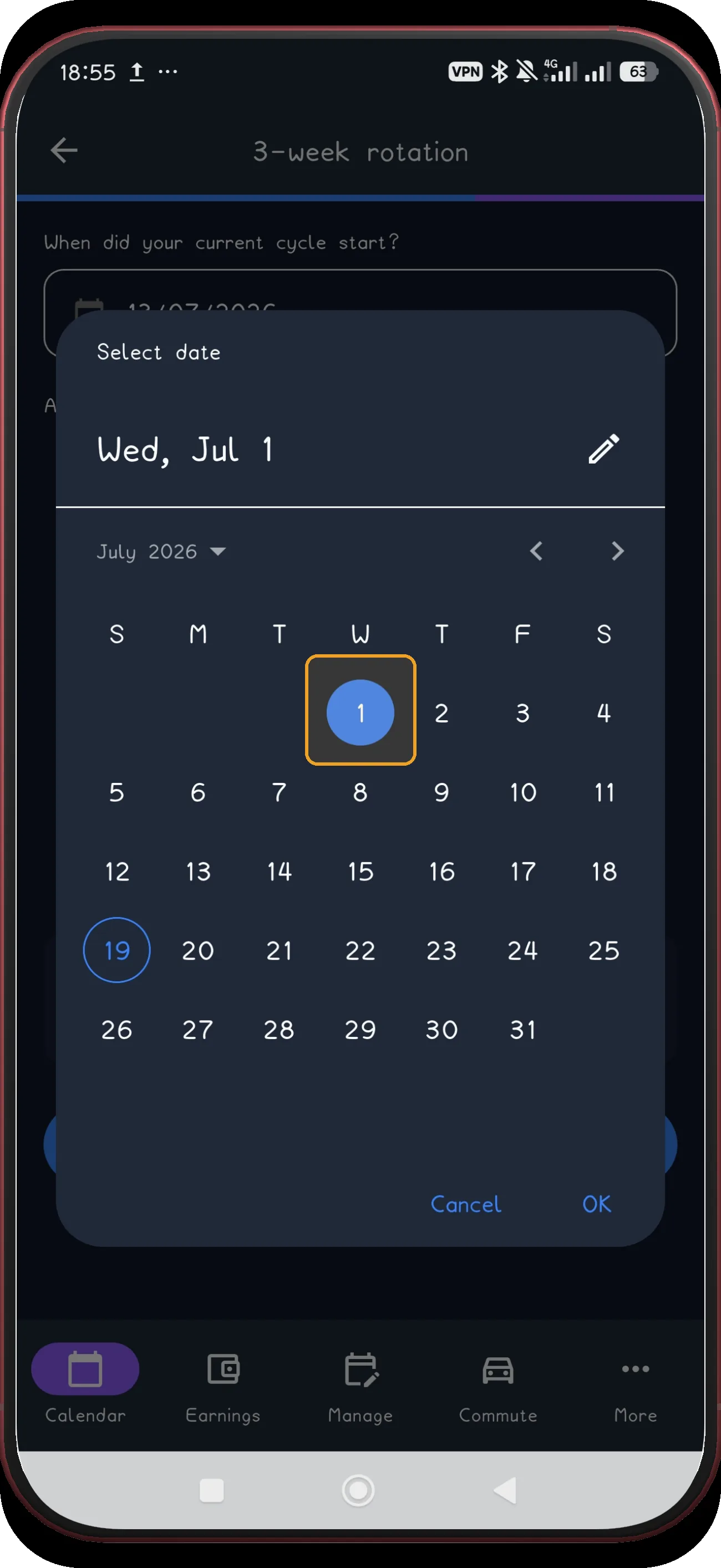
Choose the second anchor date

Choose the final anchor date before returning to setup. The captured example ends on Wednesday 1 July 2026.

Next step ↓
3-week rotation screen 7
7

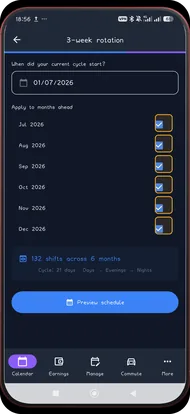
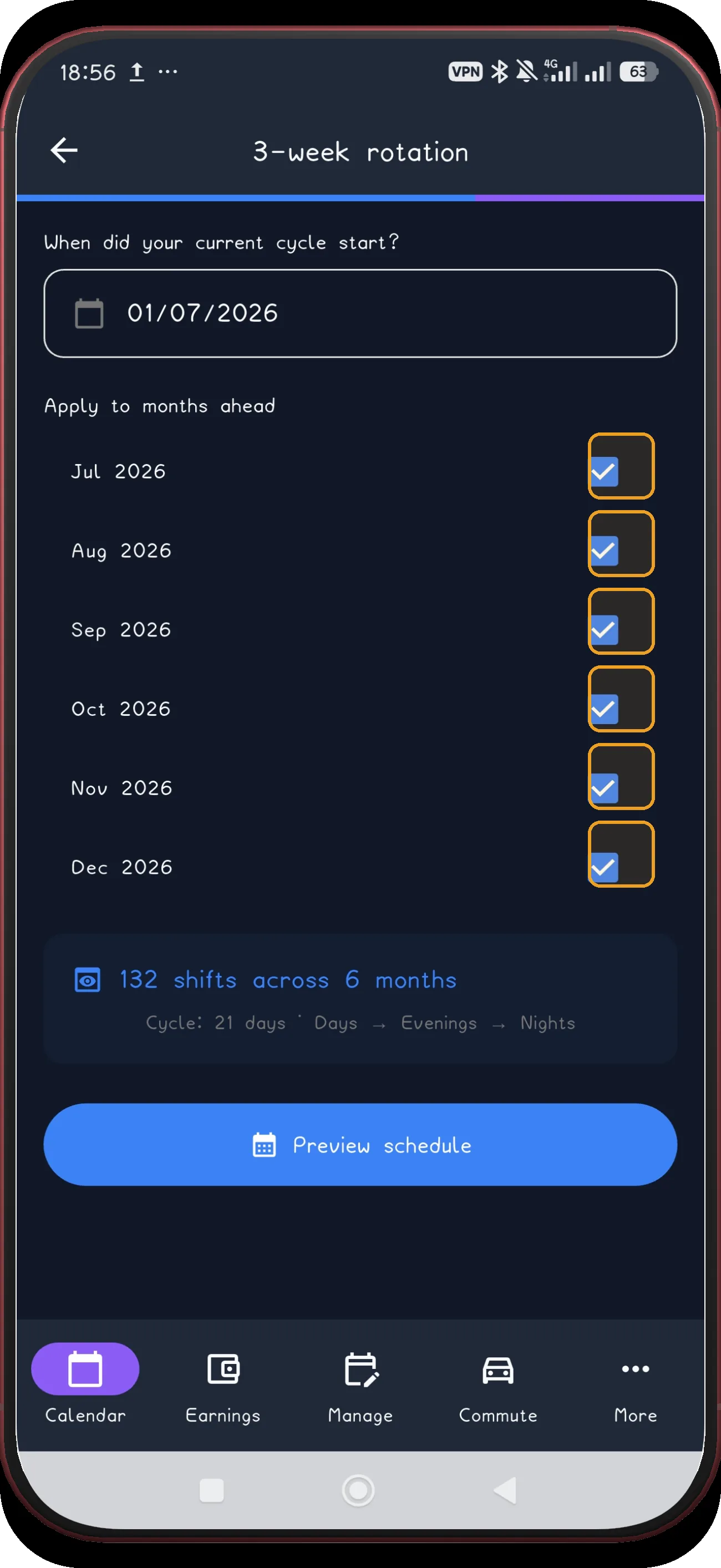
Select the months

Select the future months that should receive the pattern.

Next step ↓
3-week rotation screen 8
8

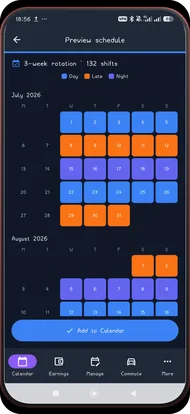
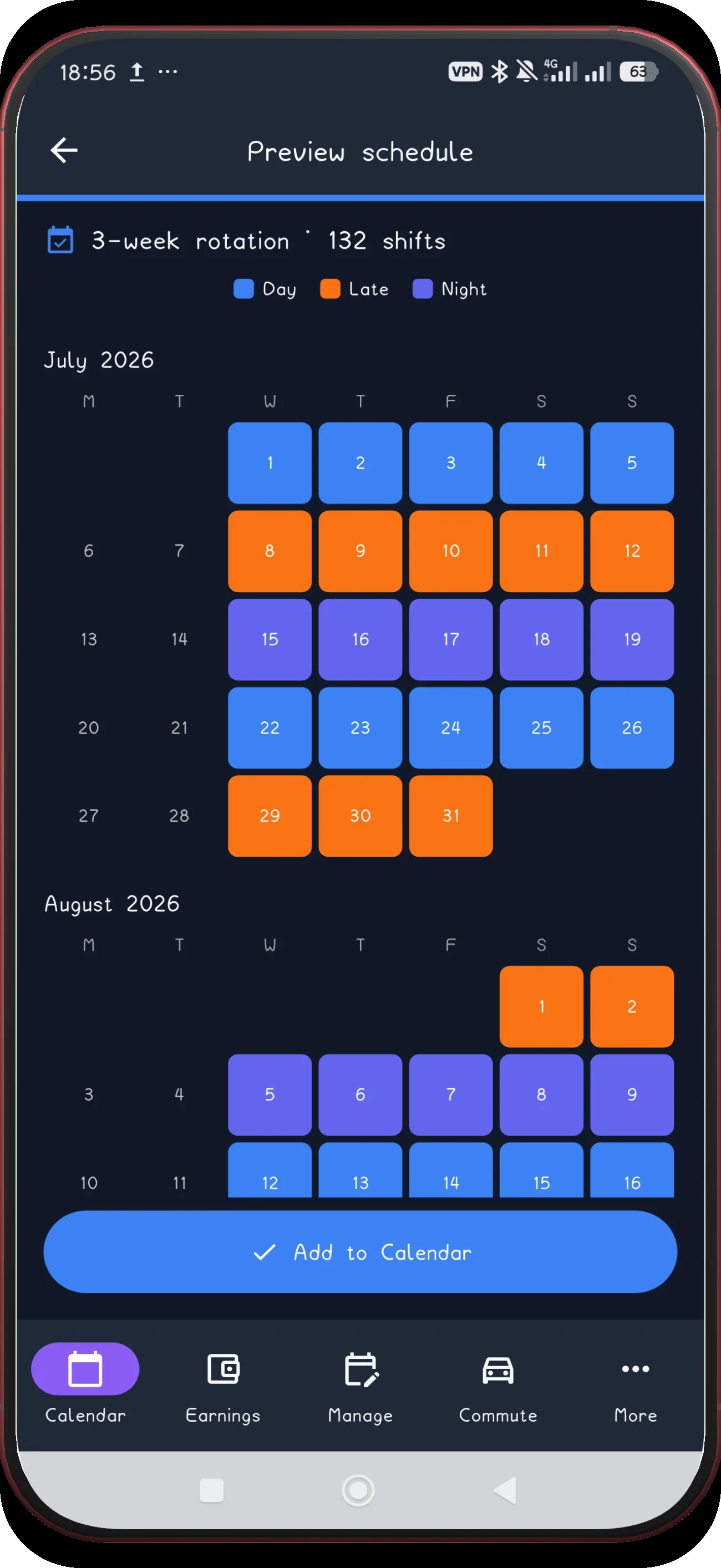
Review July and August

Review the first July and August preview pair.

Next step ↓
3-week rotation screen 9
9

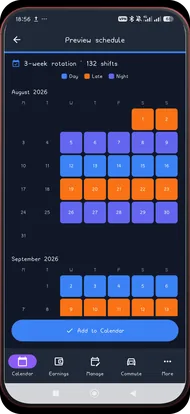
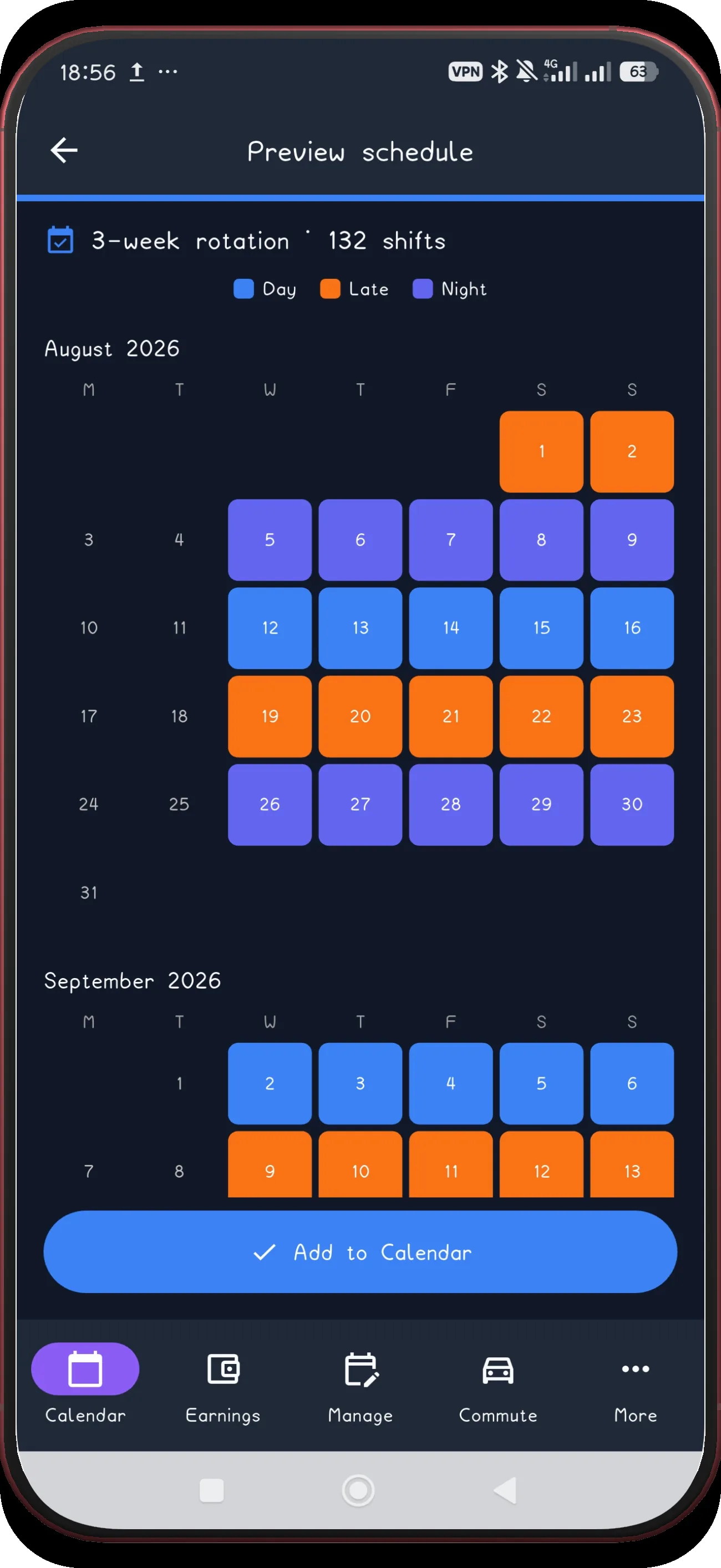
Review August and September

The next pair follows in the same preview.

Next step ↓
3-week rotation screen 10
10

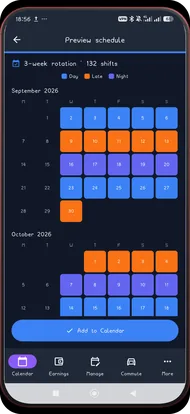
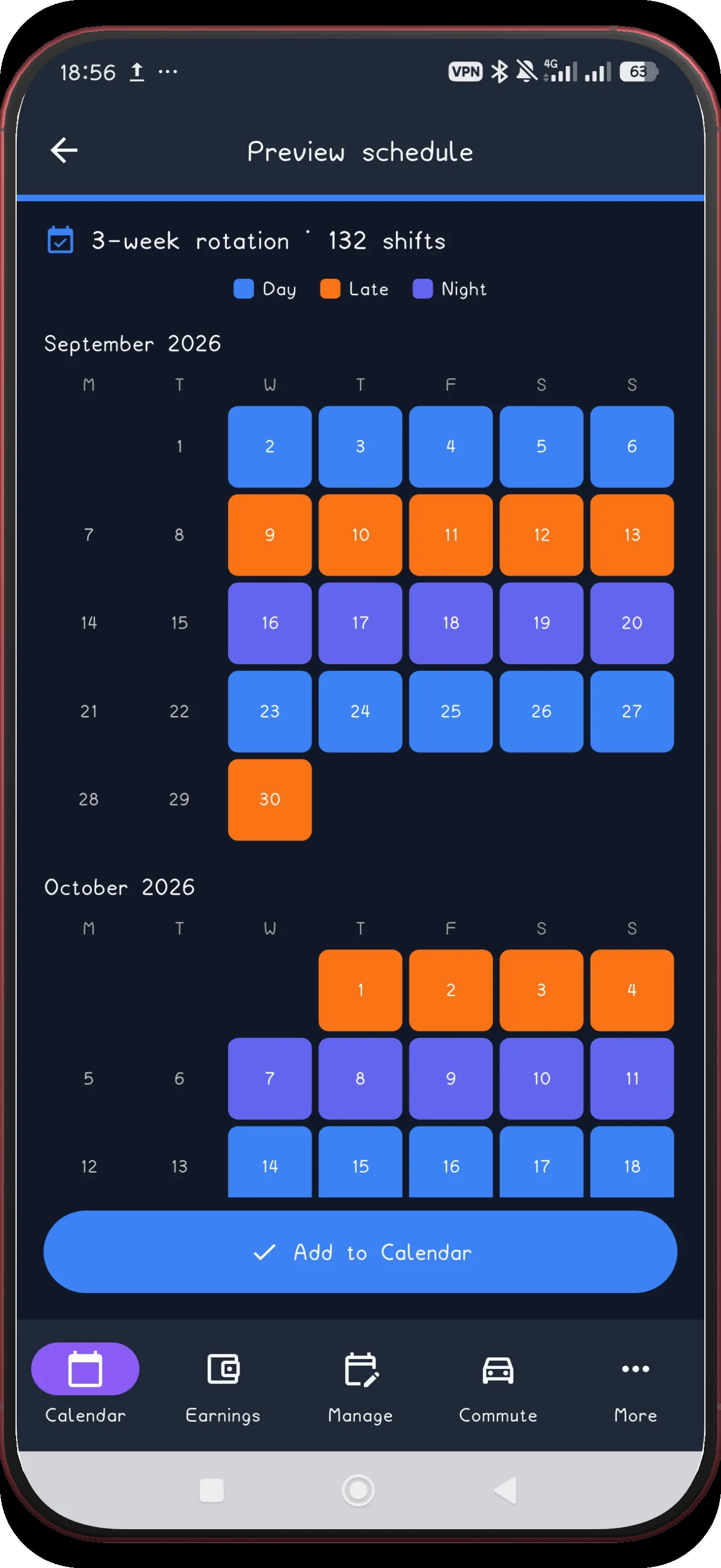
Review September and October

September and October get the same check.

Next step ↓
3-week rotation screen 11
11

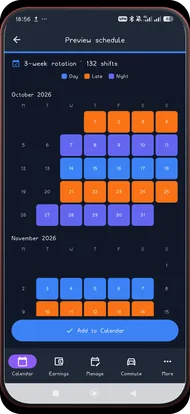
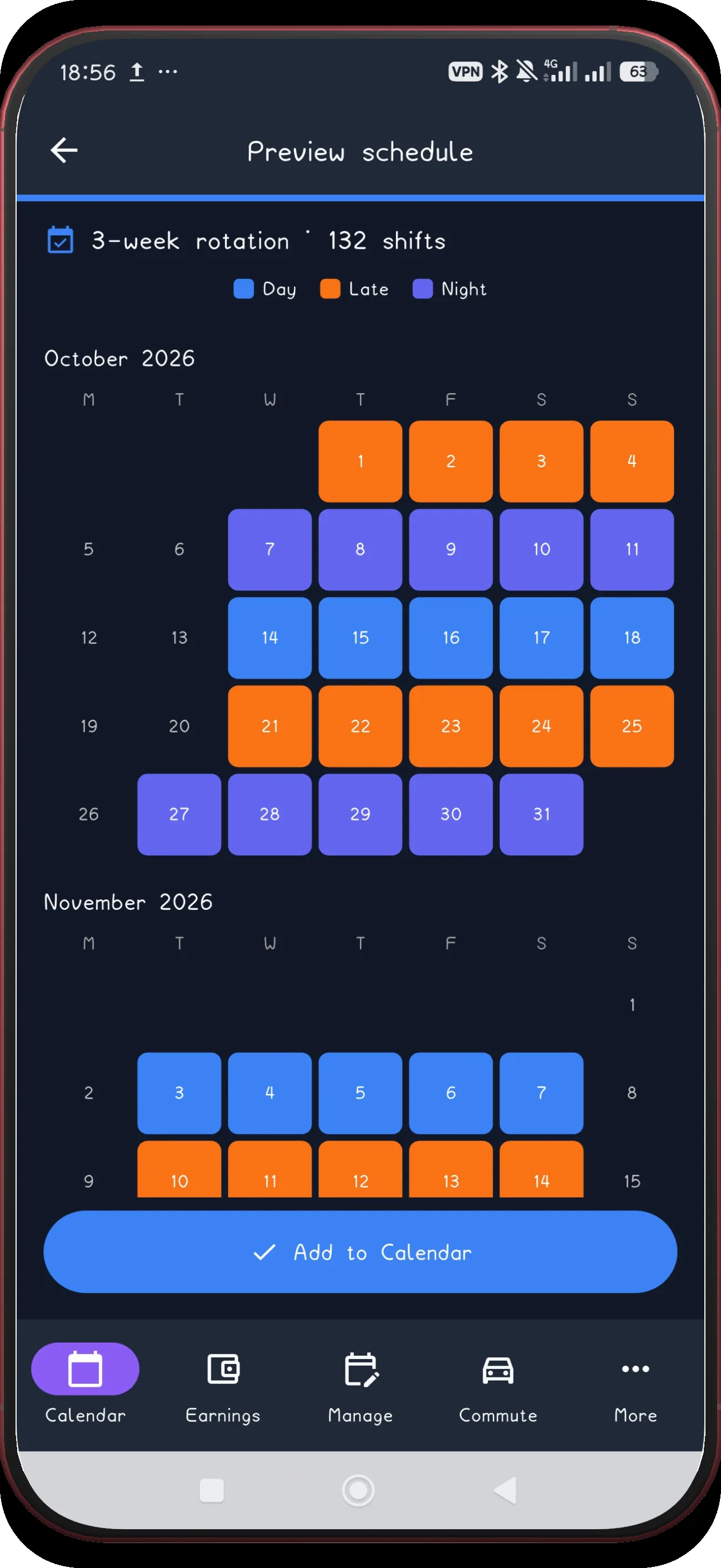
Review October and November

Then October and November.

Next step ↓
3-week rotation screen 12
12

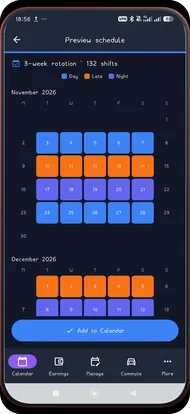
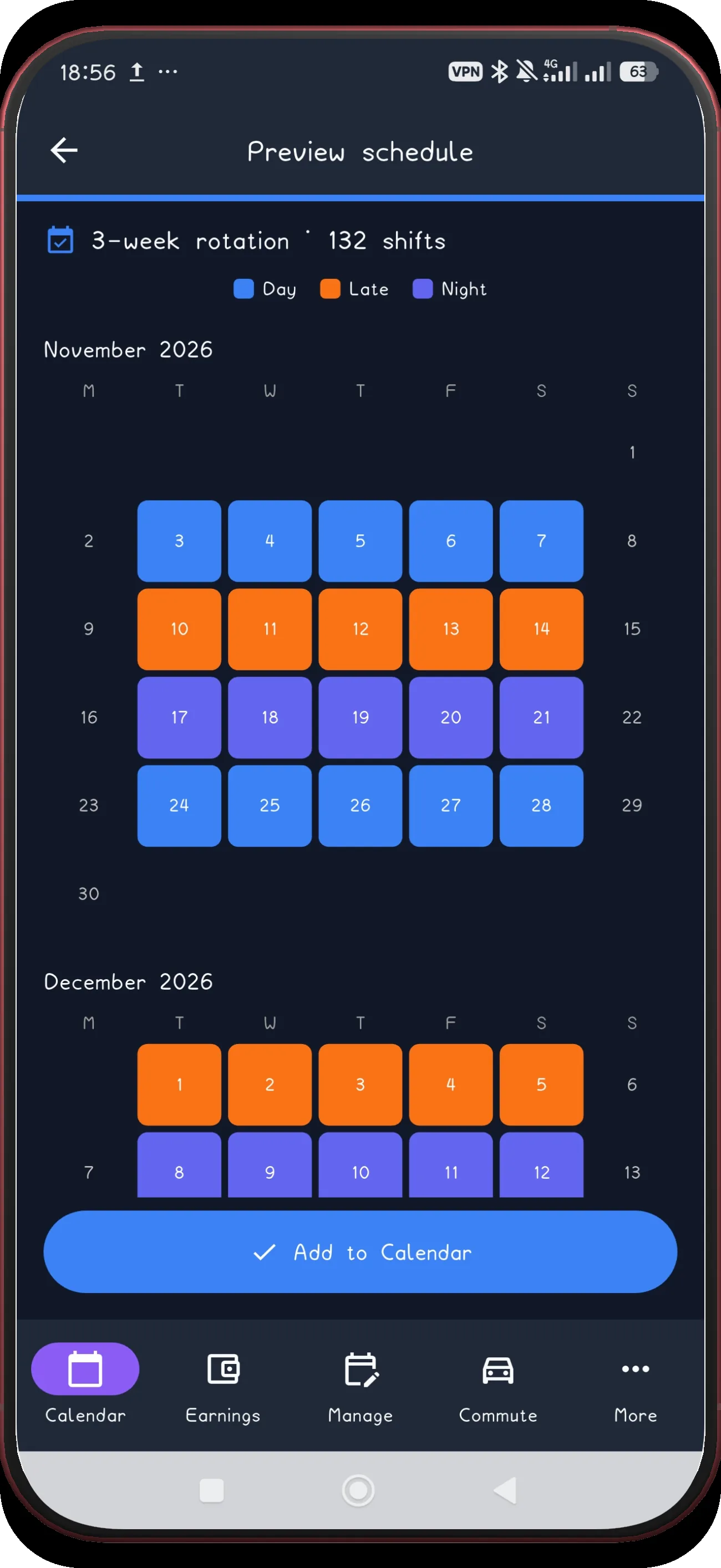
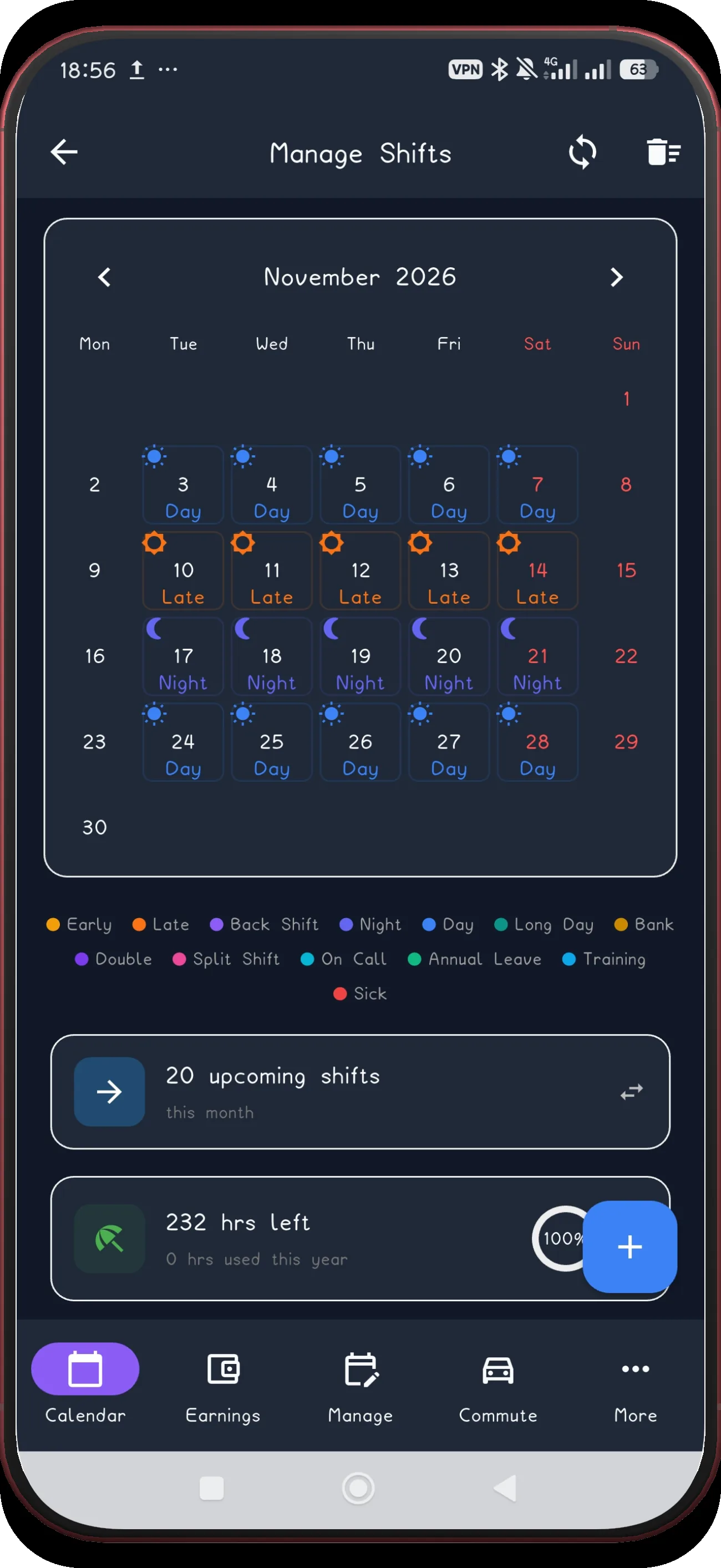
Review November and December

The preview run ends with November and December.

Next step ↓
3-week rotation screen 13
13

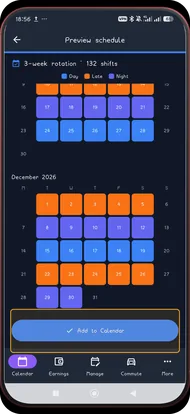
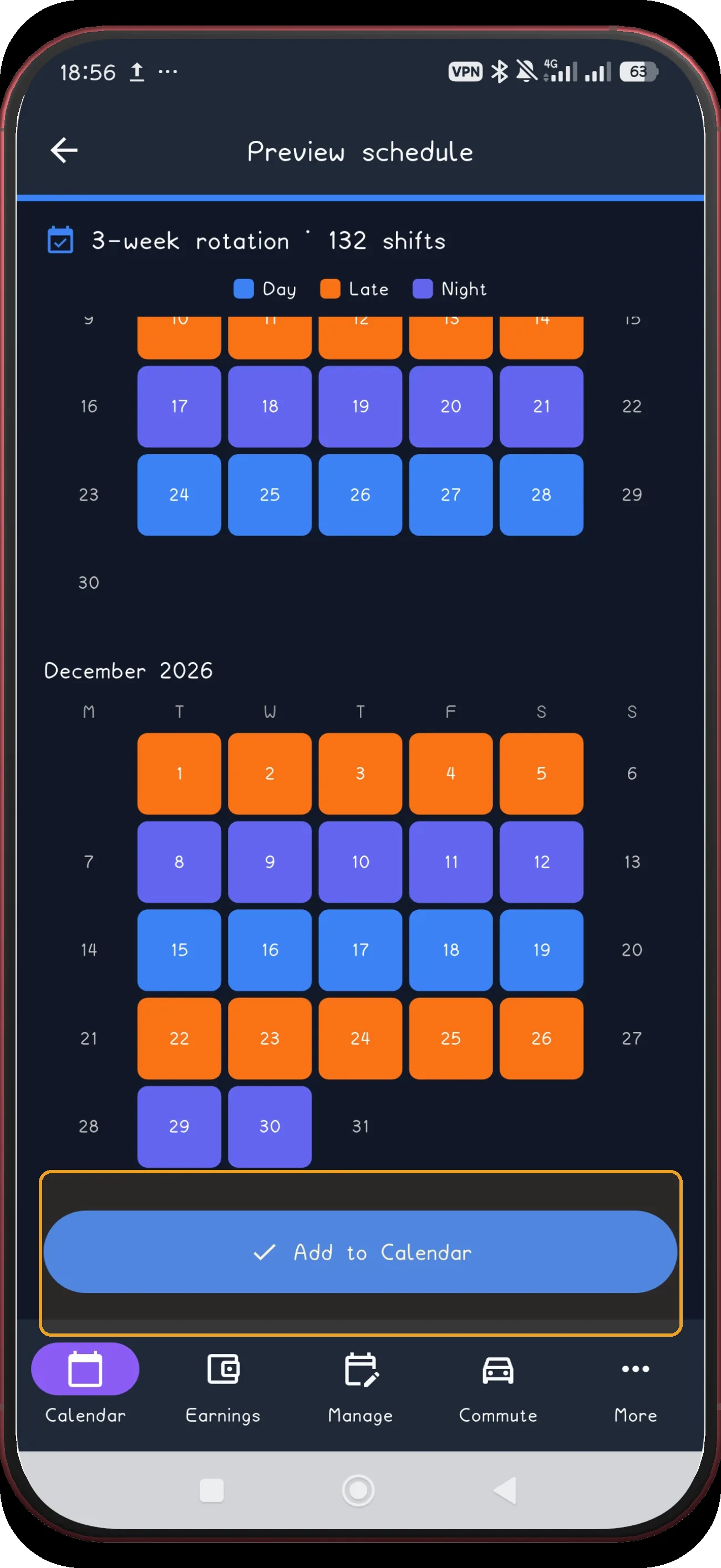
Add the schedule

Use Add to Calendar only after the preview matches your schedule.

Next step ↓
3-week rotation screen 14
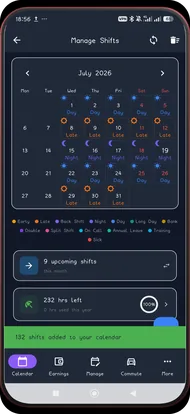
14

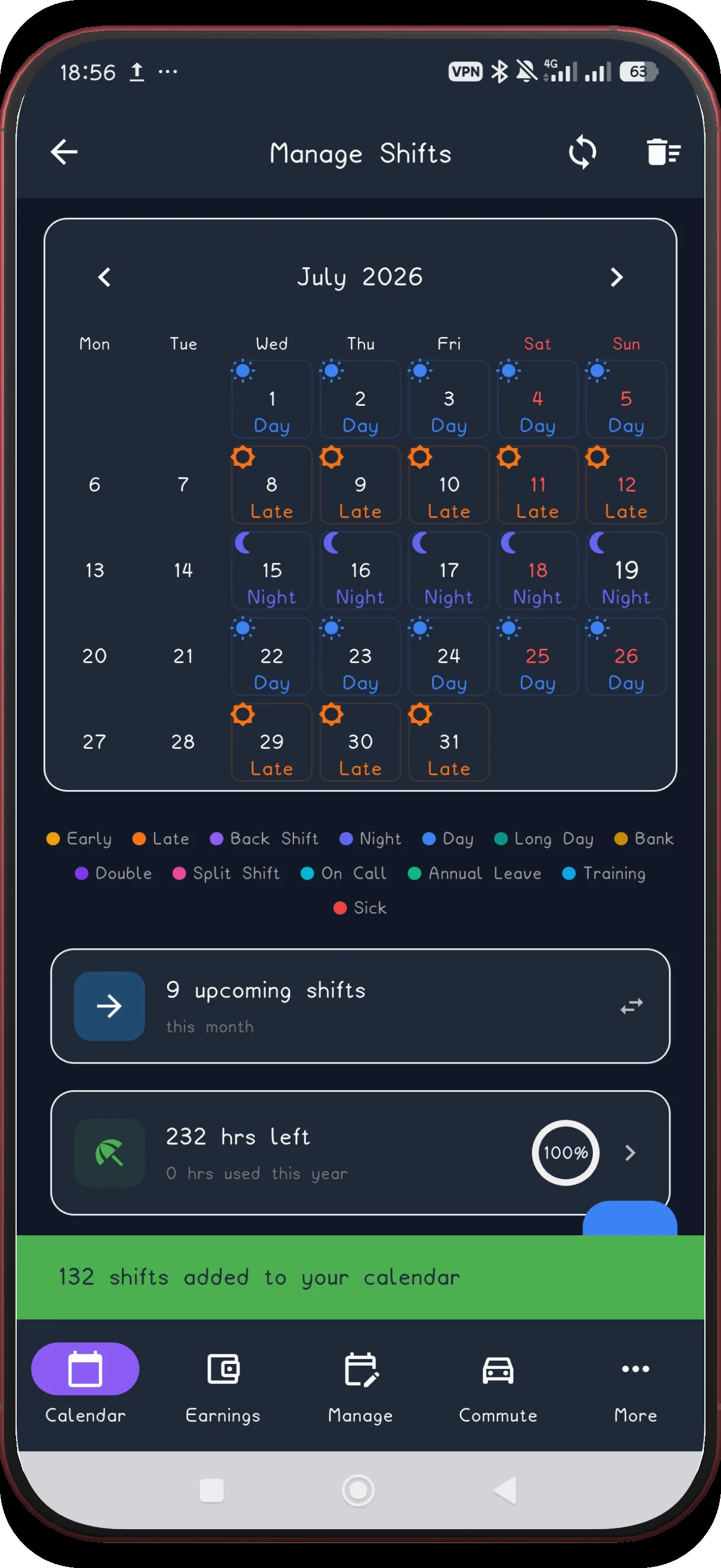
Check July

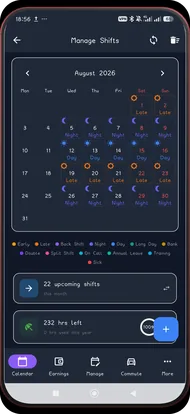
The first applied month now appears in Manage Shifts.

Next step ↓
3-week rotation screen 16
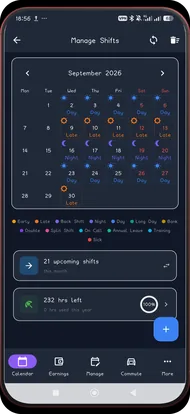
16

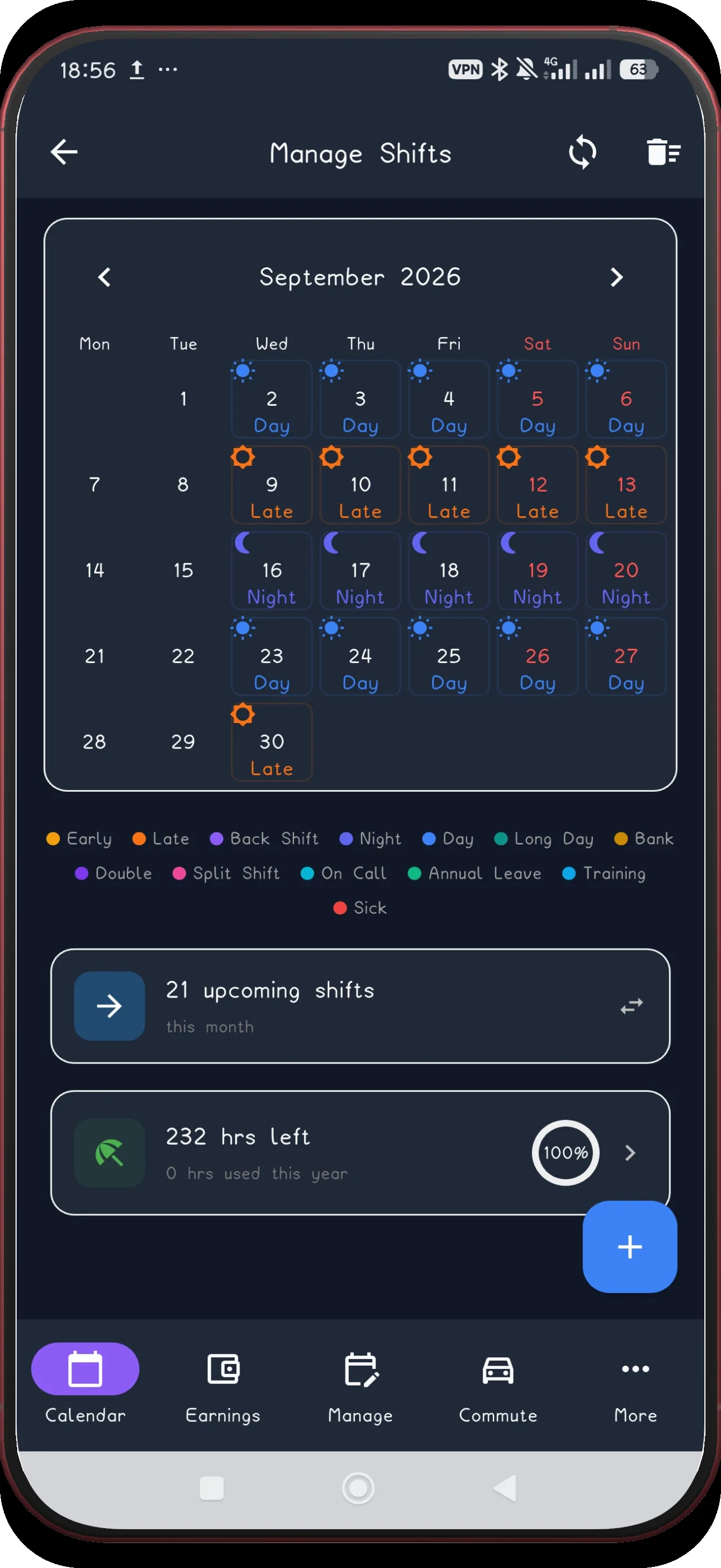
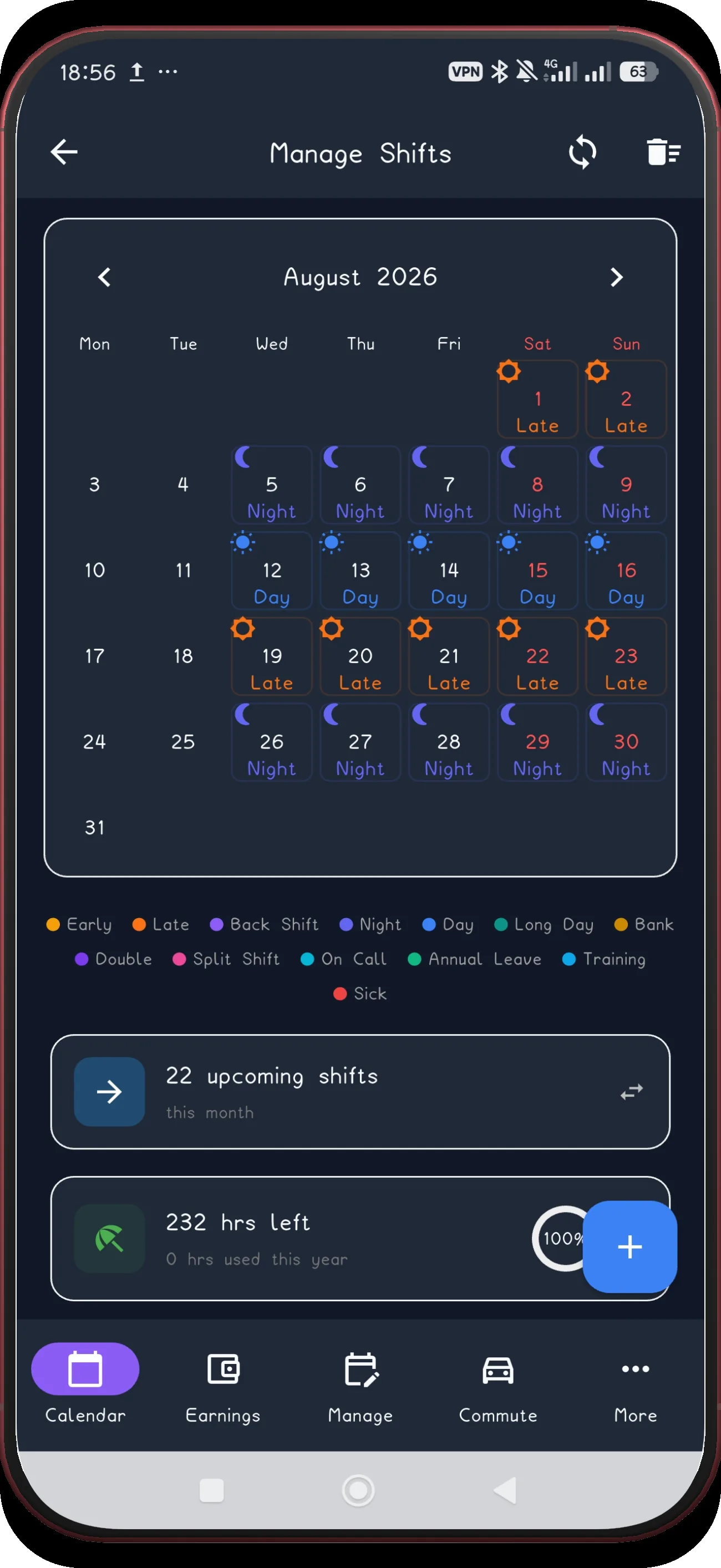
Check September

Confirm the pattern continues into September.

Next step ↓
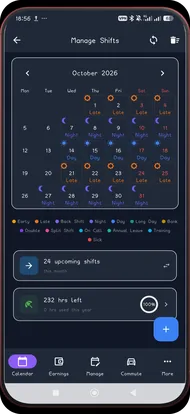
3-week rotation screen 19
19

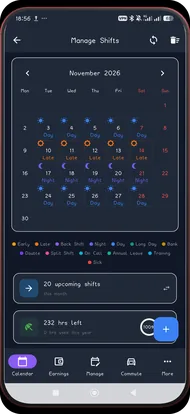
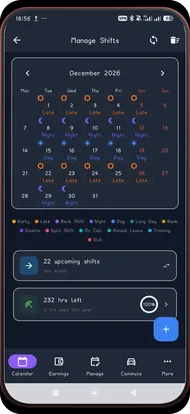
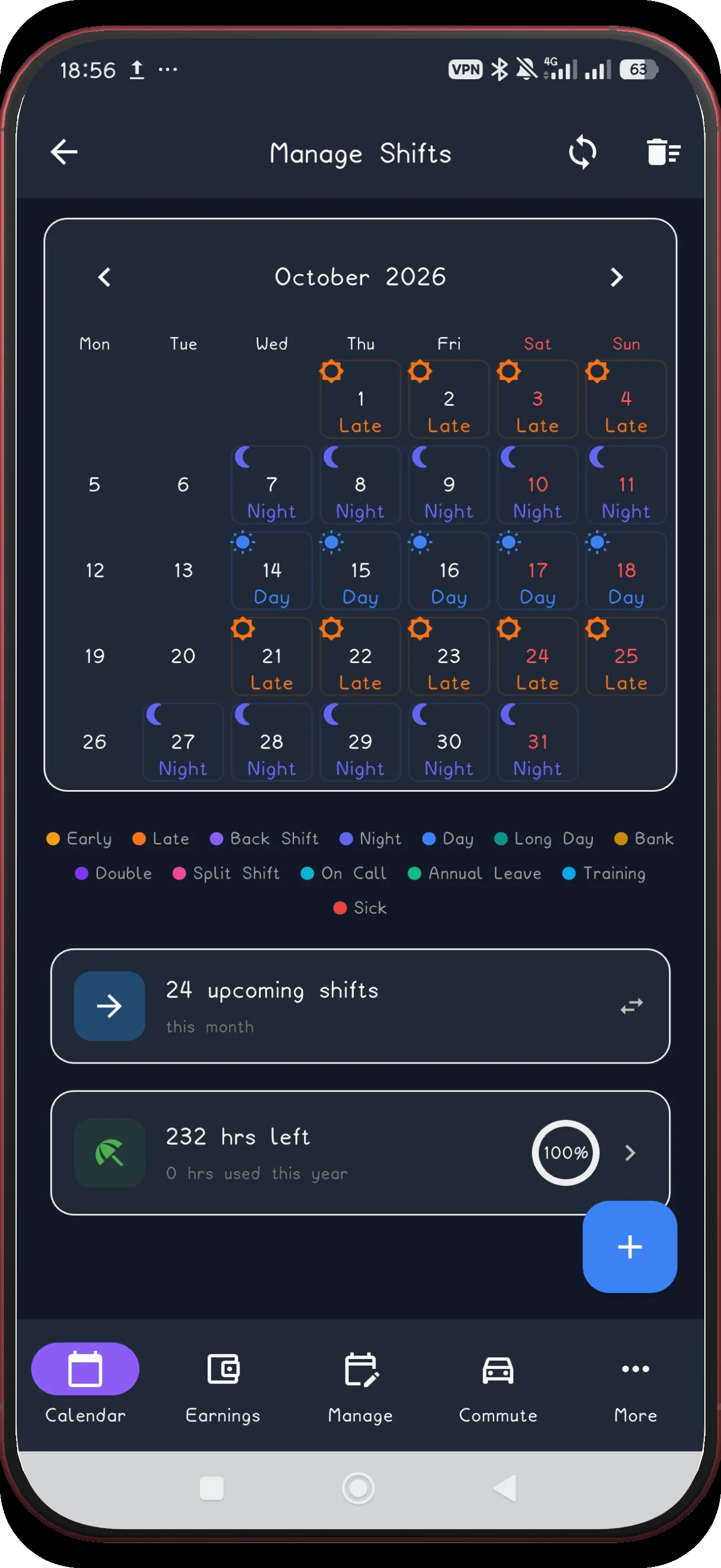
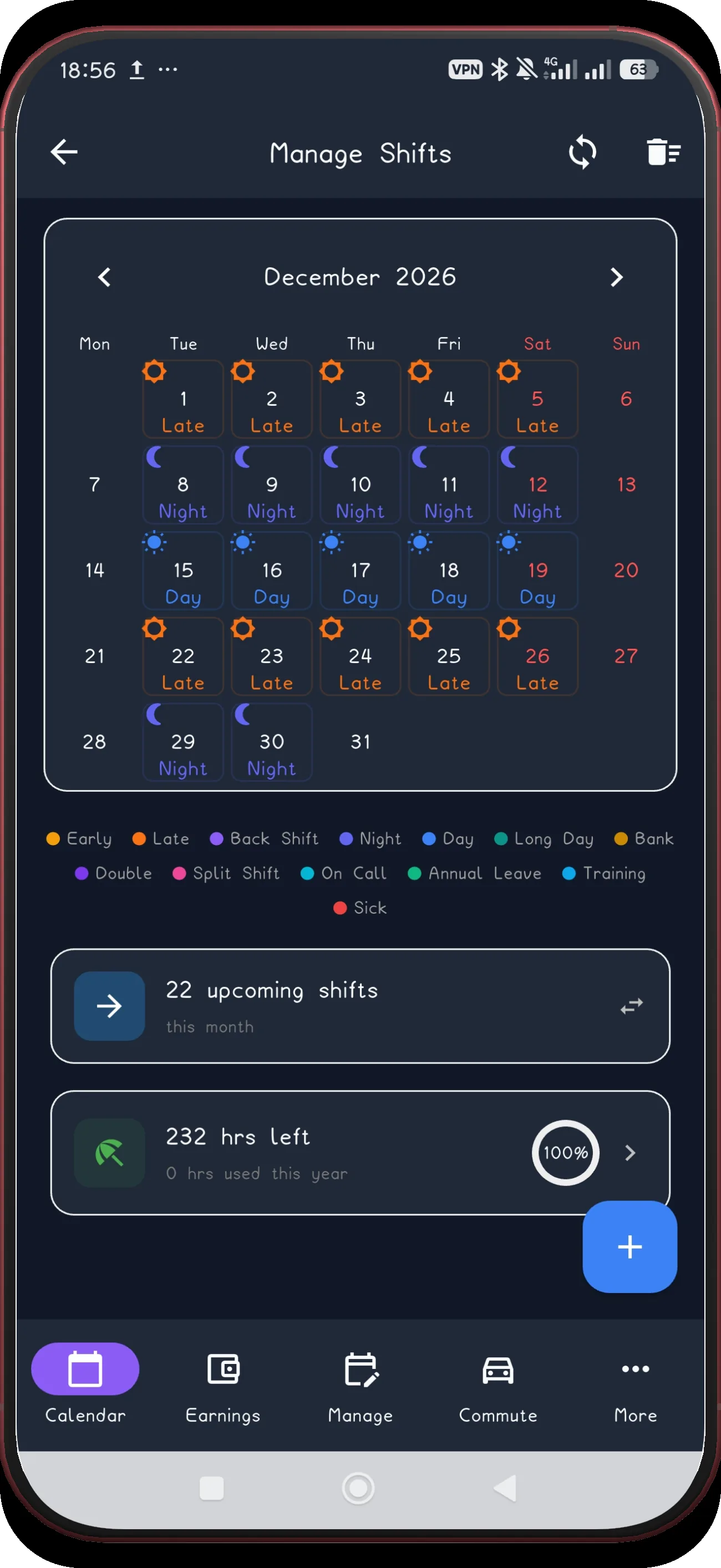
Check December

Confirm the final applied month in December.

Next step ↓
3-week rotation screen 20
20

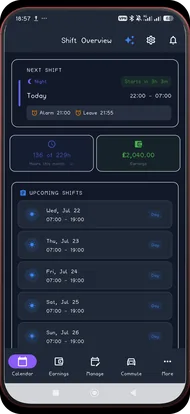
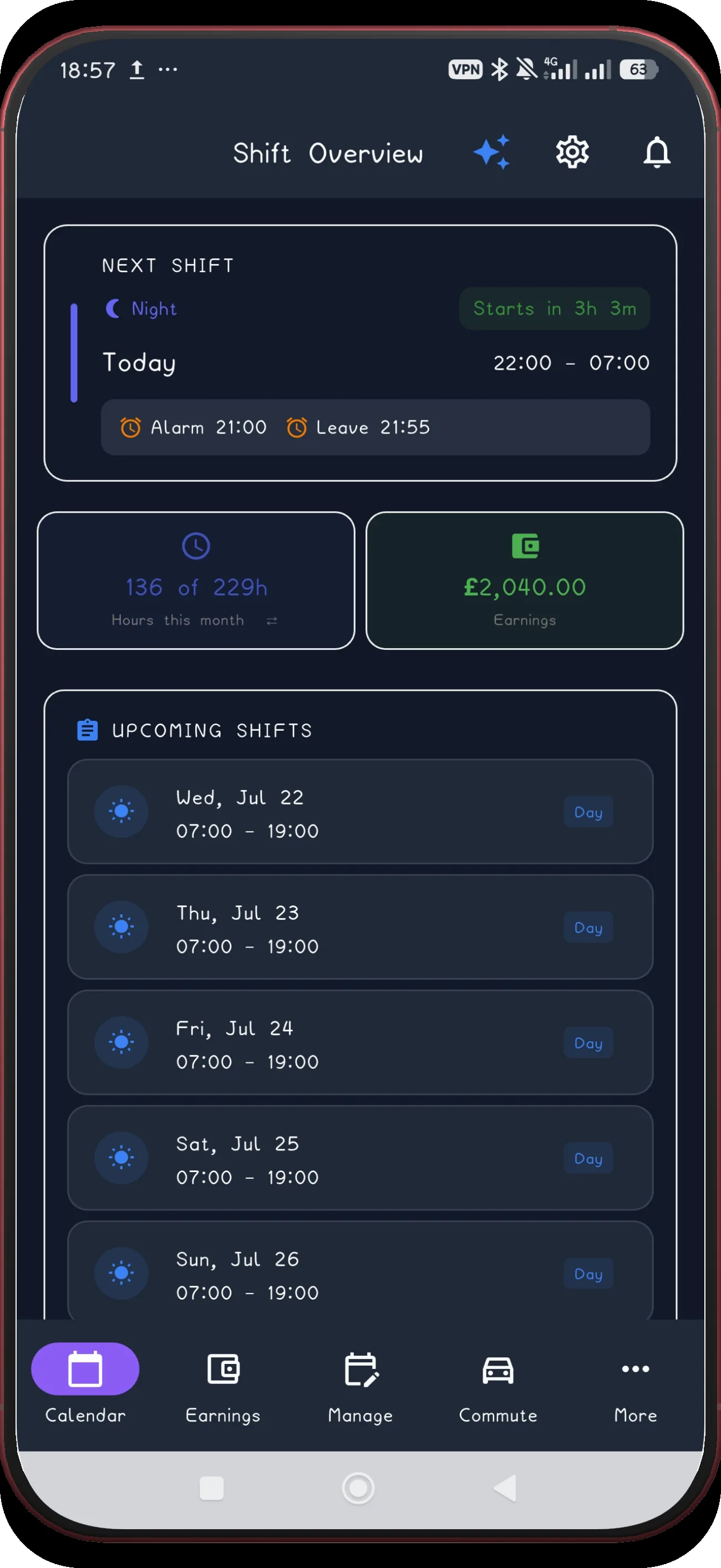
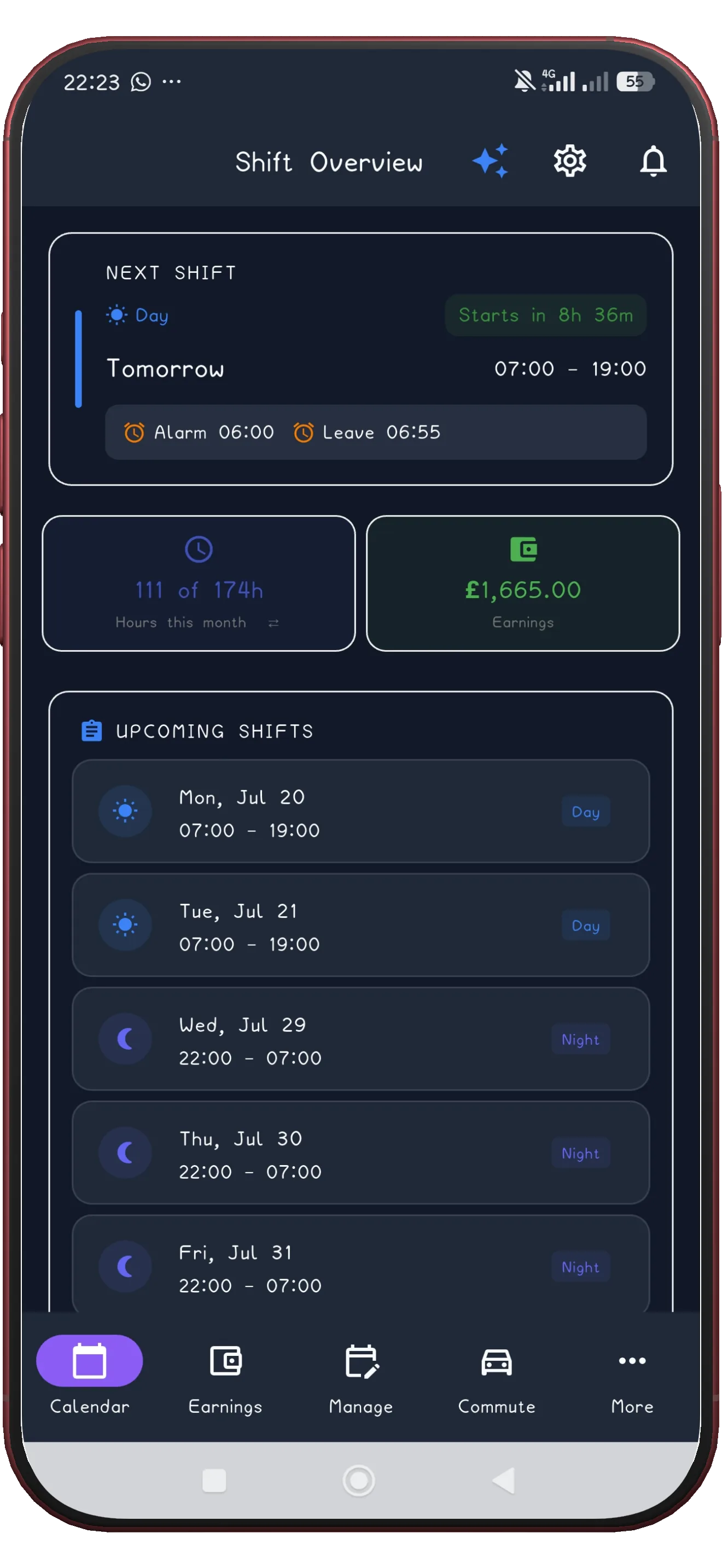
See the next shift

The home screen now shows the next shift and its alarm timing.

Next step ↓
3-week rotation screen 21
21

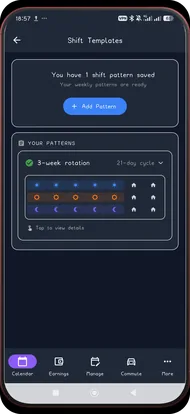
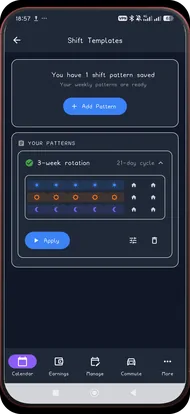
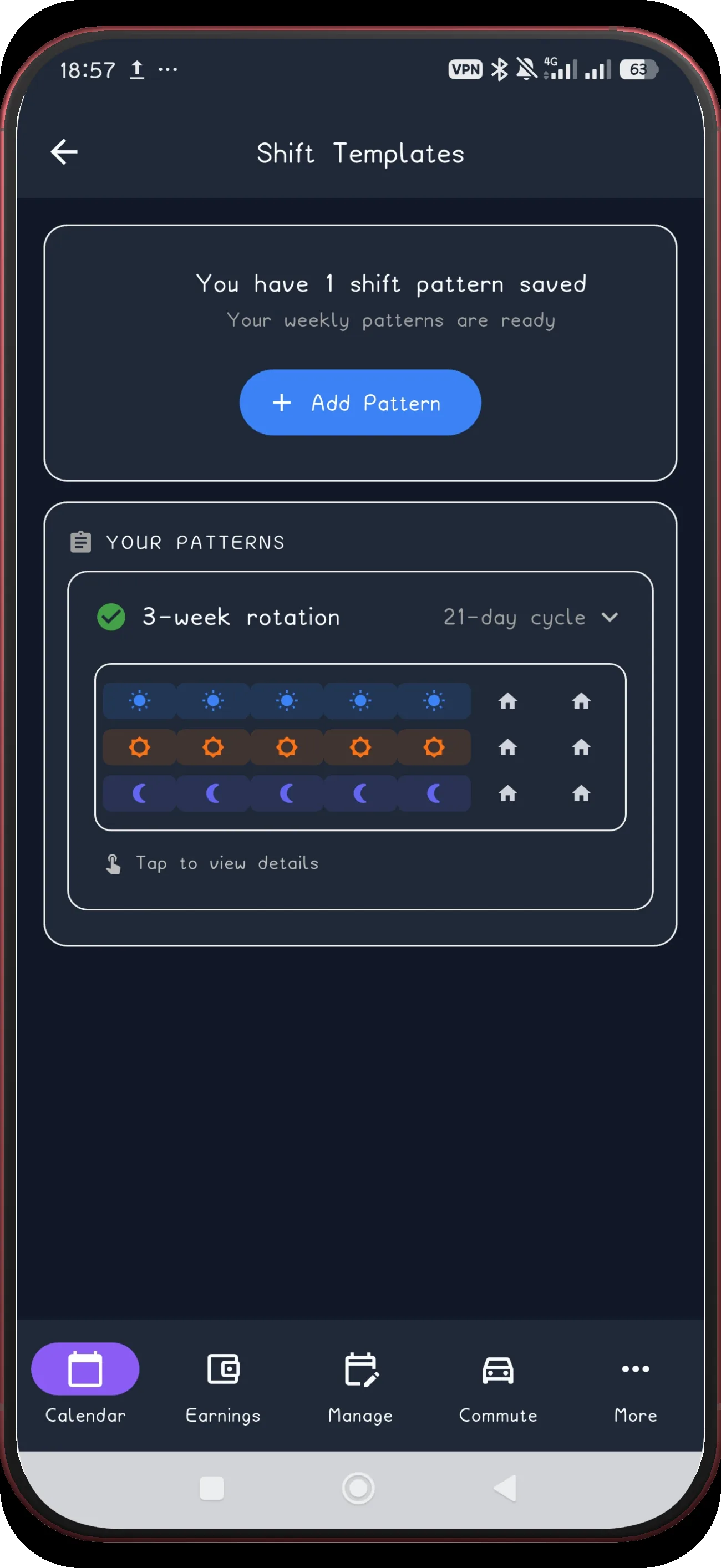
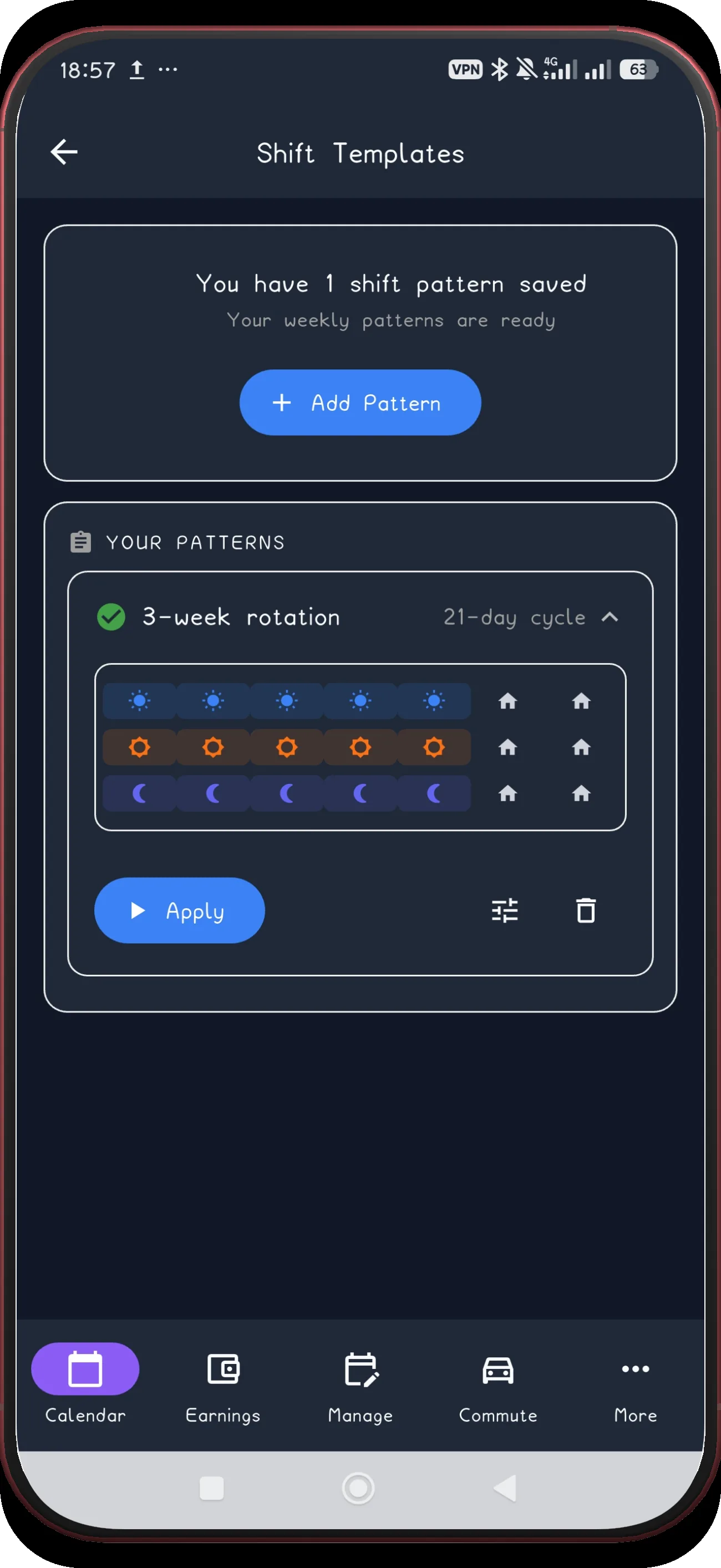
Open the saved pattern

Open the saved 3-week rotation pattern card.

Next step ↓
3-week rotation screen 22
22

Confirm Apply is available
The expanded saved card shows its Apply action.

Build the 3-week cycle once.

ShiftFlowr carries the rotation into each selected month, with reminders and wake-up alarms attached to every shift.

Get ShiftFlowr