ShiftFlowr / Pitman / Setup guide
Step-by-step guide
Setting up a Pitman schedule — every supplied screen, in order.
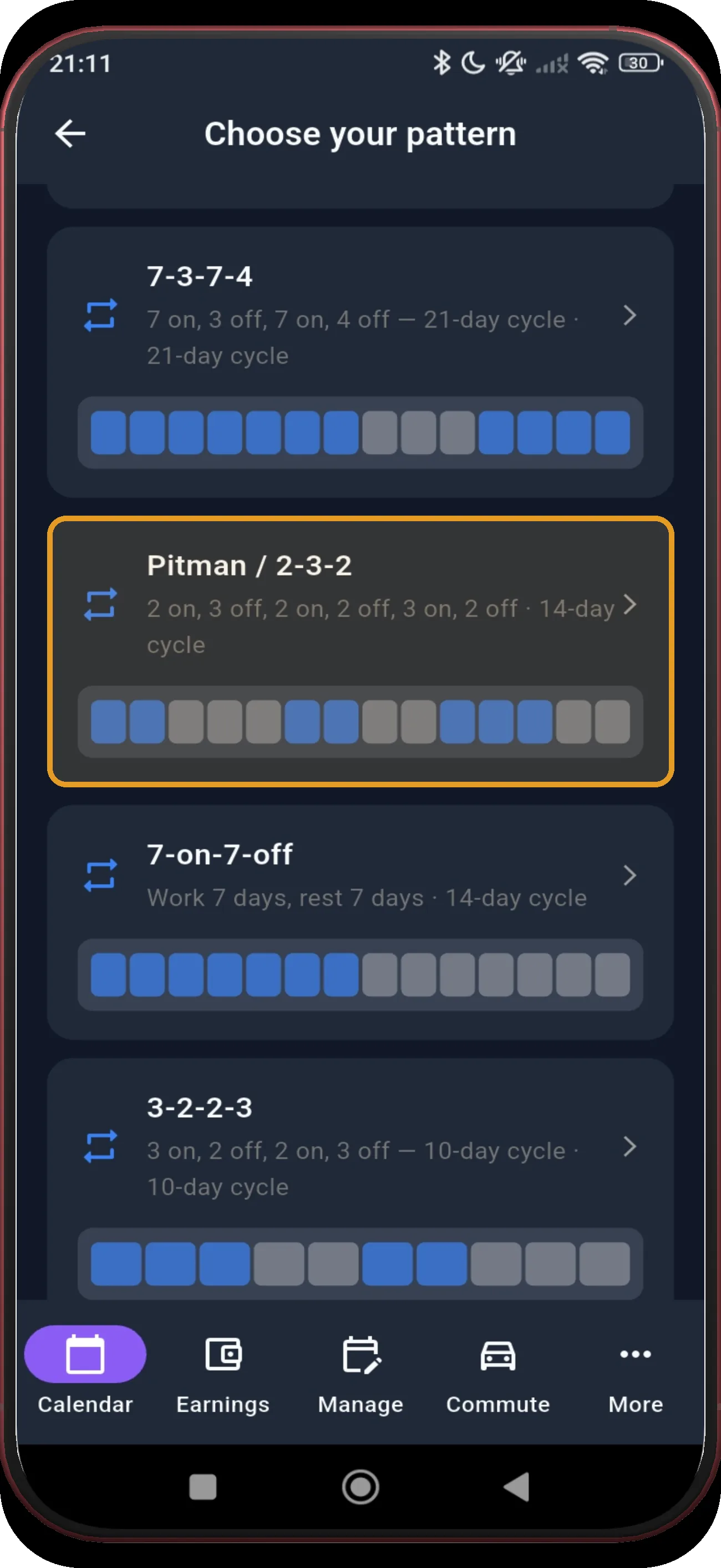
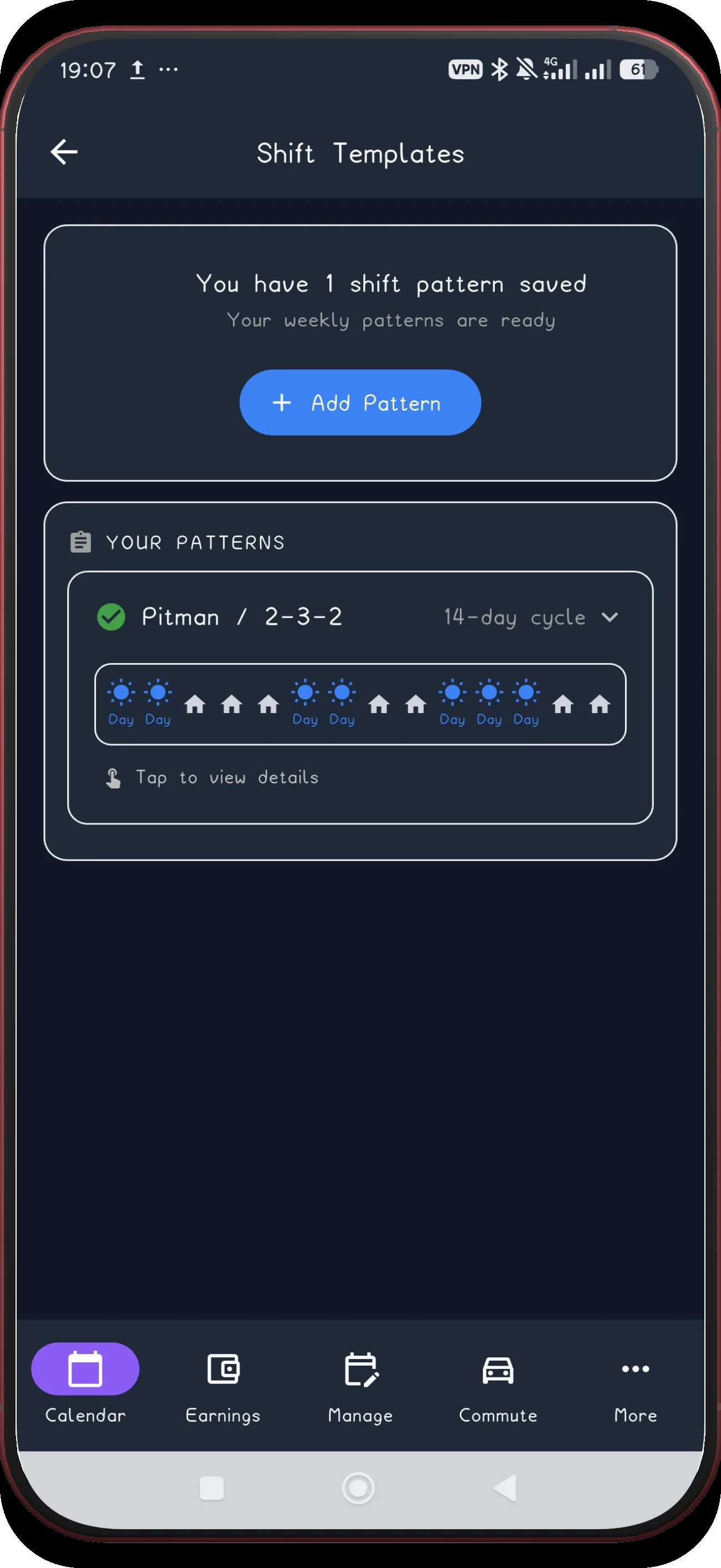
Pitman 2-3-2 is a 14-day shift pattern with two rest periods in every cycle: a two-day break and a three-day break that often lands on a weekend. 21 real screenshots: choose the fixed variant, set the anchor date, select months, preview the cycle, apply it, and confirm the saved pattern.
Free on Android · Early access
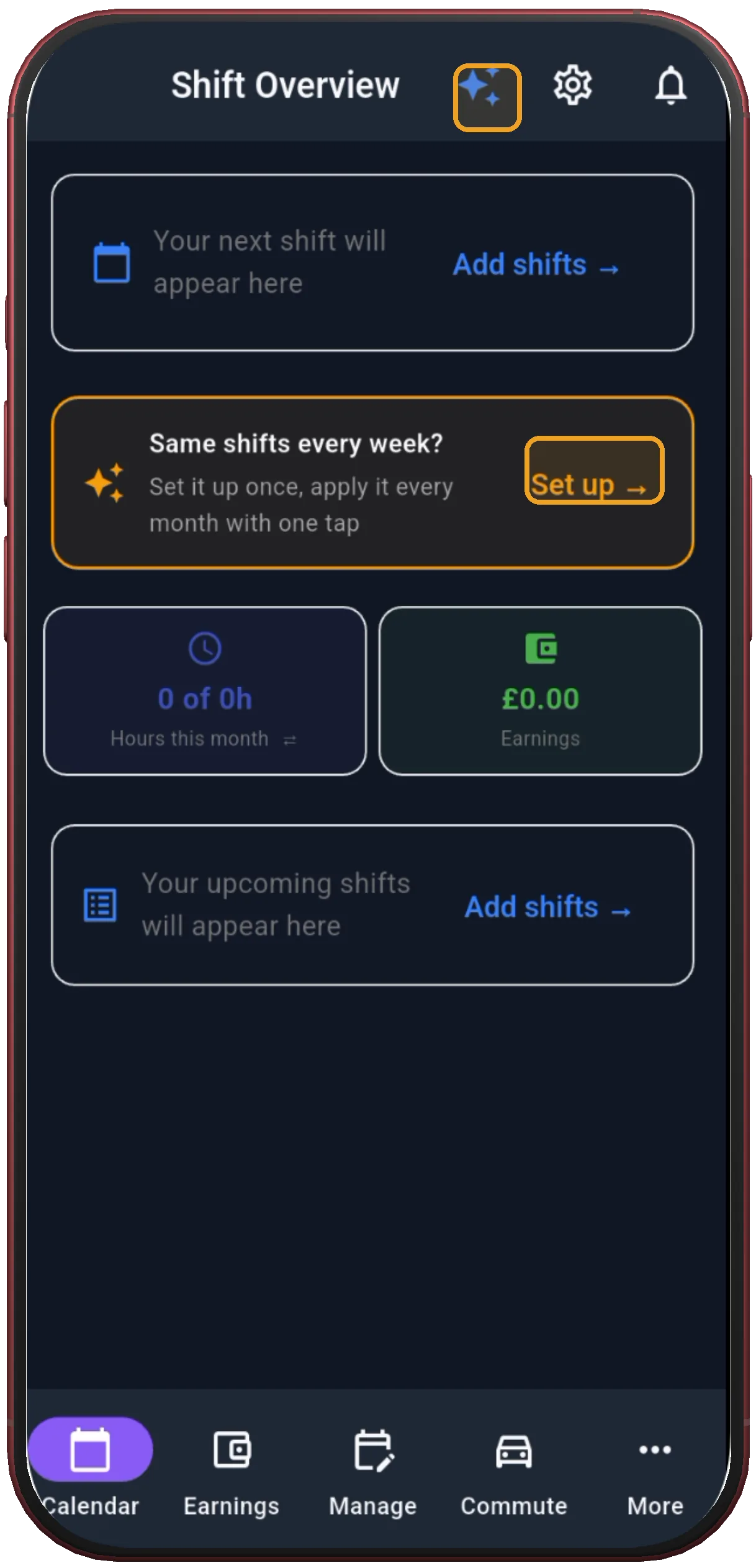
 1. Tap Set up
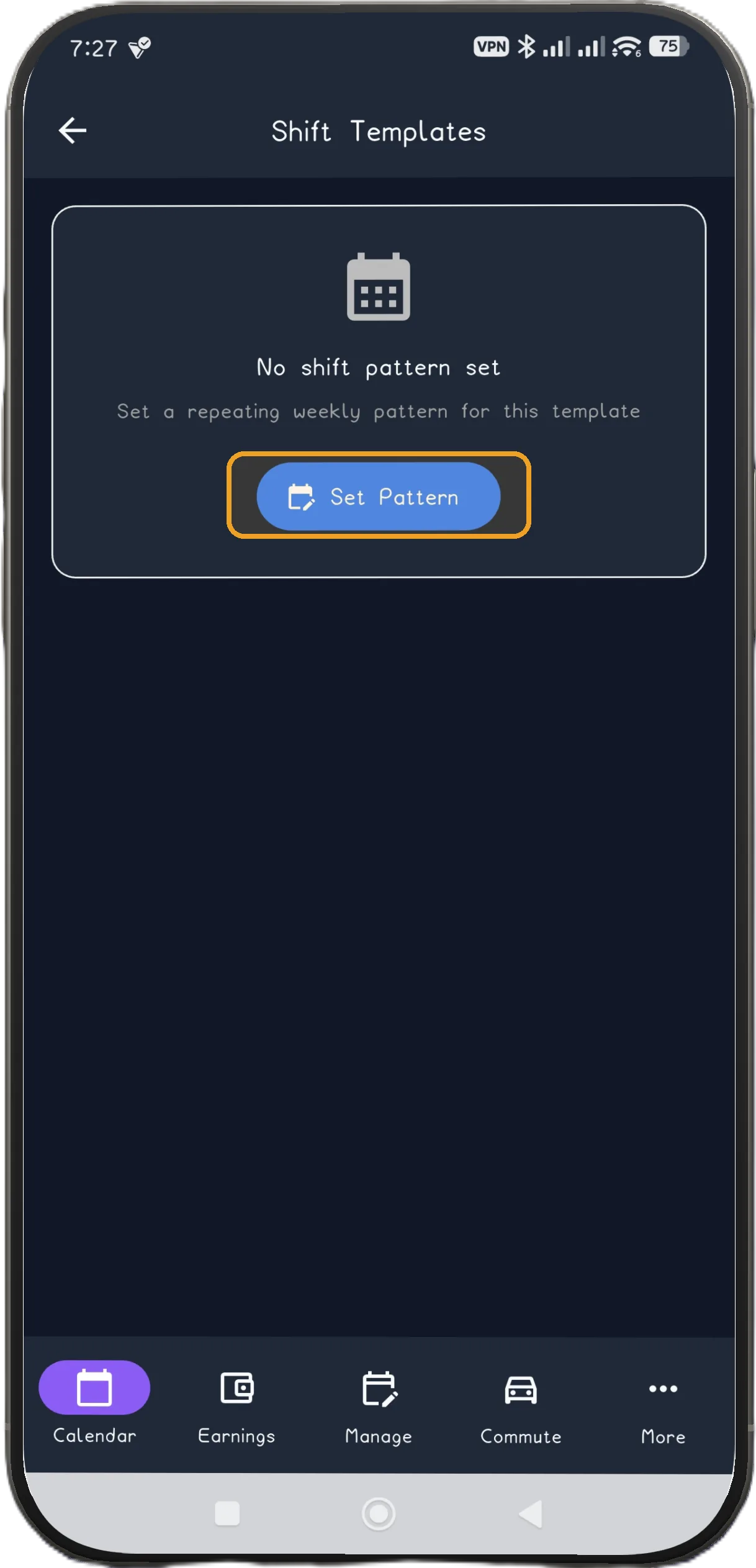
 2. Tap Set Pattern
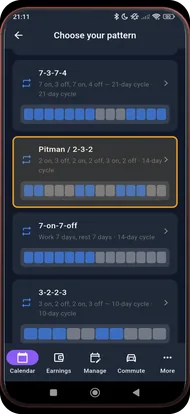 3. Choose Pitman
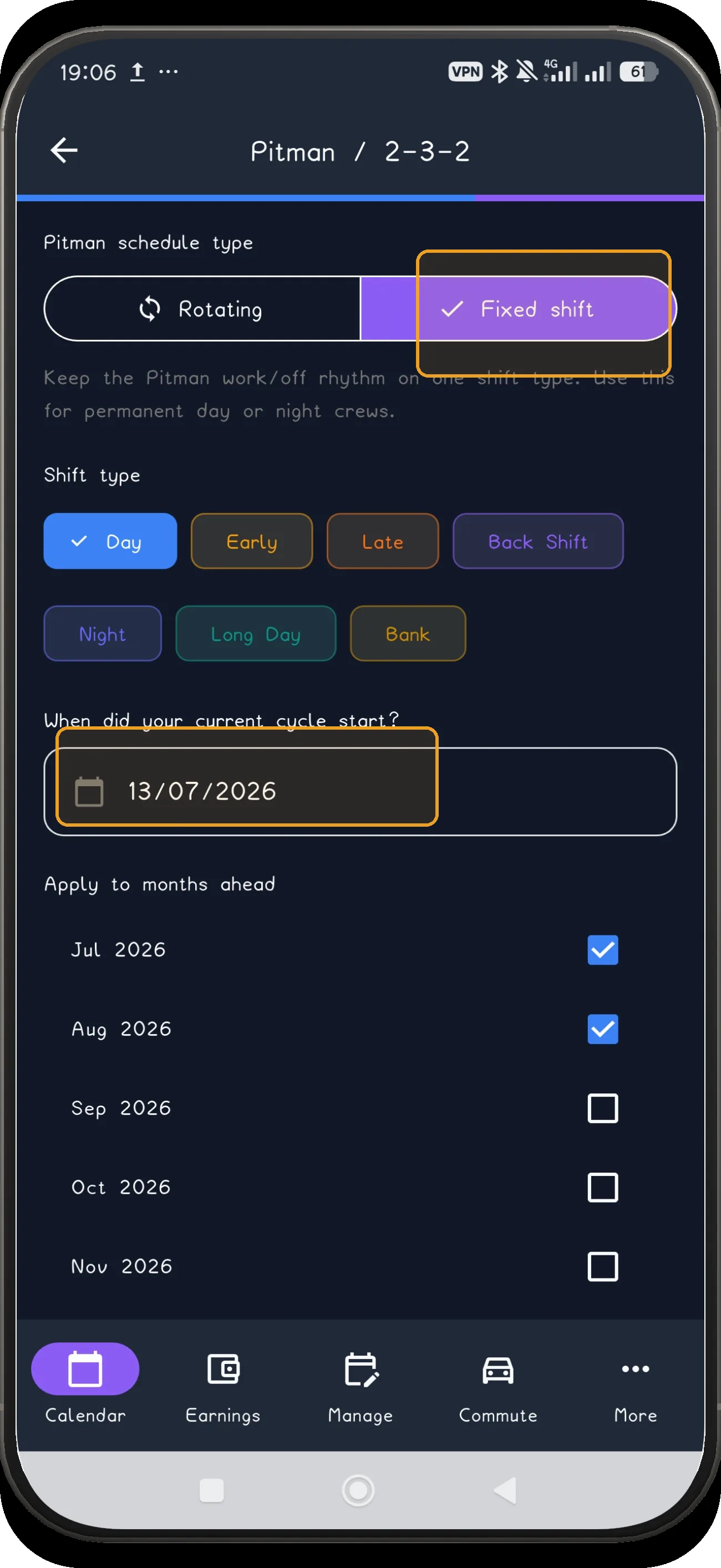
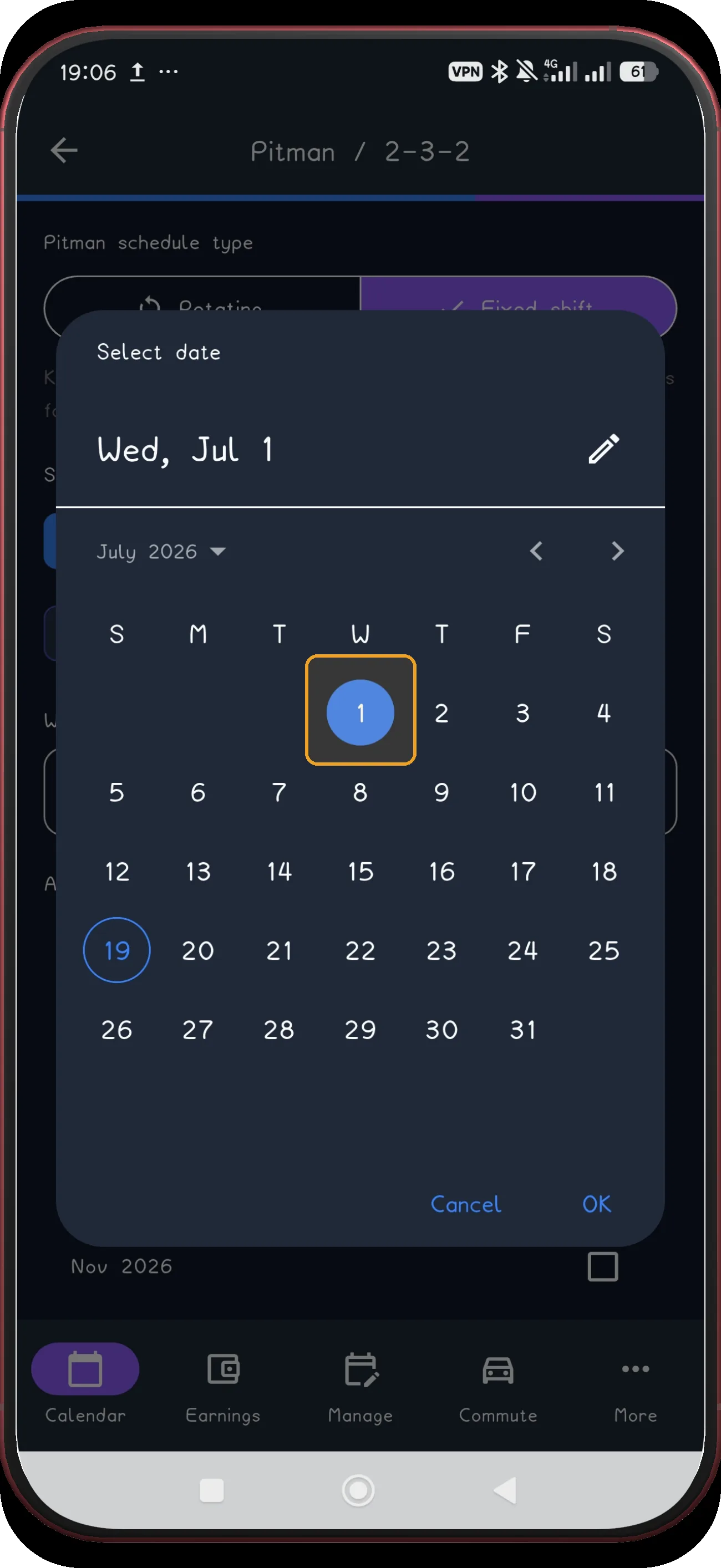
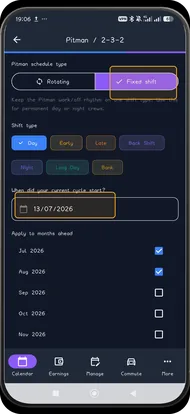 4. Choose Fixed shift and open the date
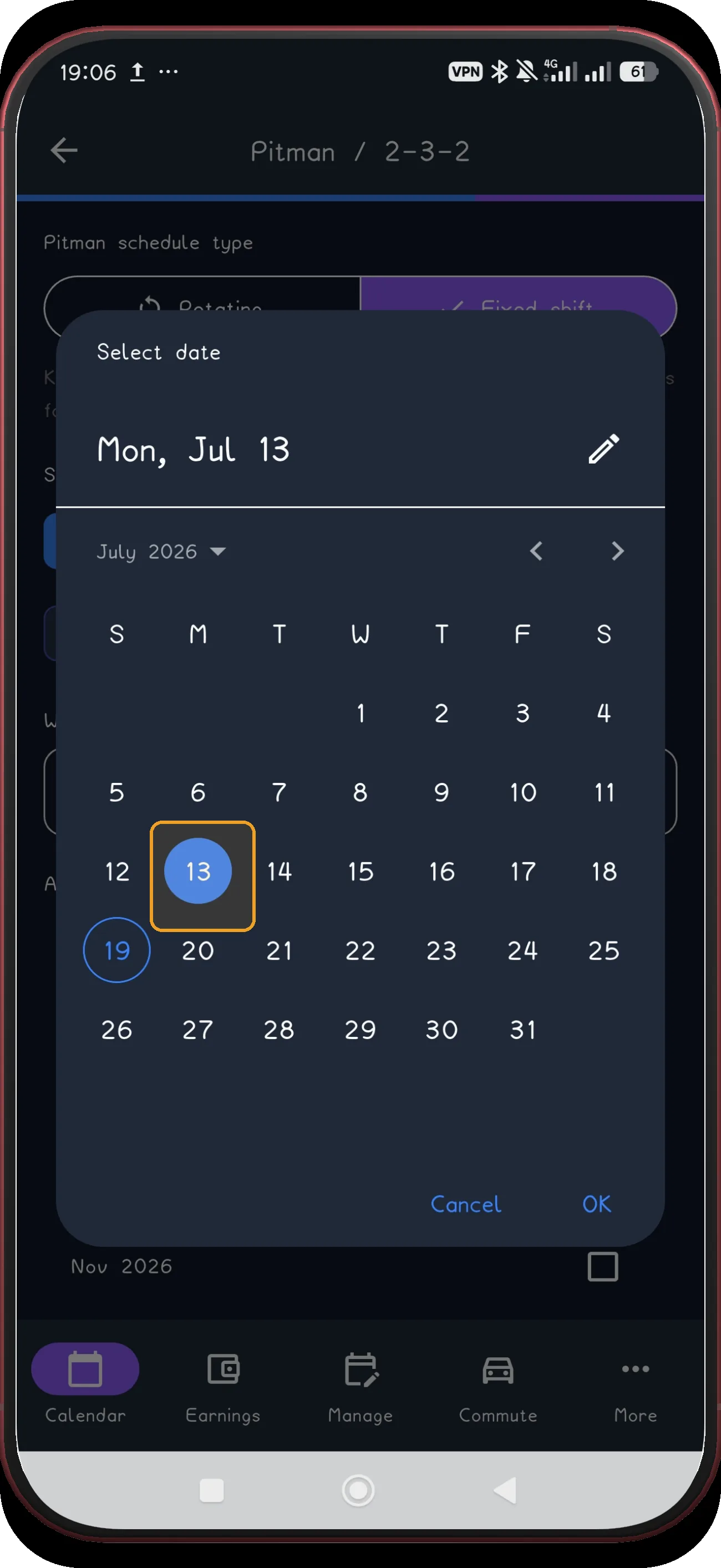
 5. Choose the first anchor date
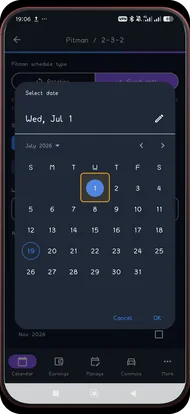 6. Choose the second anchor date
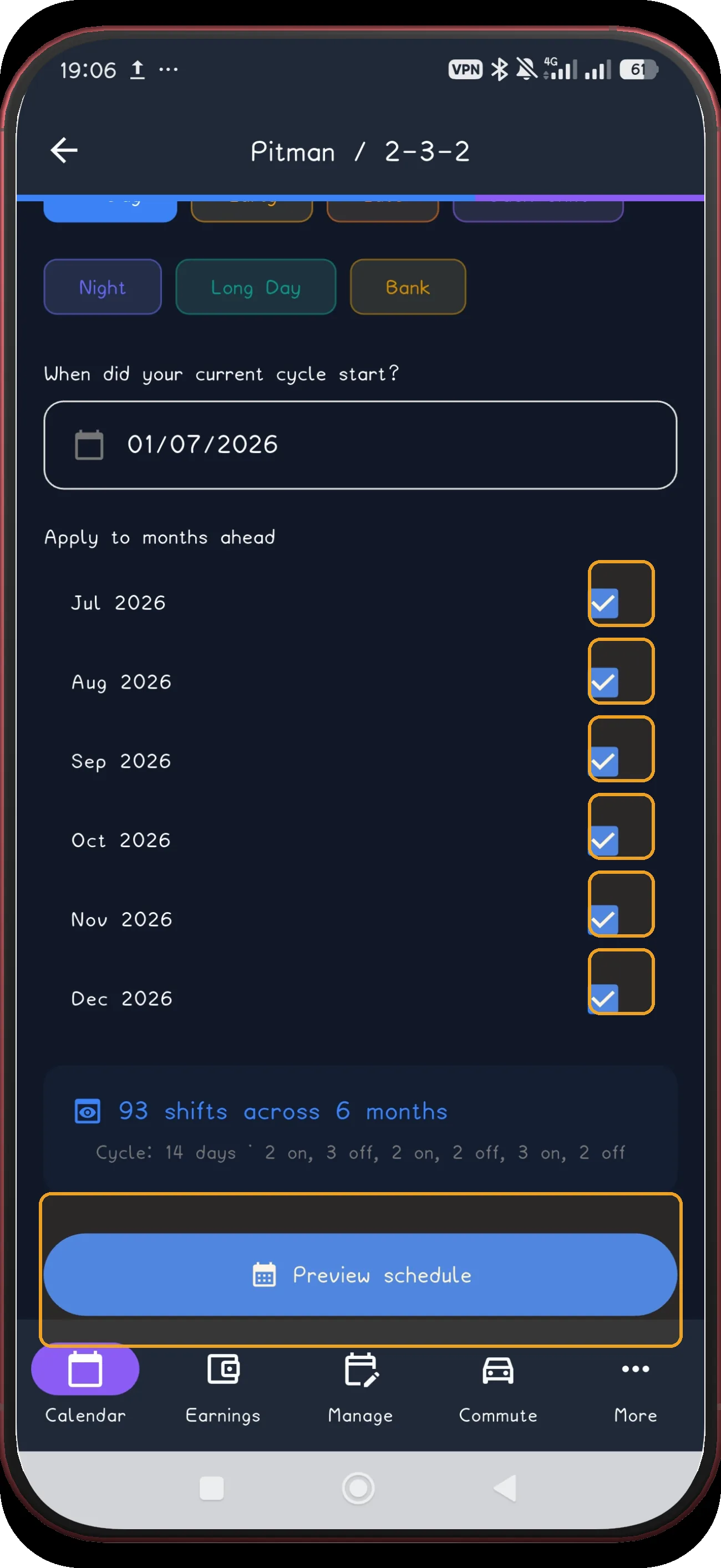
 7. Select the months
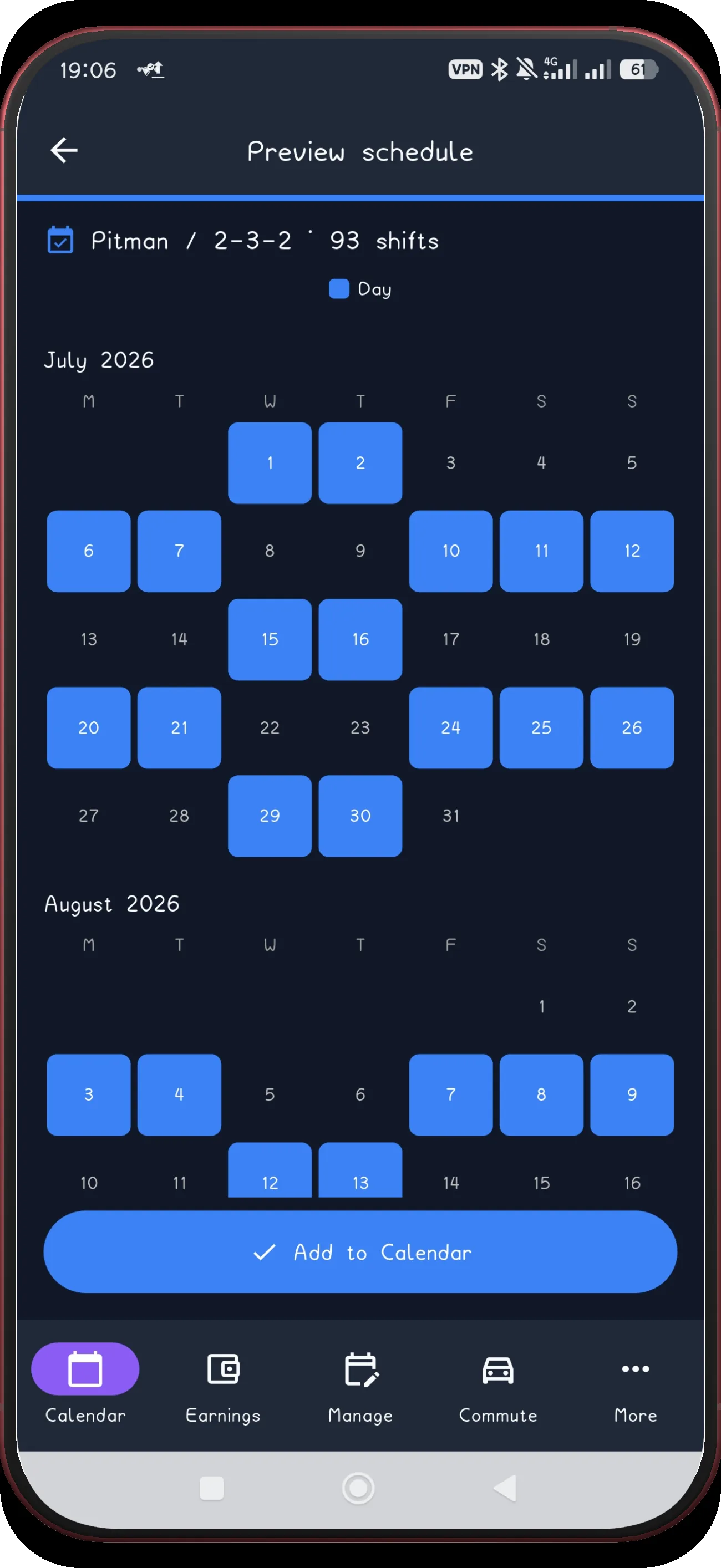
 8. Review July and August
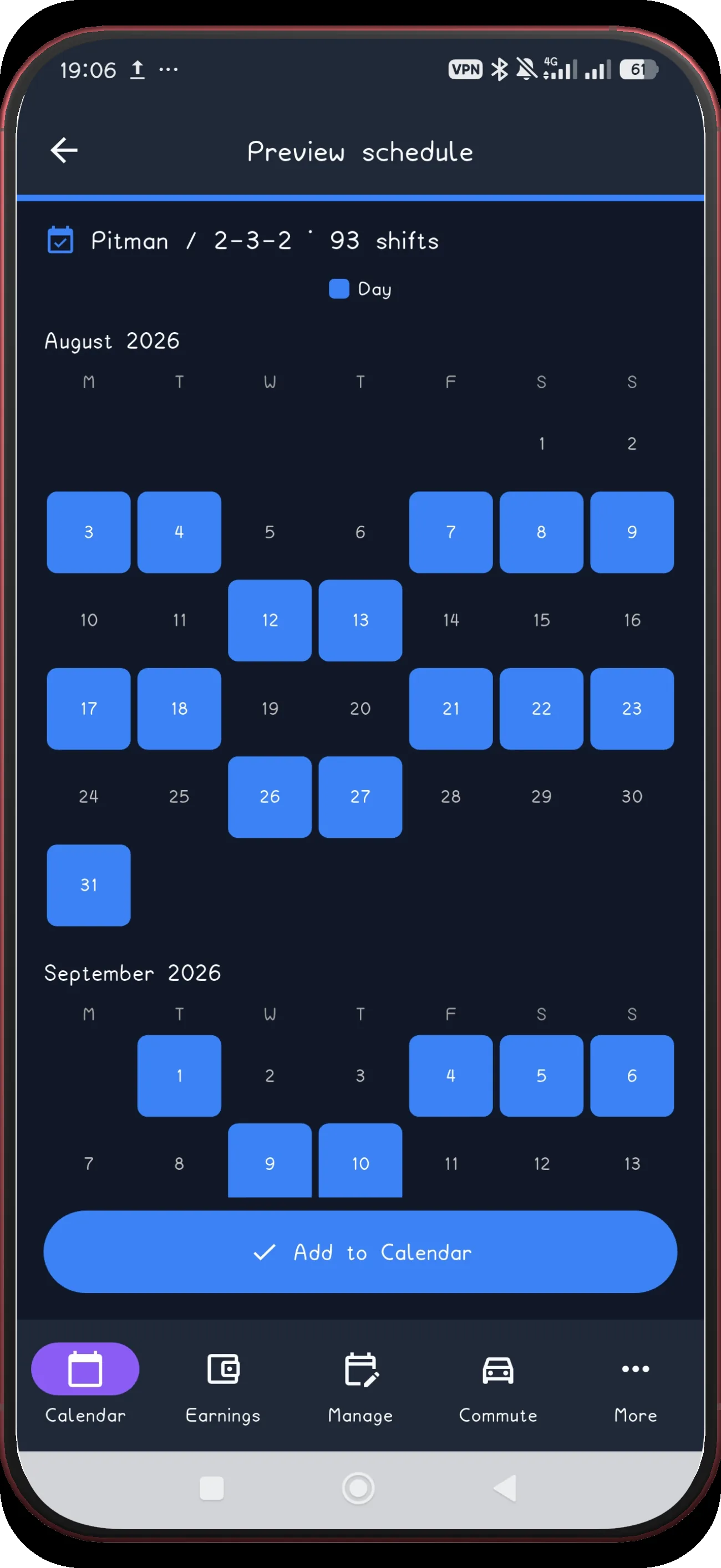
 9. Review August and September
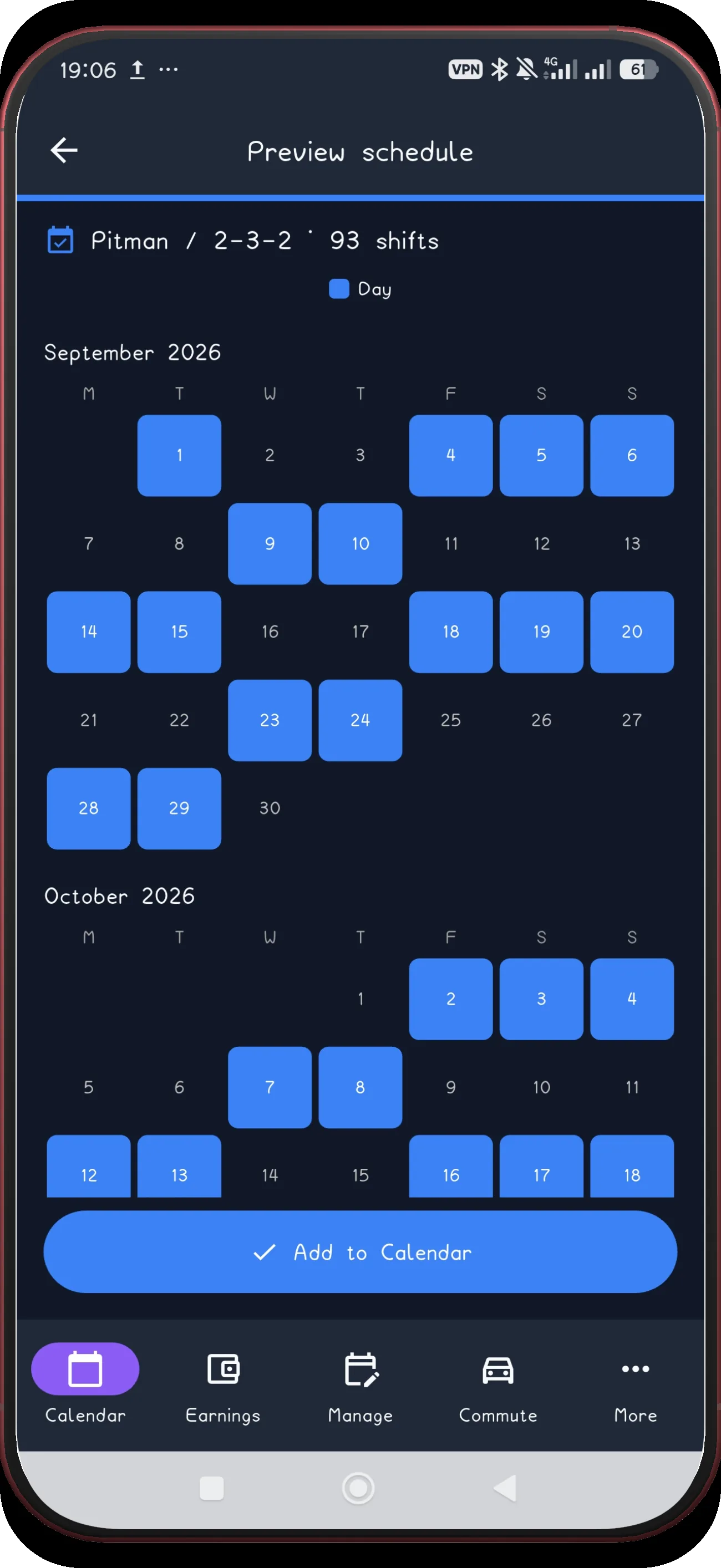
 10. Review September and October
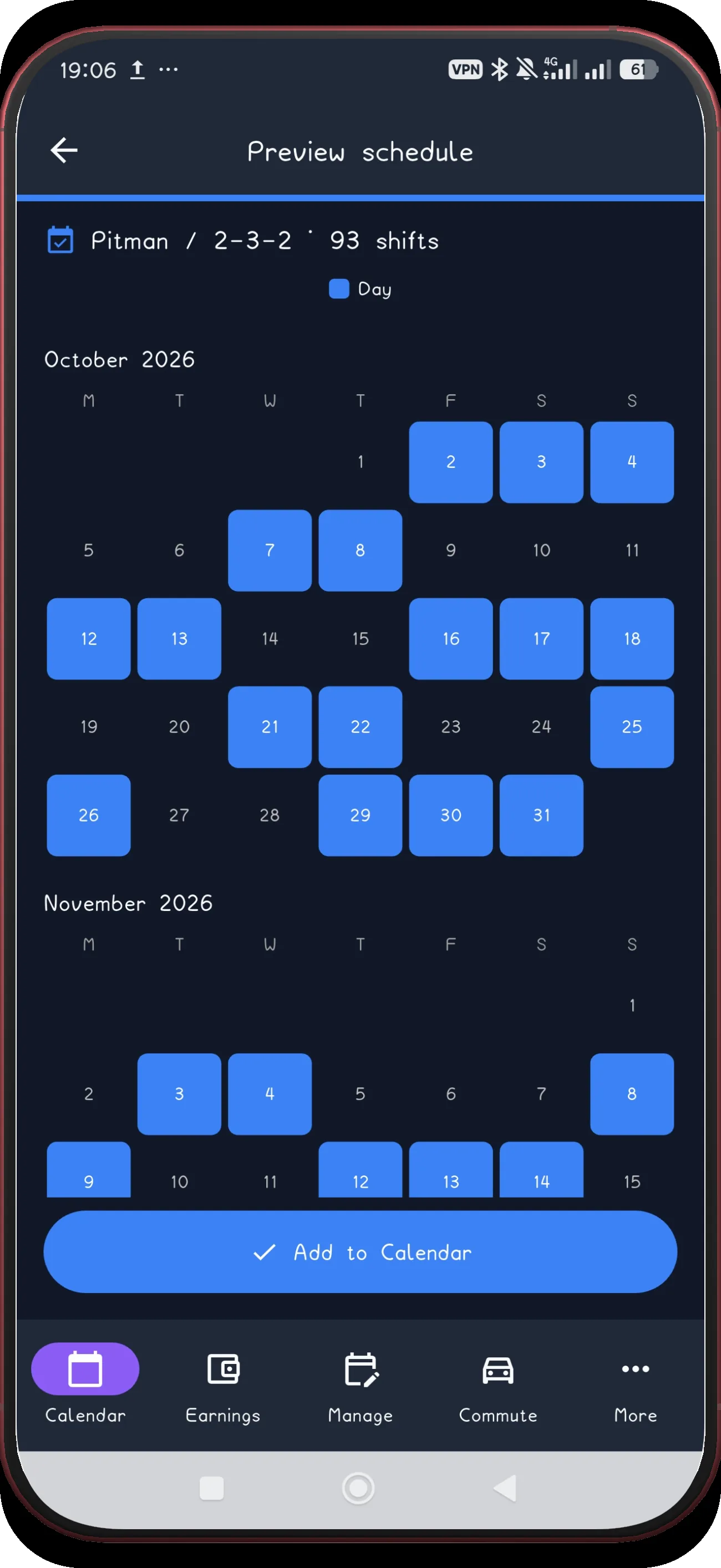
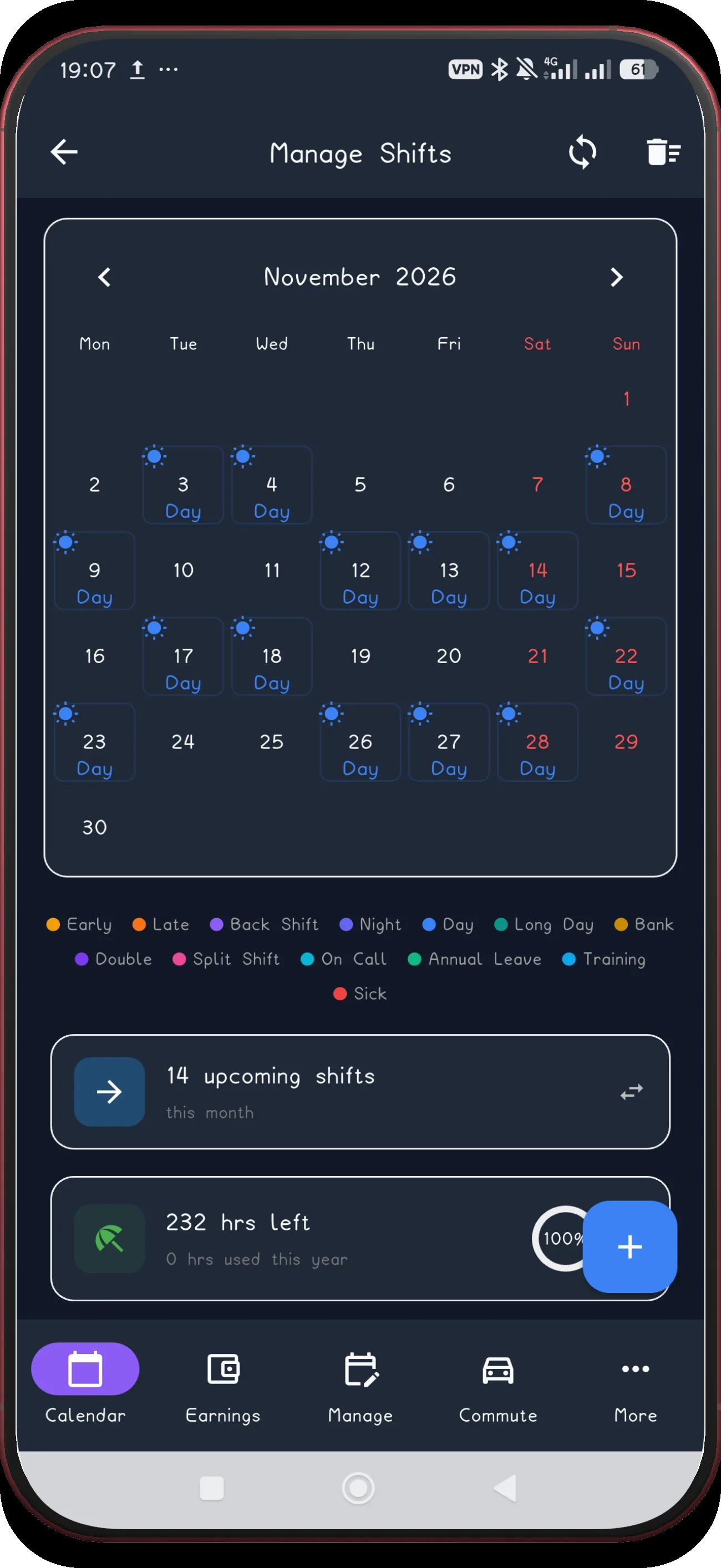
 11. Review October and November
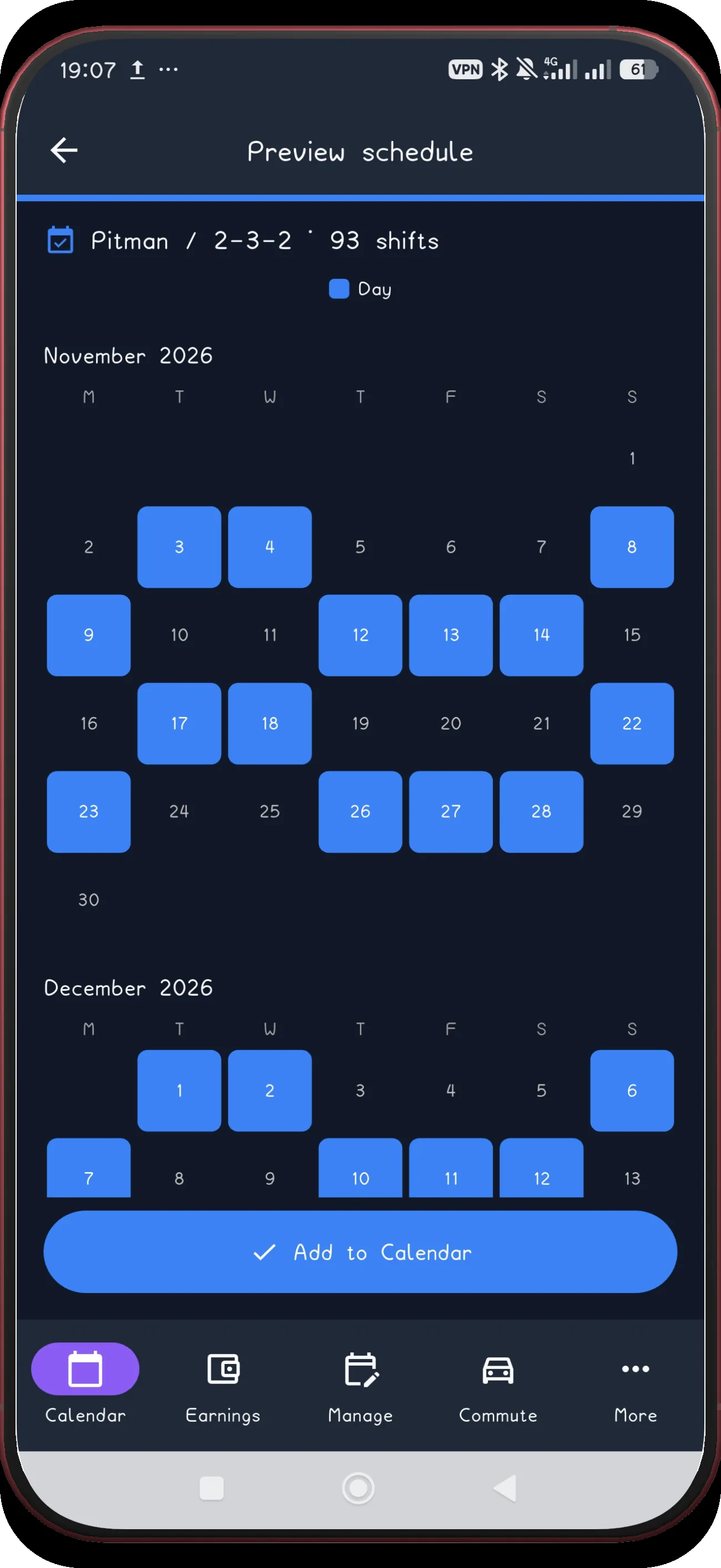
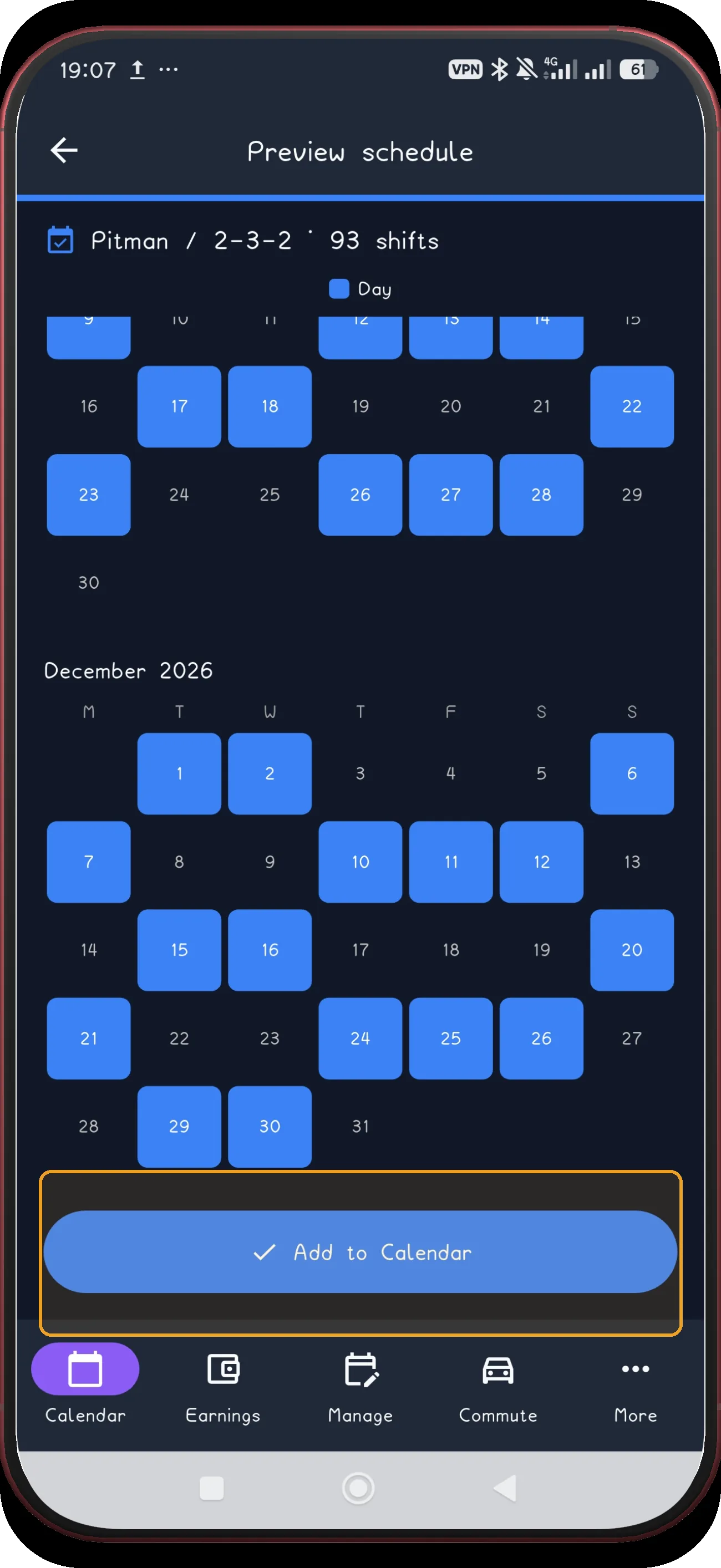
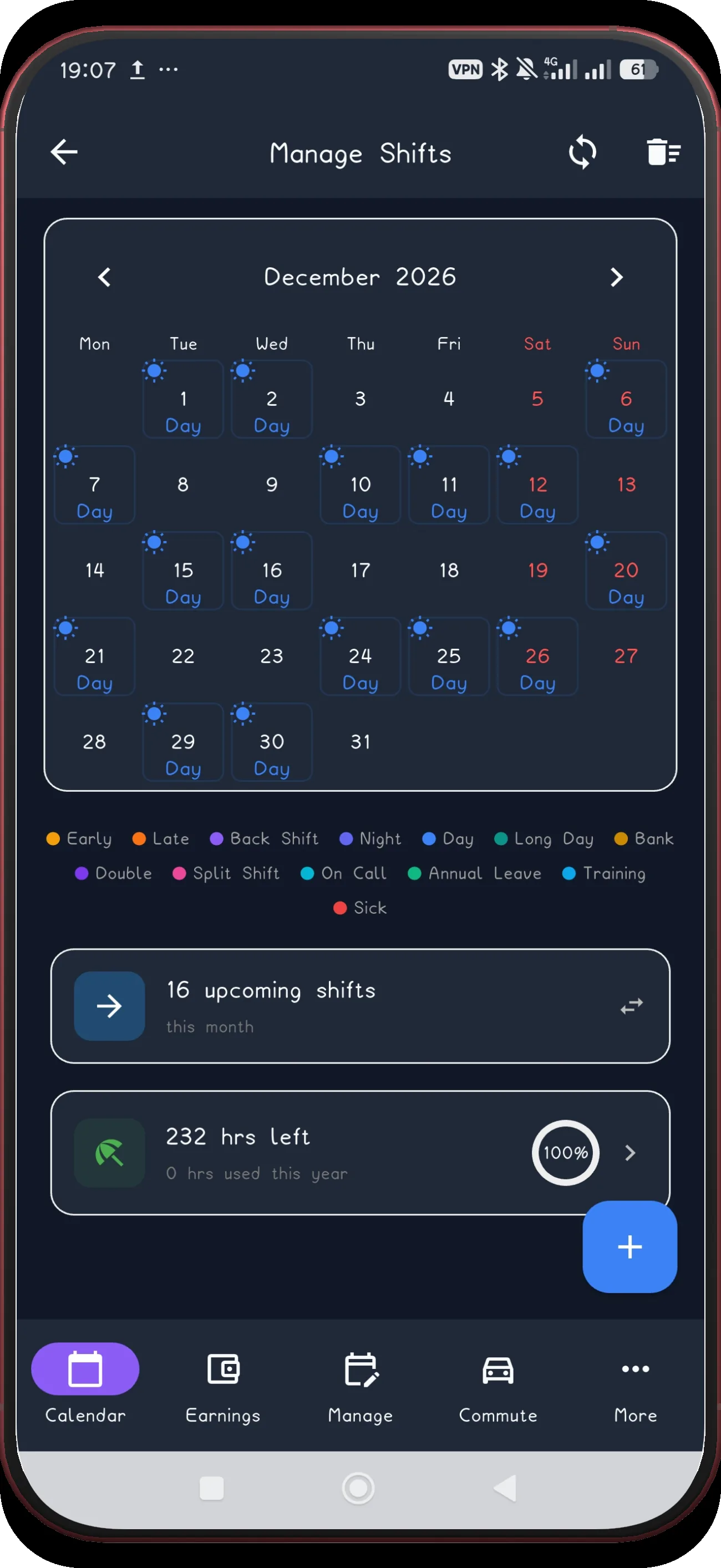
 12. Review November and December
 13. Add the schedule
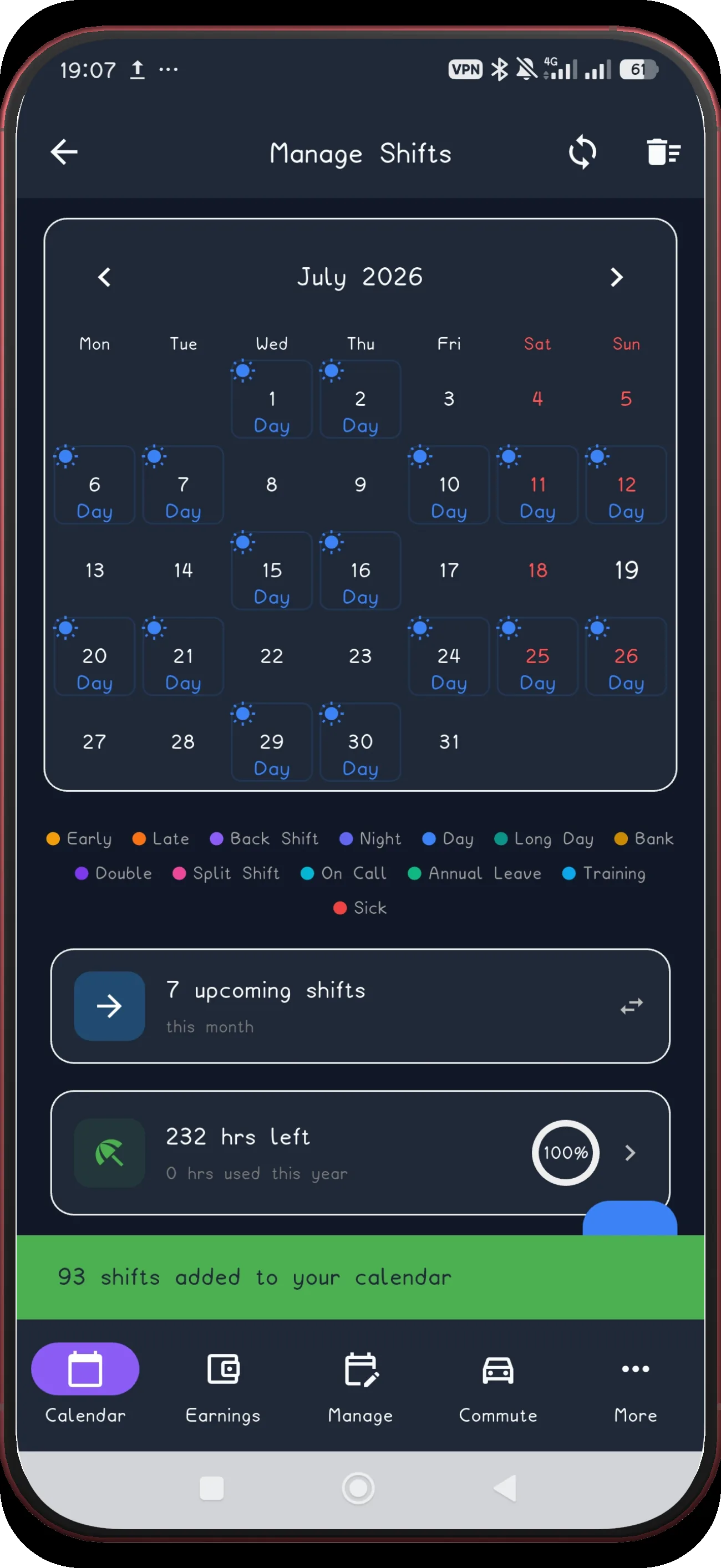
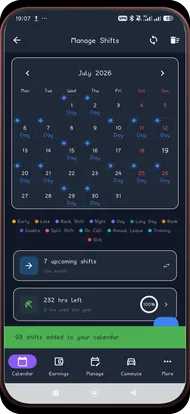 14. Check July
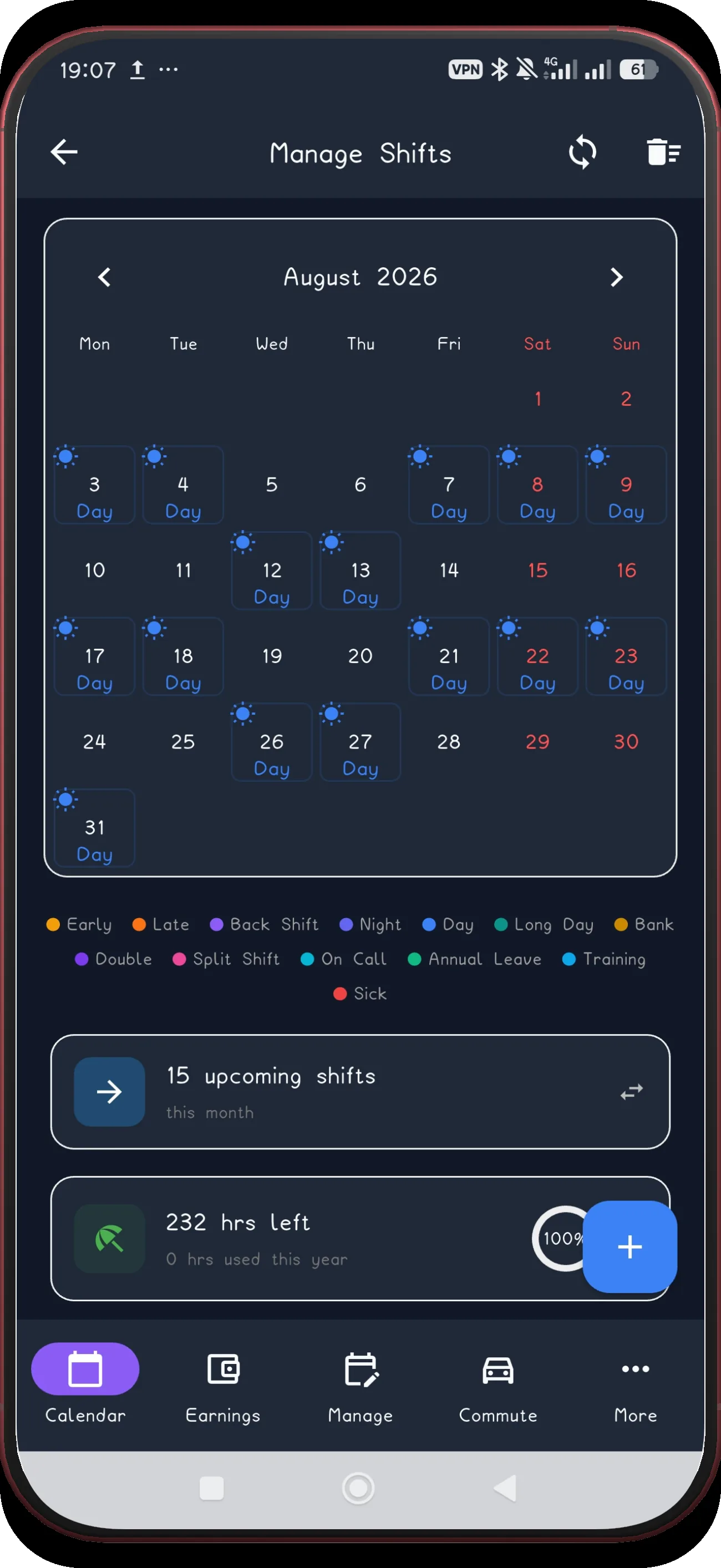
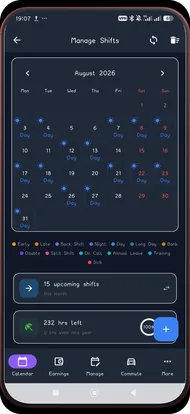 15. Check August
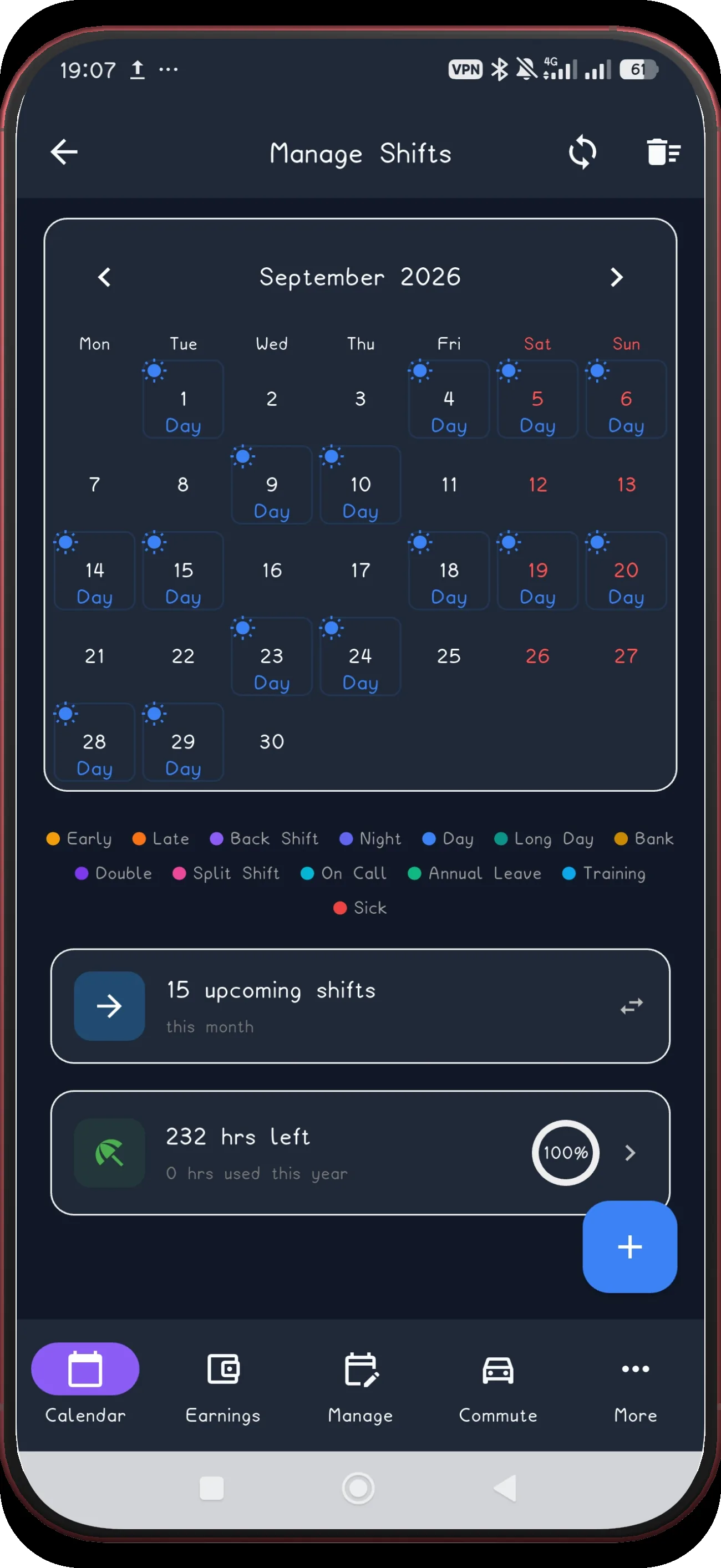
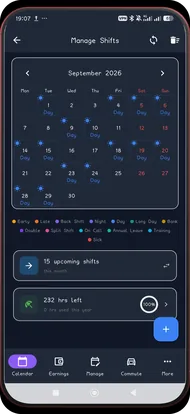 16. Check September
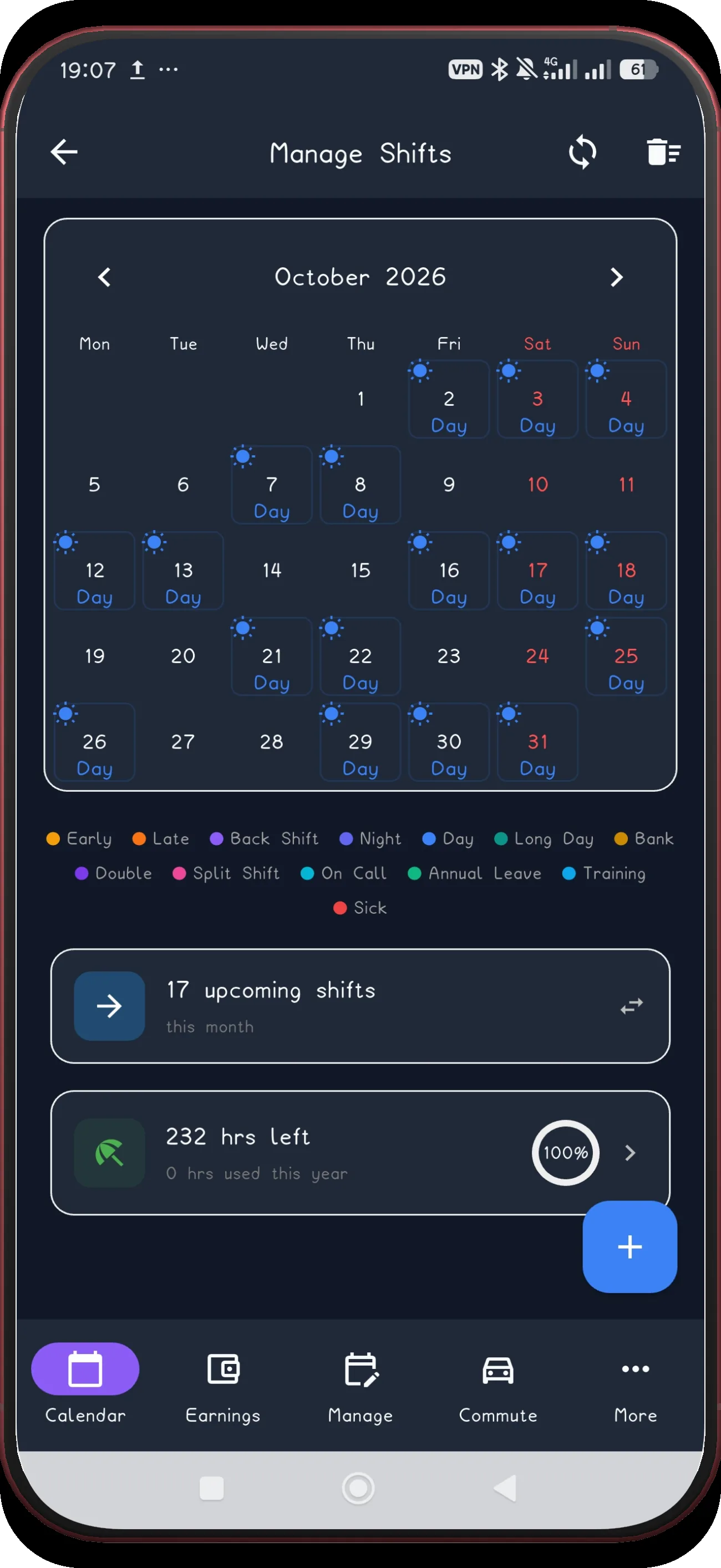
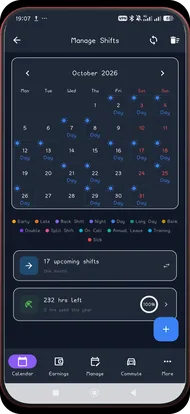 17. Check October
 18. Check November
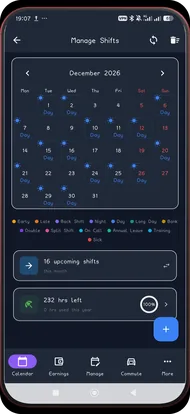 19. Check December
 20. Open the saved pattern
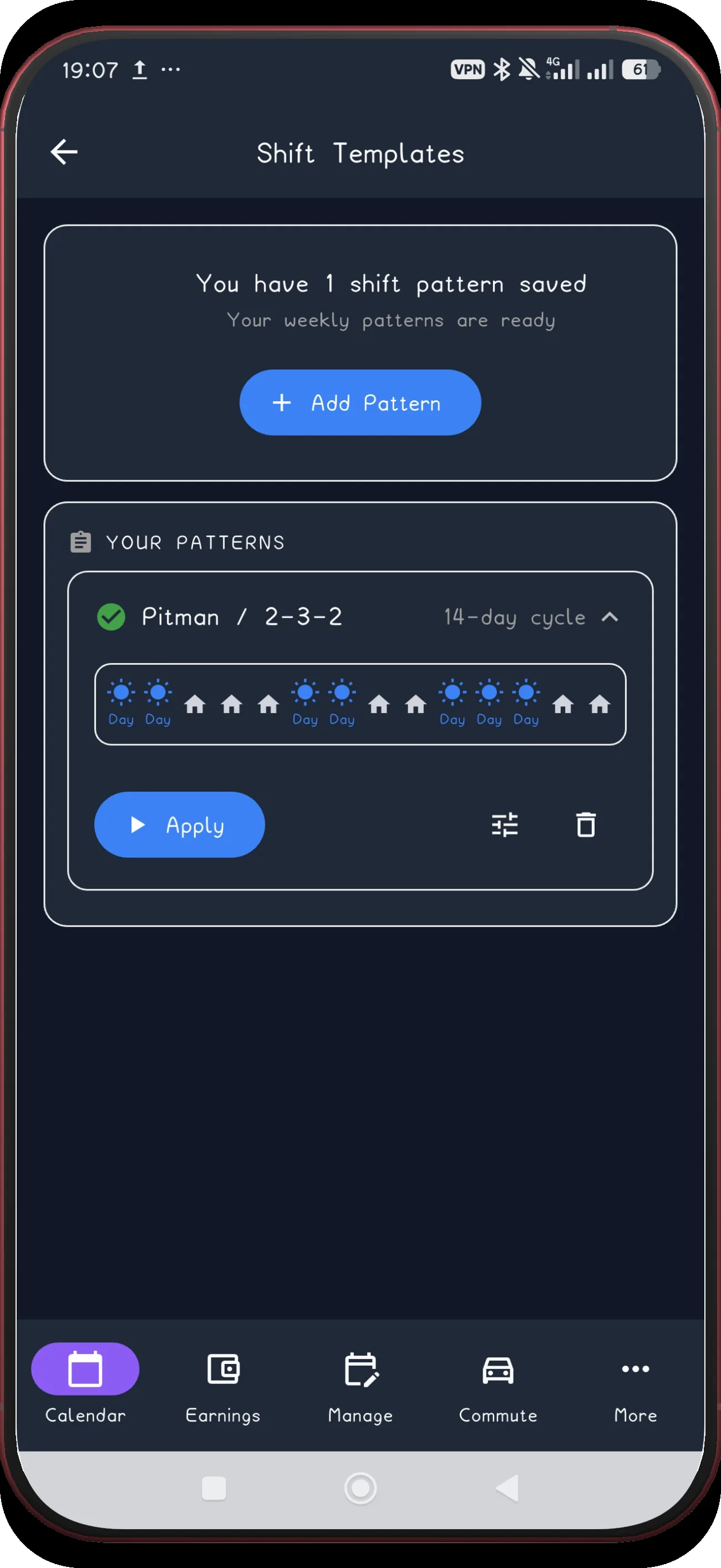
 21. Confirm Apply is available