1
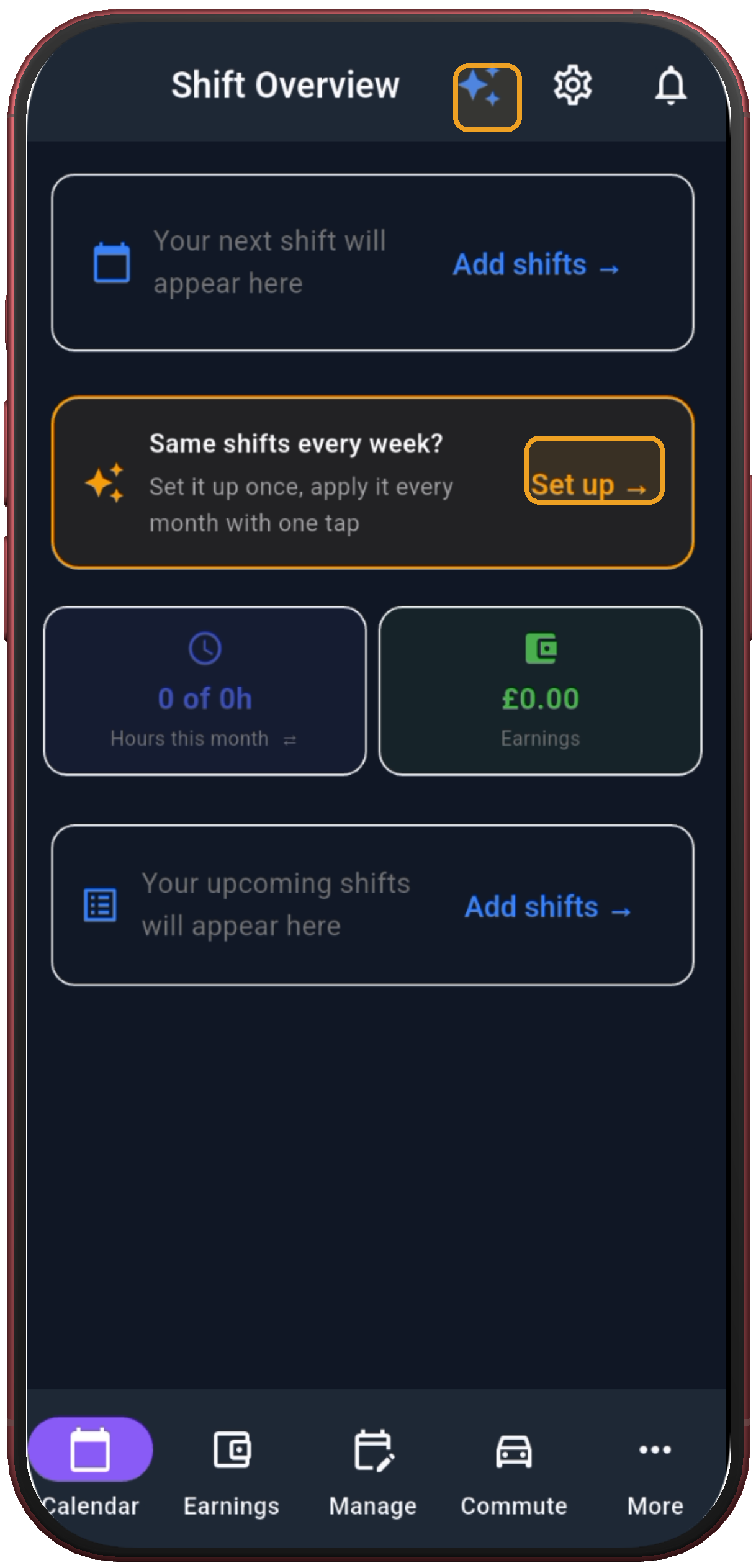
Tap Set up
Shift Overview shows the entry point for building a repeating shift pattern.
Next step ↓ShiftFlowr / Back Shift Alternating / Setup guide
Step-by-step guide
This pattern is a 14-day weekday rotation: a week of day shifts and two days off, then a week of back shifts and two days off. 19 real screenshots, start to finish: pick the preset, set your anchor date, preview, and apply. About 20 seconds once you've done it once.
Free on Android · Early access
 1. Tap Set up
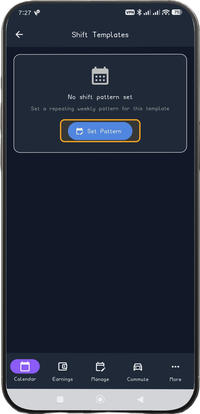 2. Tap Set Pattern
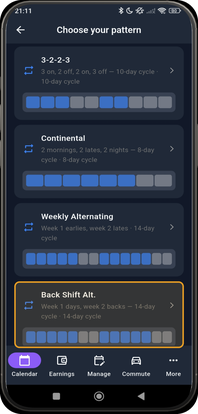 3. Choose Back Shift Alternating
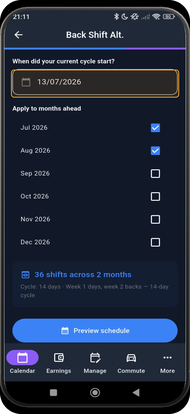 4. Open the cycle date
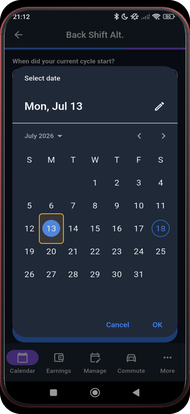 5. Choose the first cycle date
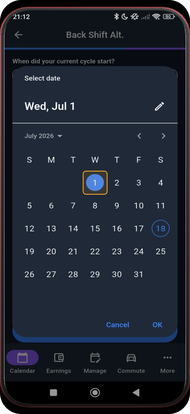 6. Confirm the date
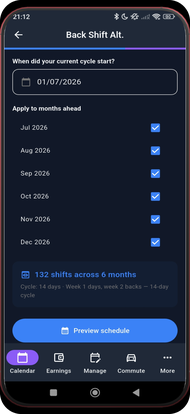 7. Select the months
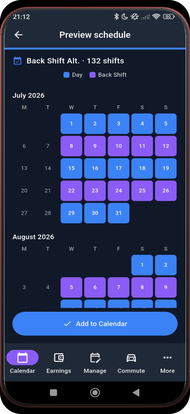 8. Review July and August
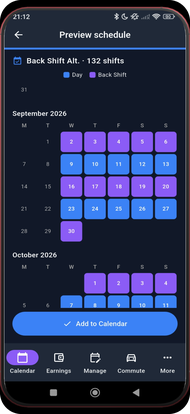 9. Review September and October
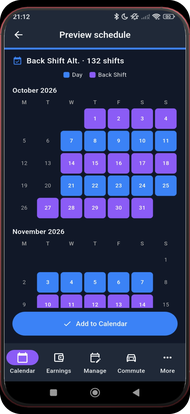 10. Review October and November
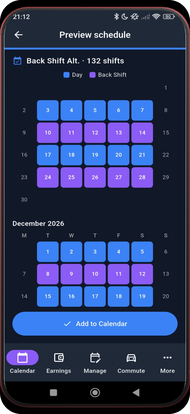 11. Review November and December
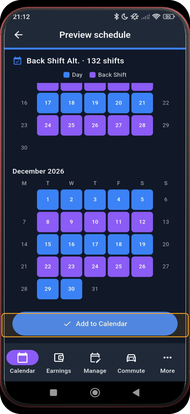 12. Add the schedule
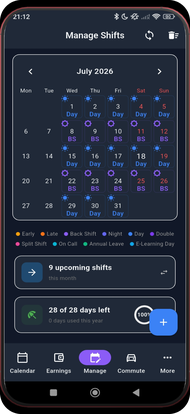 13. Check July
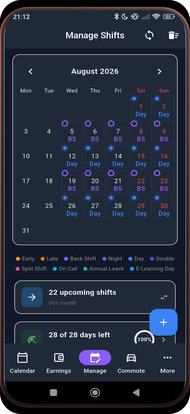 14. Check August
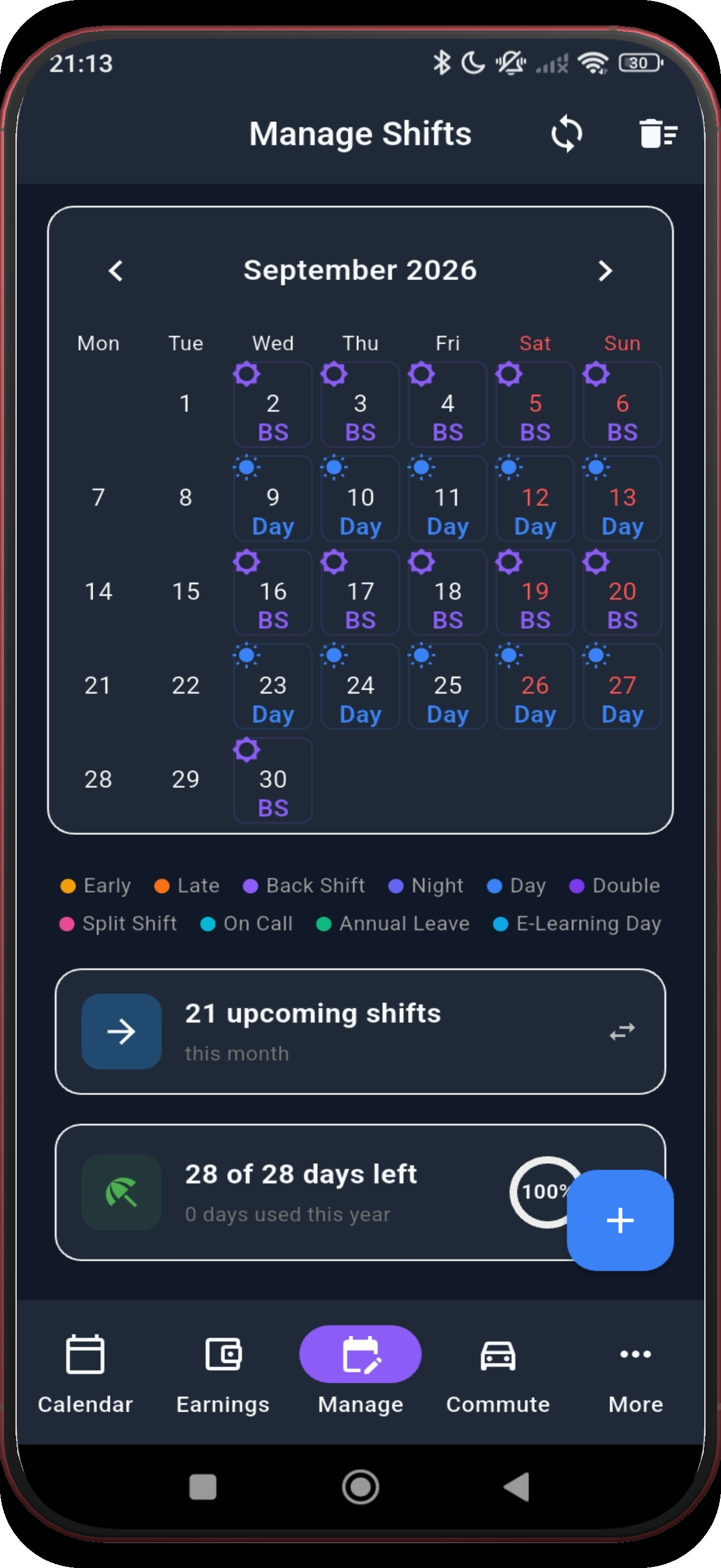
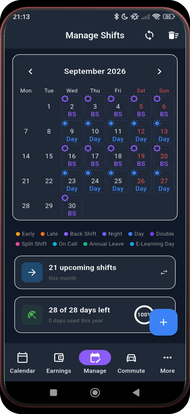 15. Check September
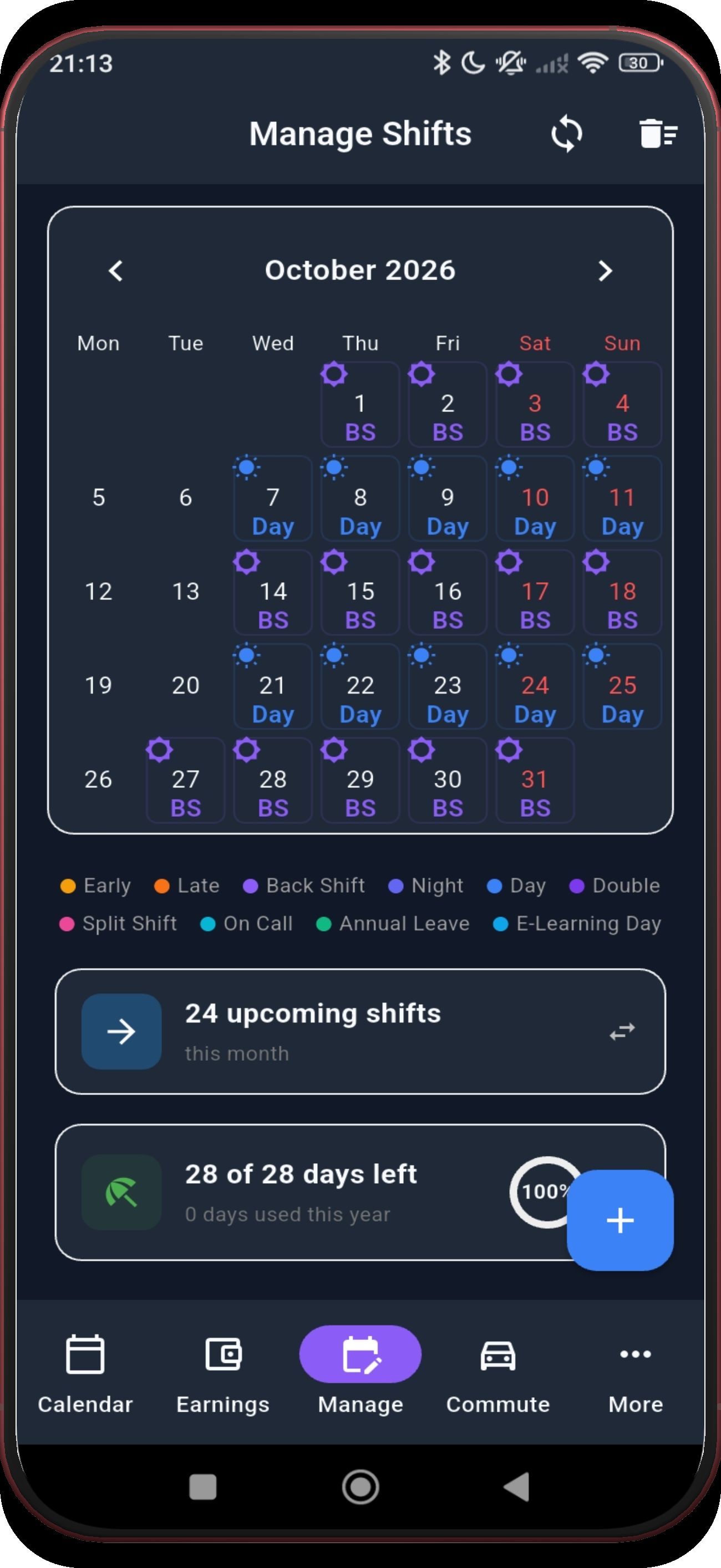
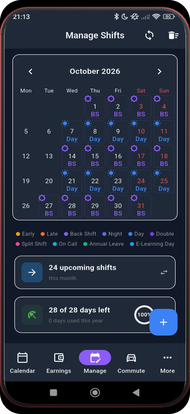 16. Check October
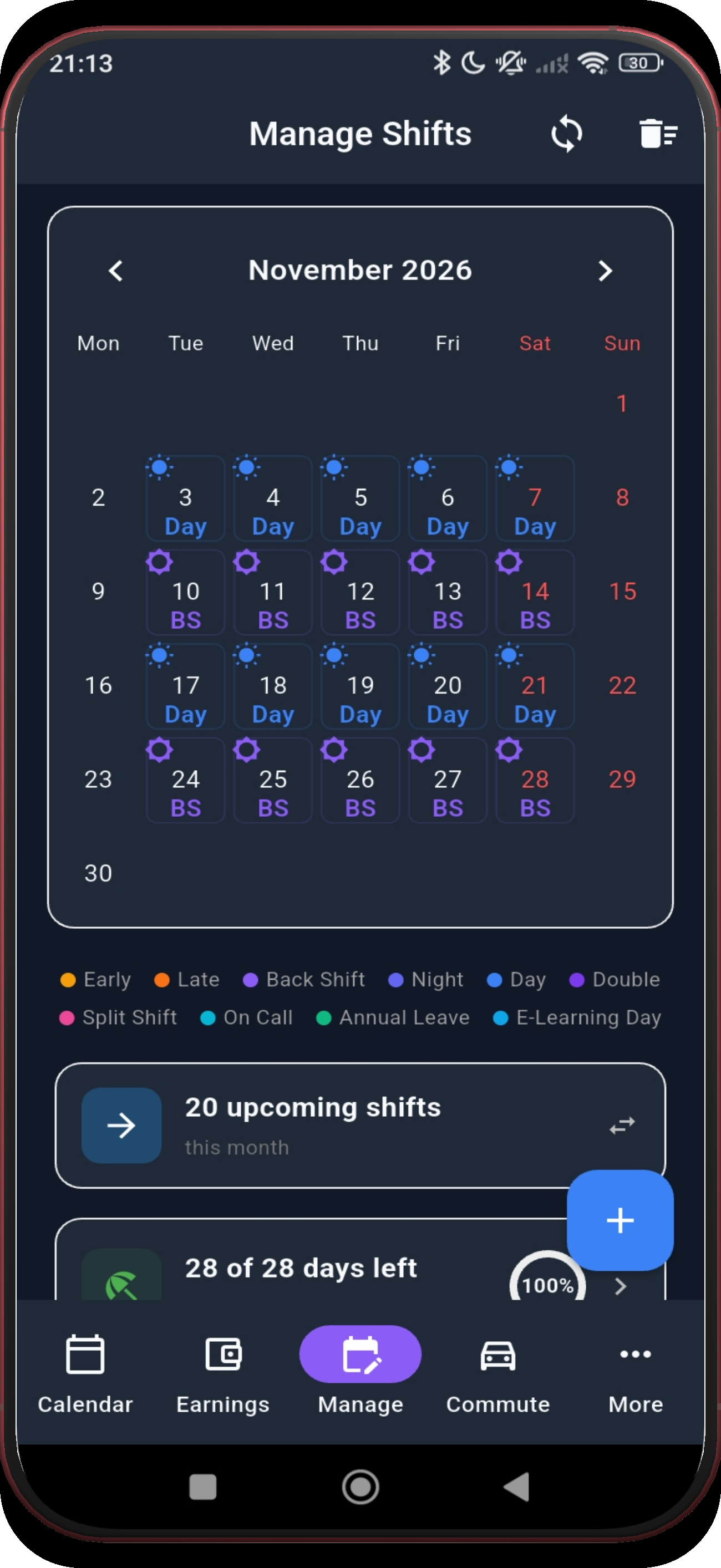
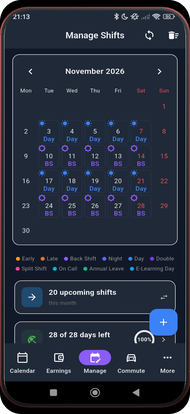 17. Check November
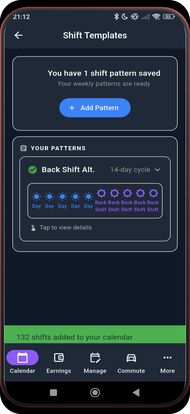 18. Confirm the saved pattern
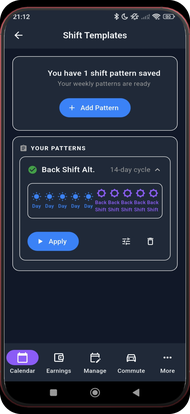 19. Open the saved pattern
Before you start
The screenshots below use Back Shift Alternating as the example, but the flow — pick a preset, set your anchor date, preview, apply — is identical across the pattern library. Only step 3 changes: pick whichever pattern matches your own schedule instead.
Shift Overview shows the entry point for building a repeating shift pattern.
Next step ↓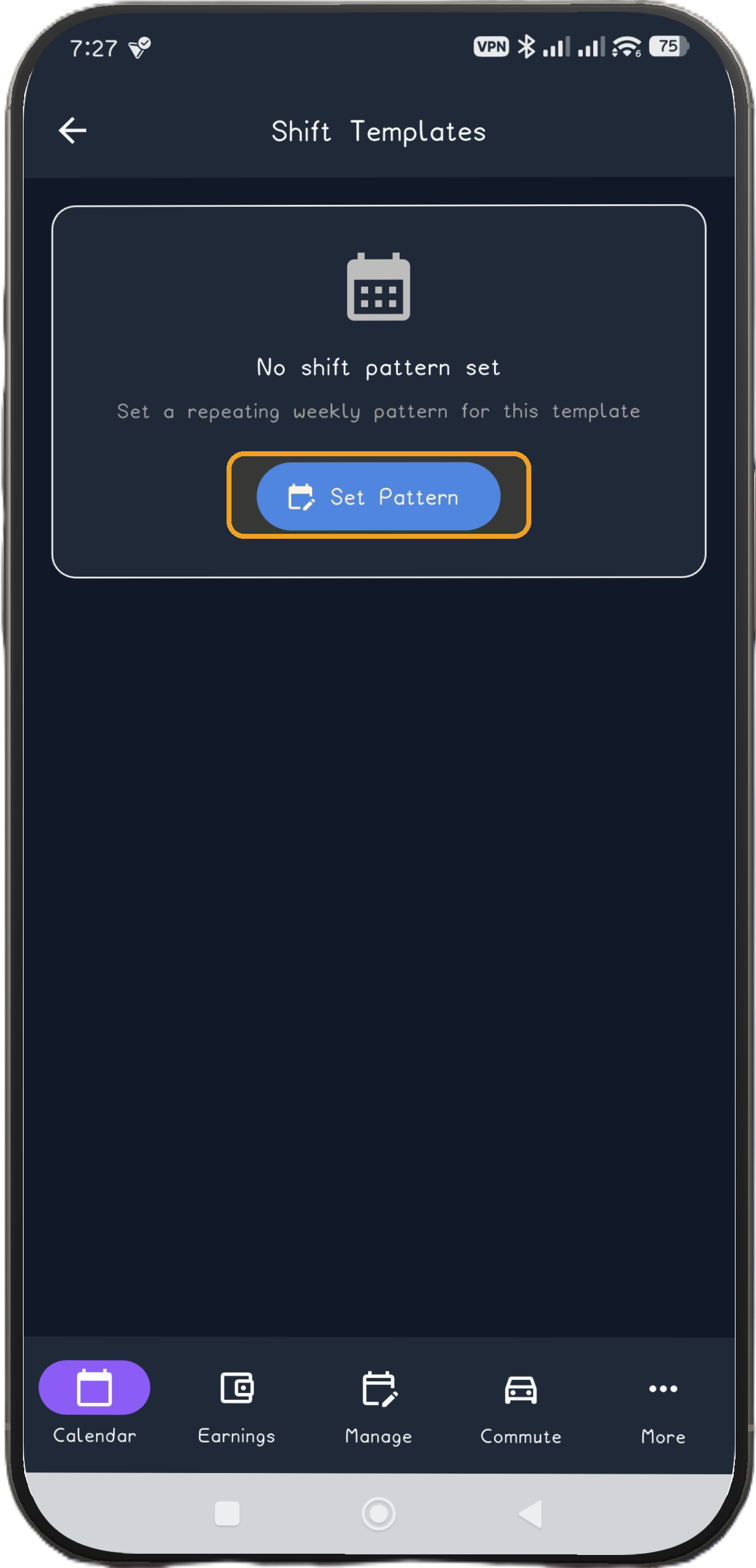
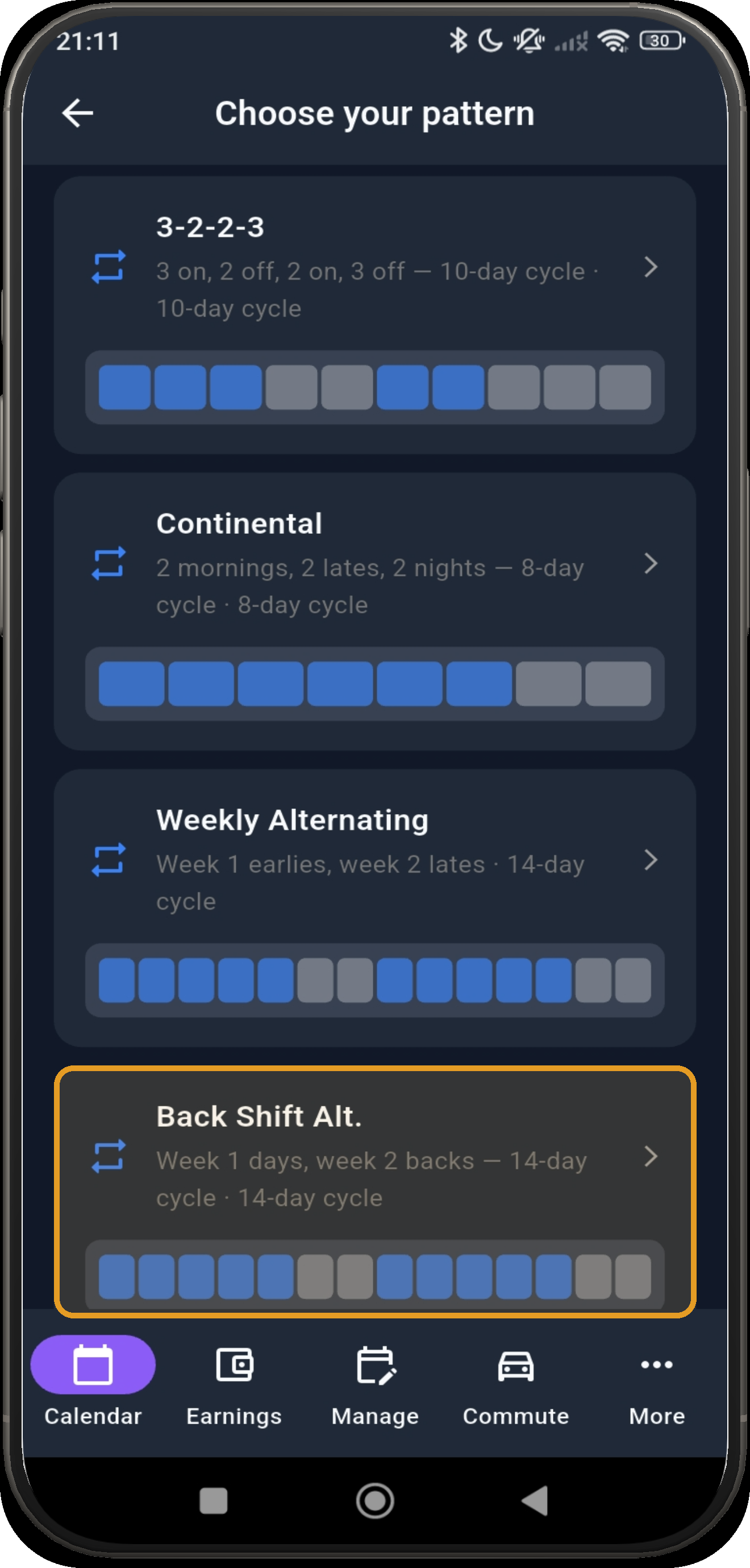
Choose the Back Shift Alternating card: week 1 days, week 2 backs.
Next step ↓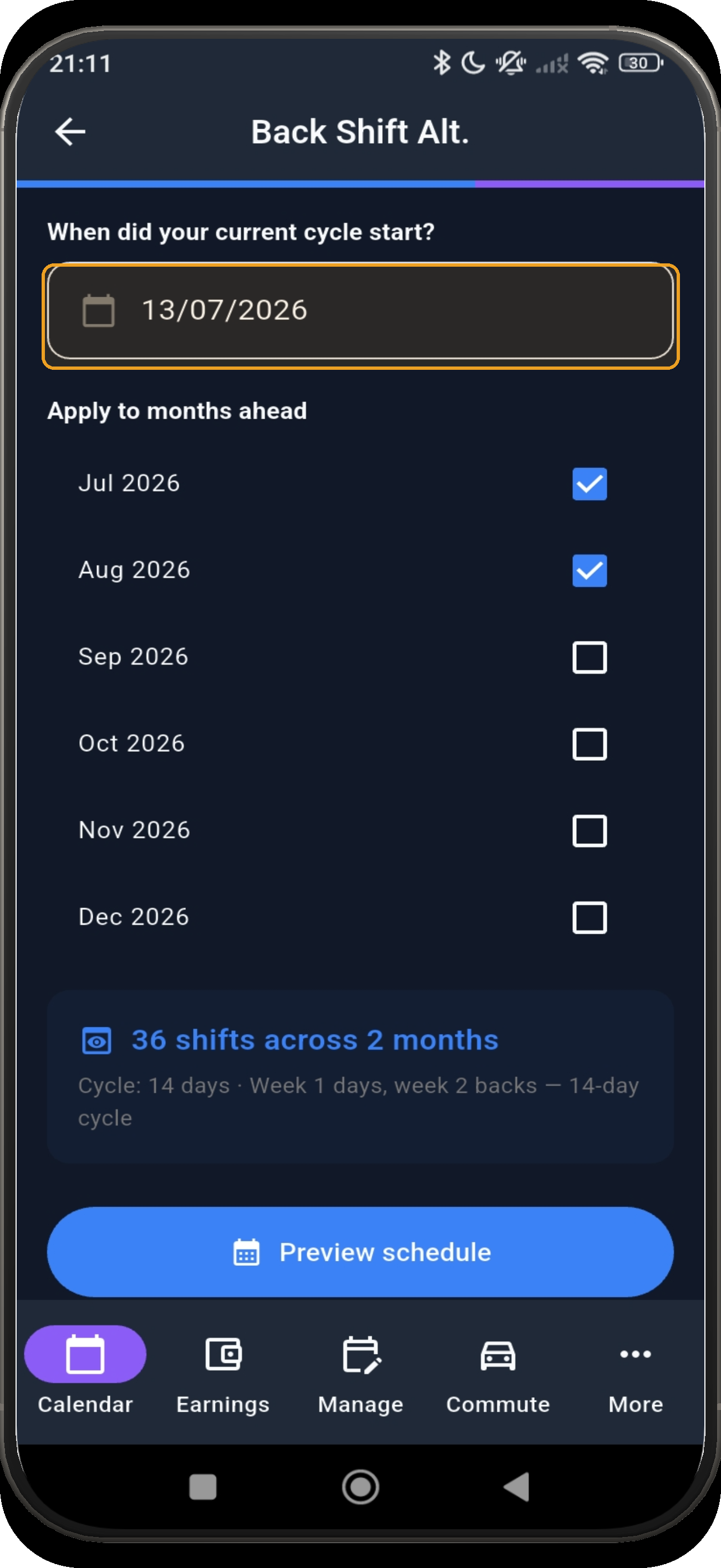
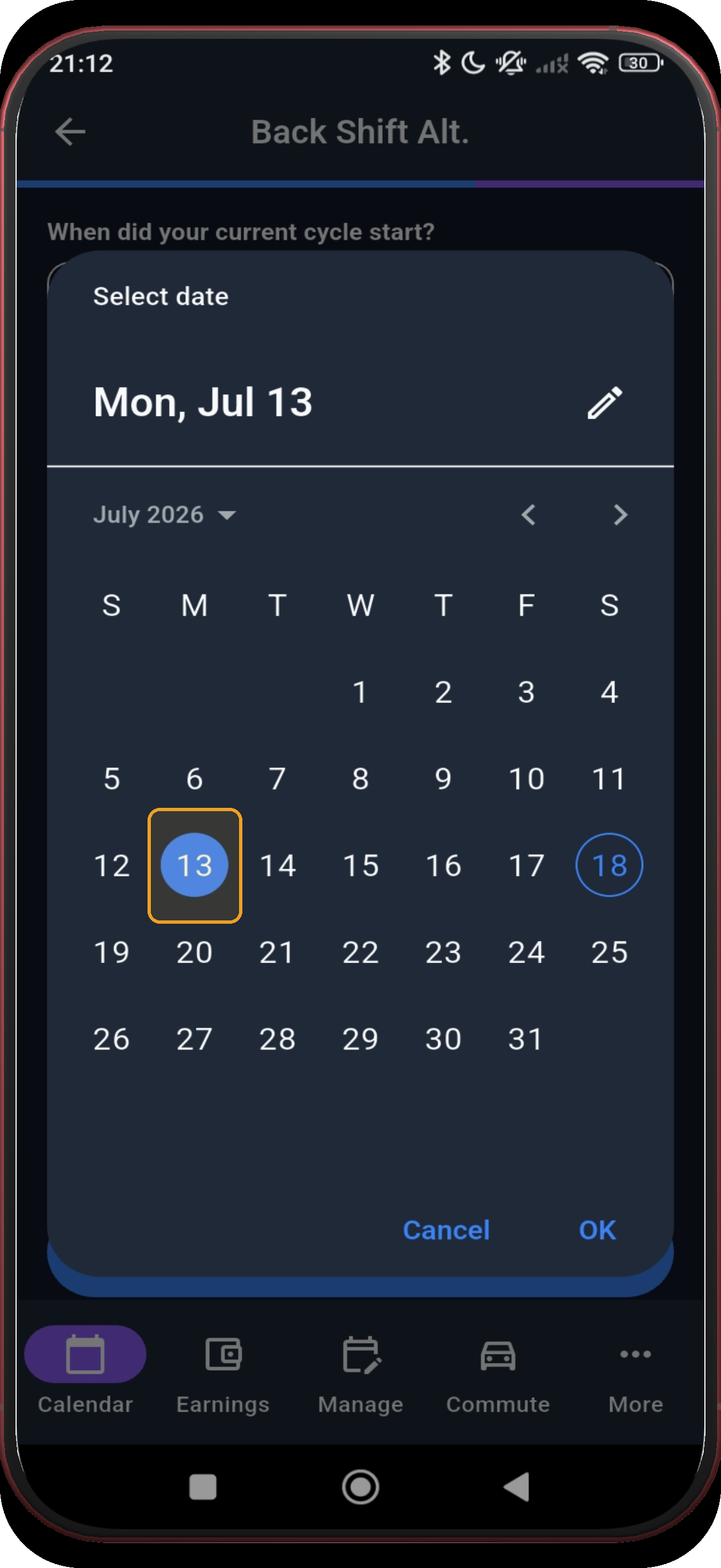
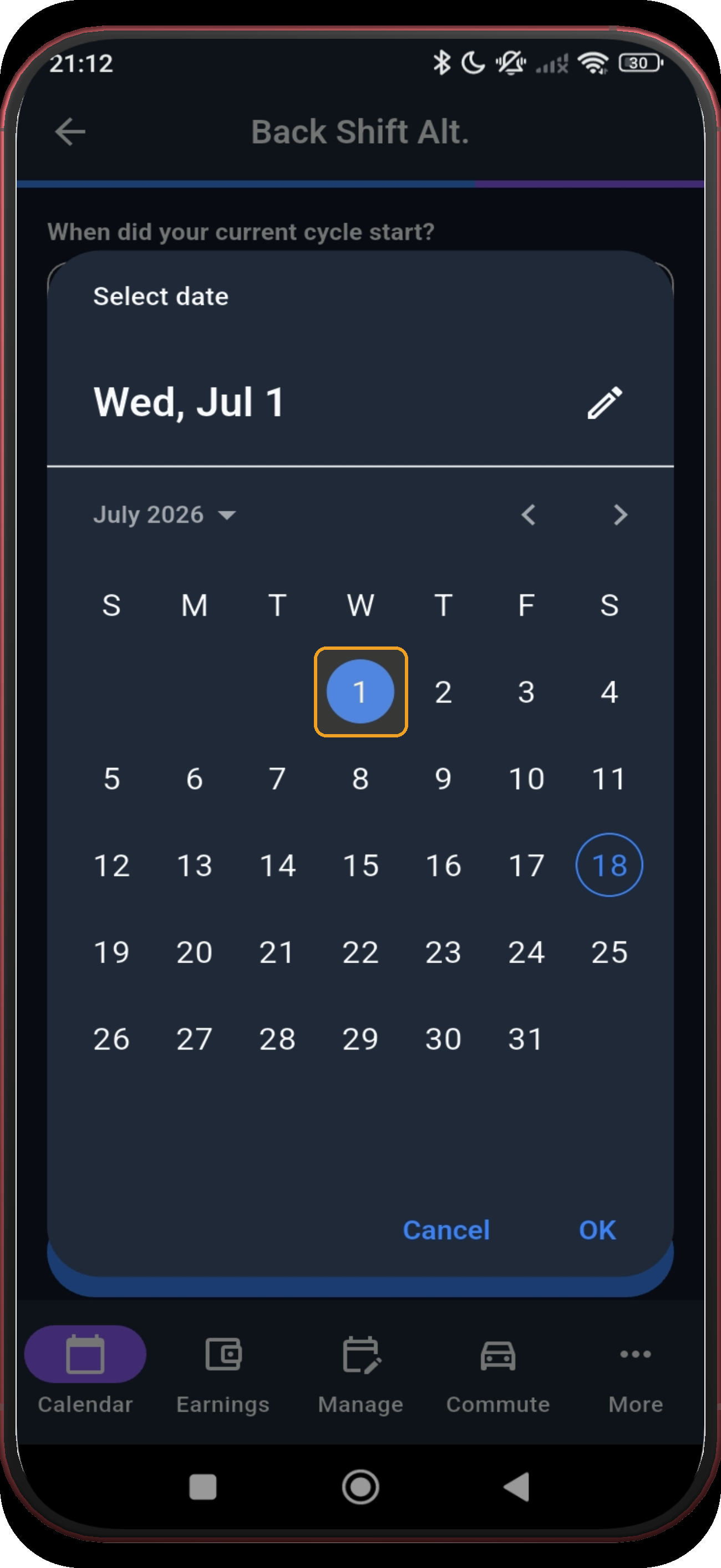
The selected anchor date is highlighted — continue when it looks right. The captured example confirms Wednesday 1 July 2026.
Next step ↓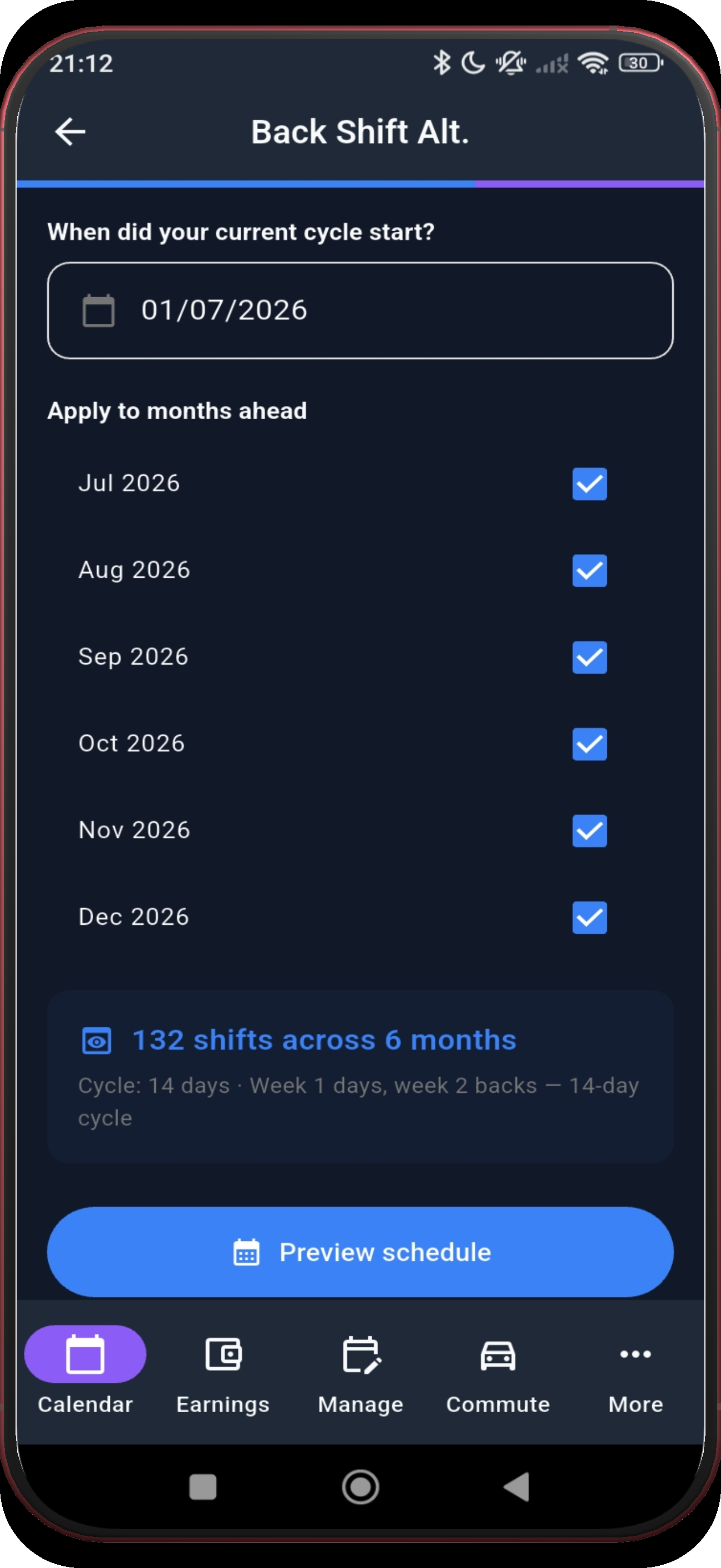
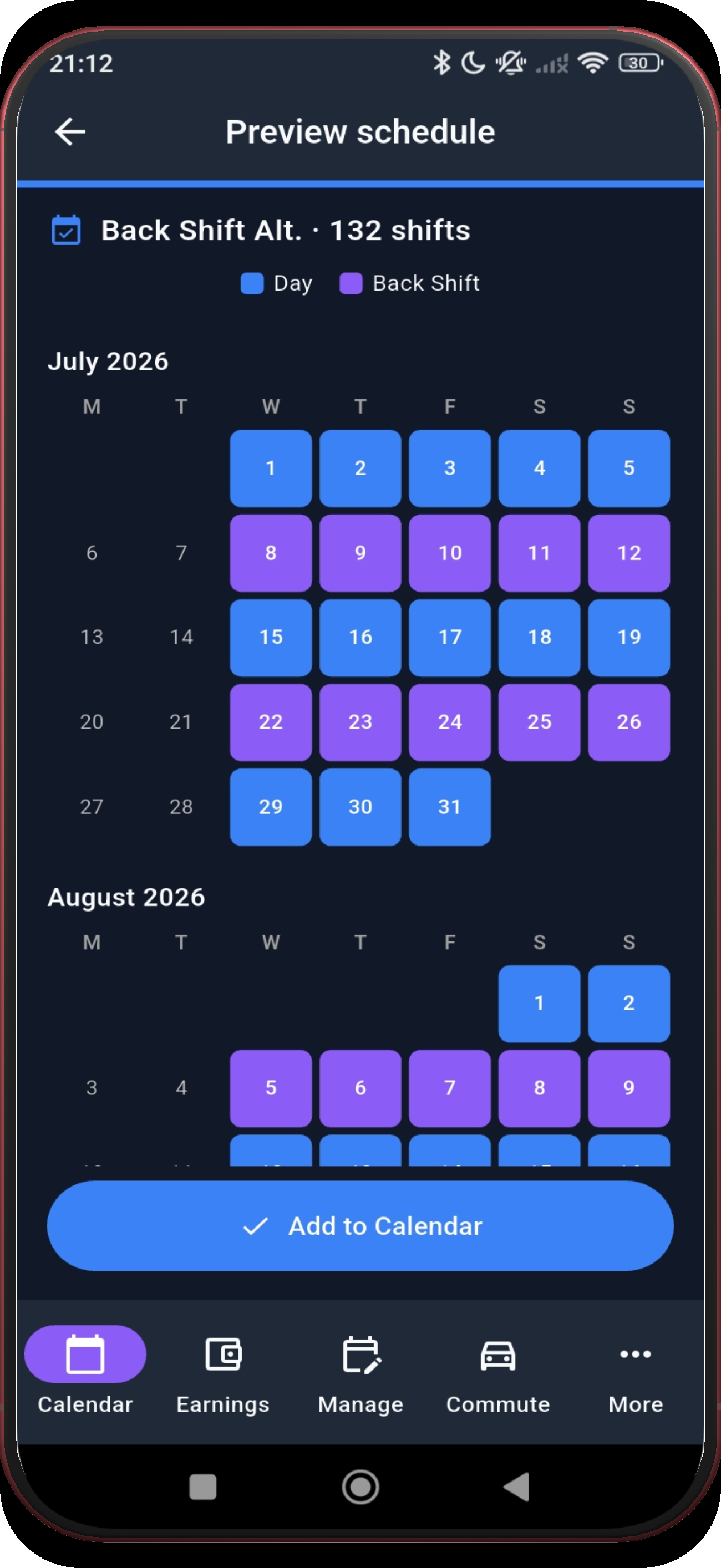
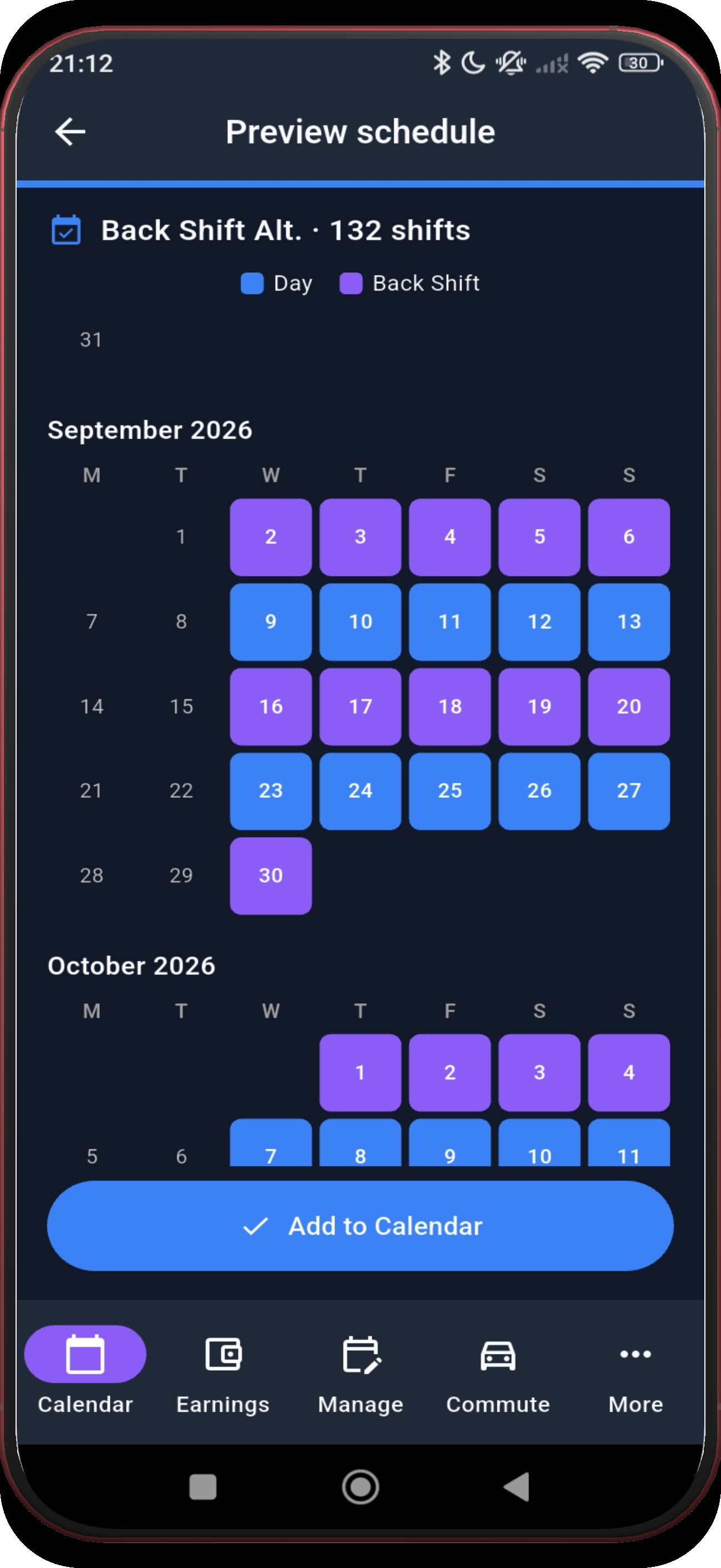
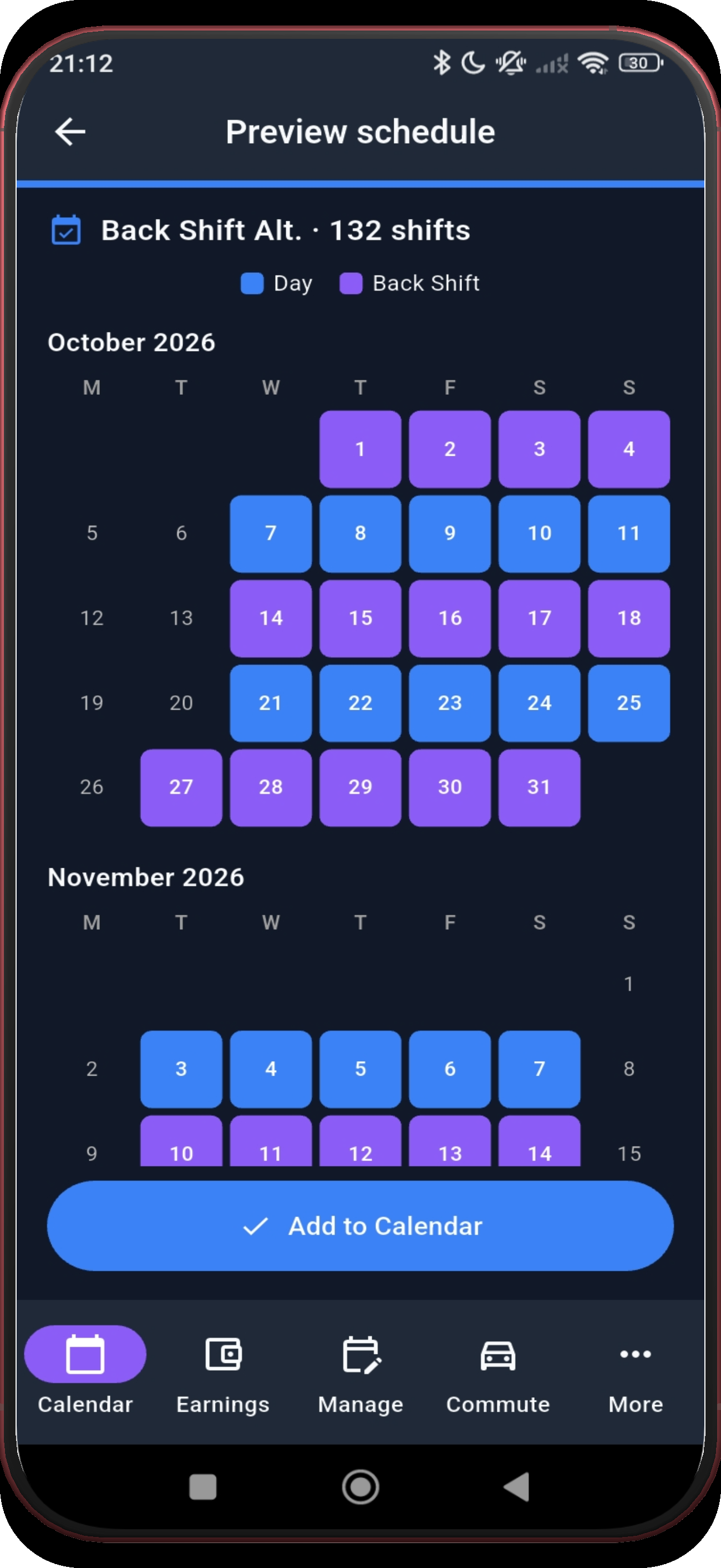
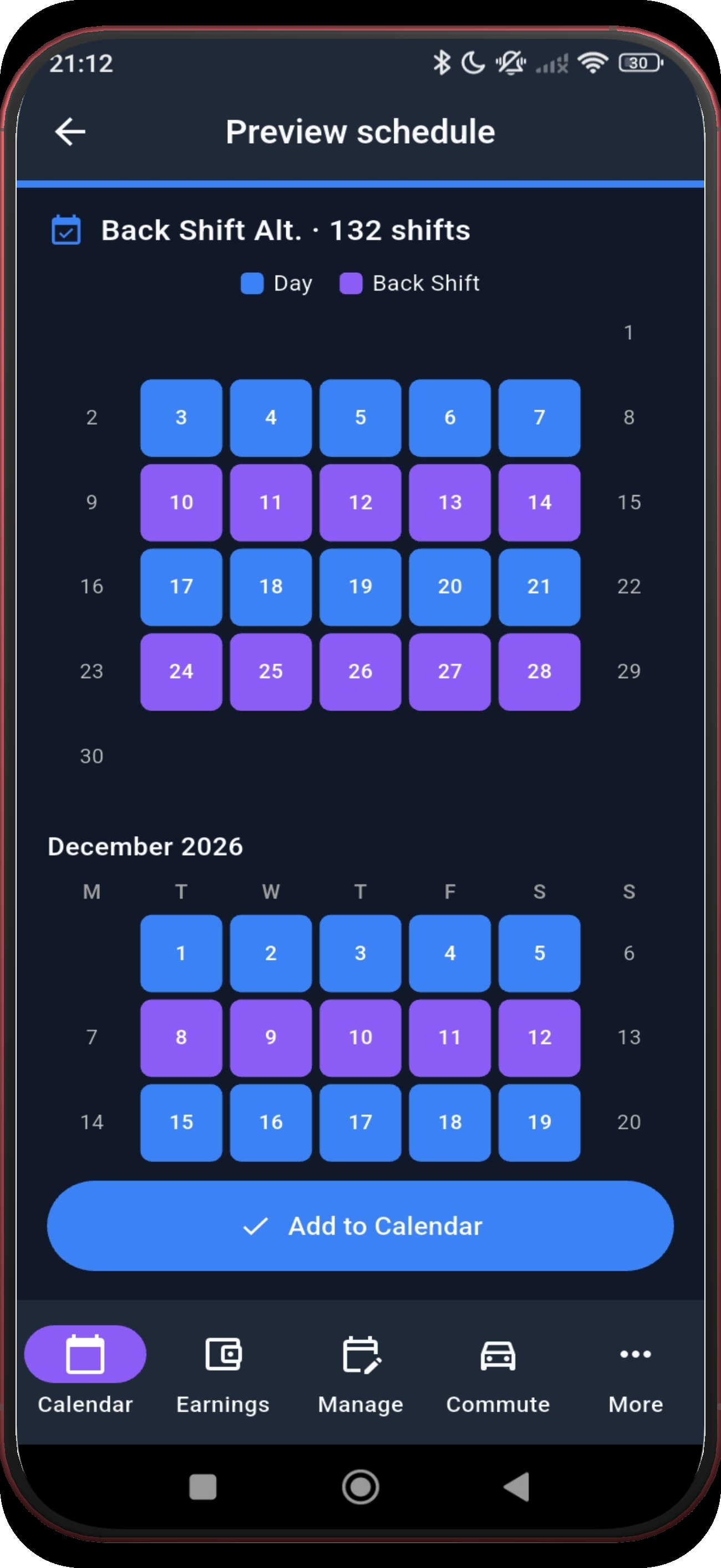
Check November and December before applying the schedule.
Next step ↓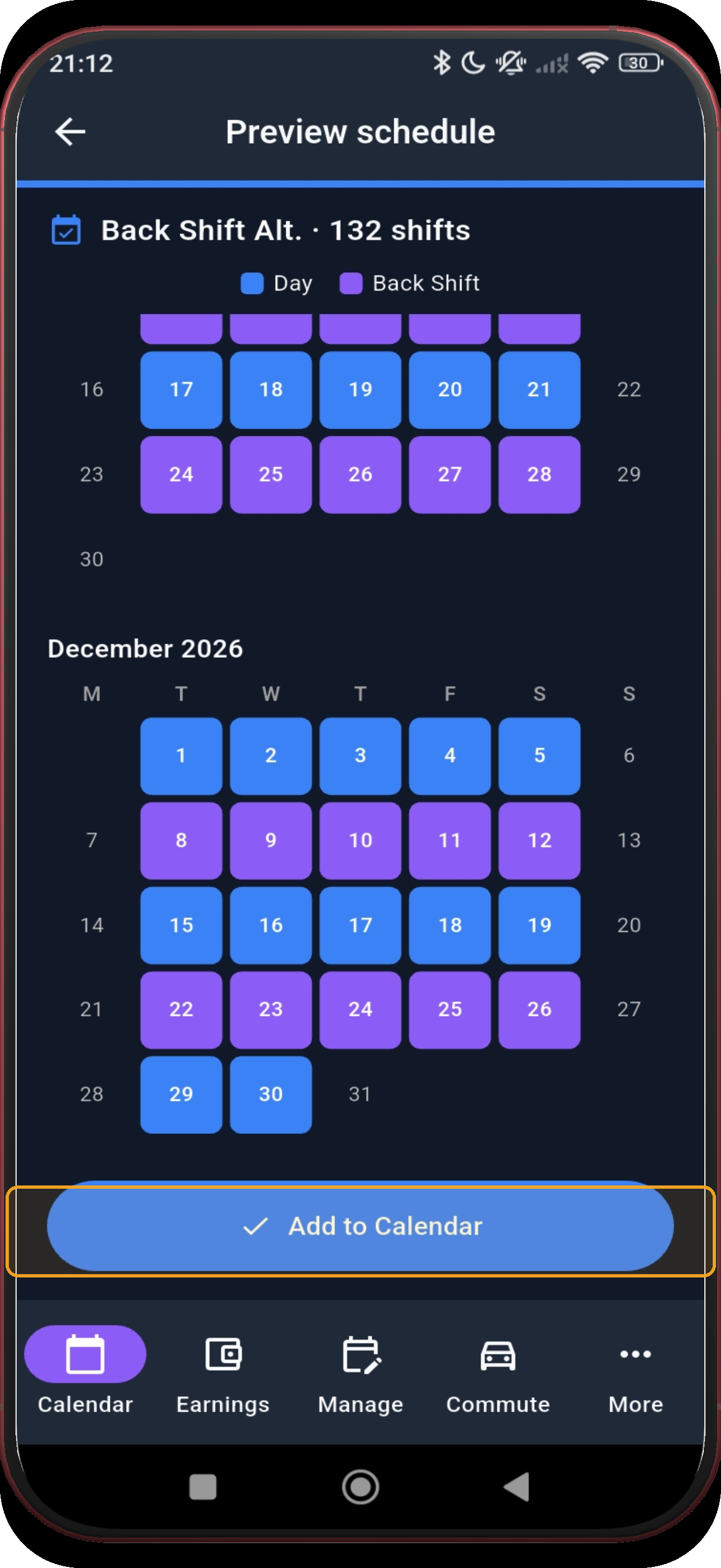
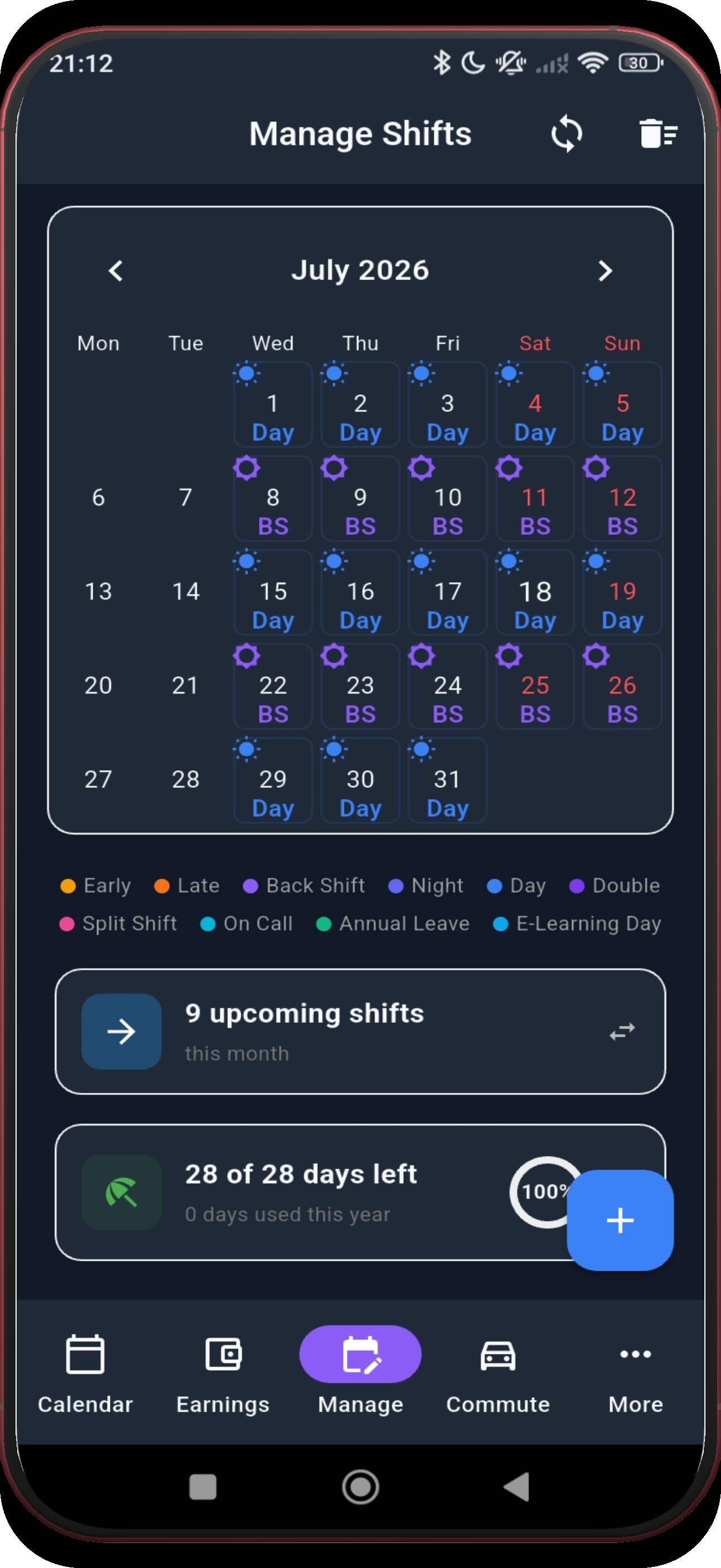
July now shows the applied Back Shift Alternating schedule in Manage Shifts.
Next step ↓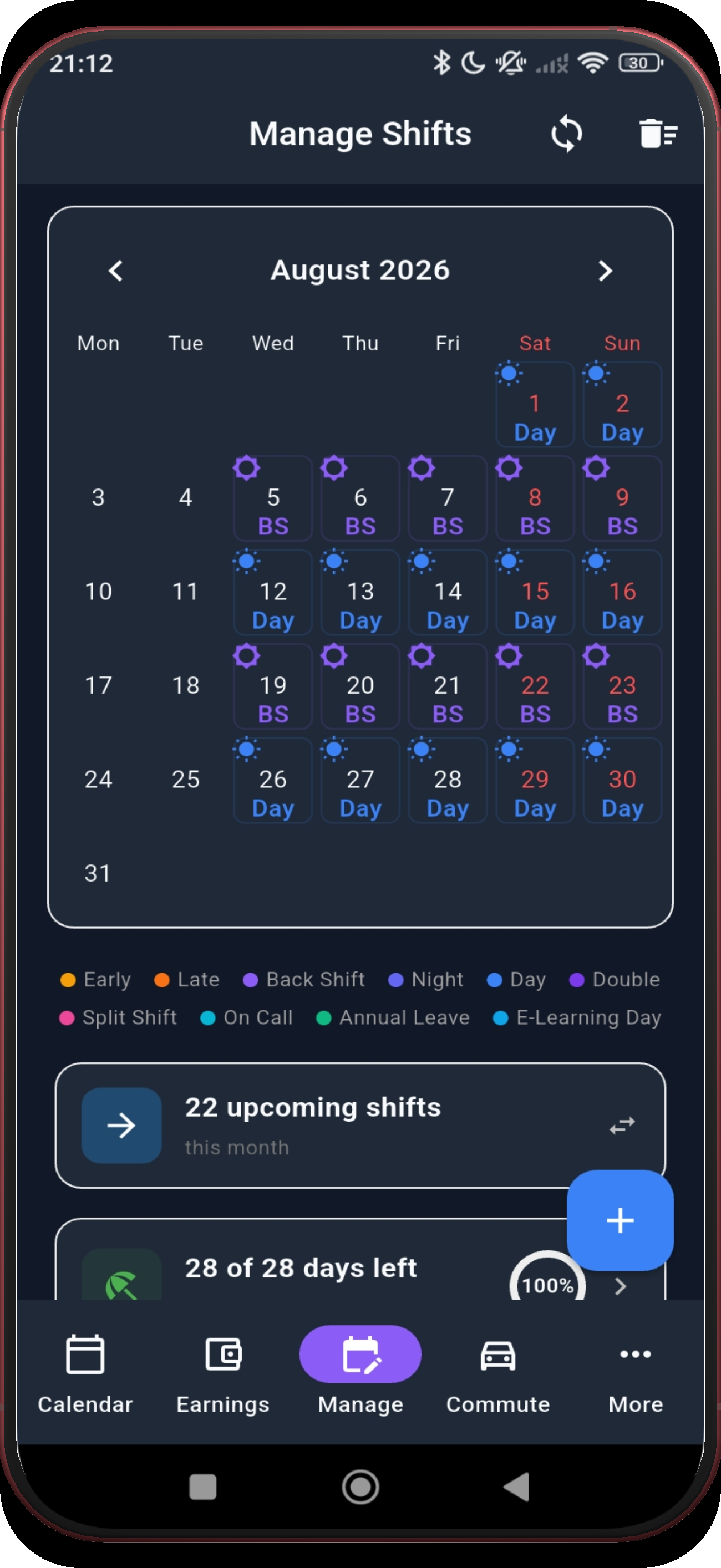
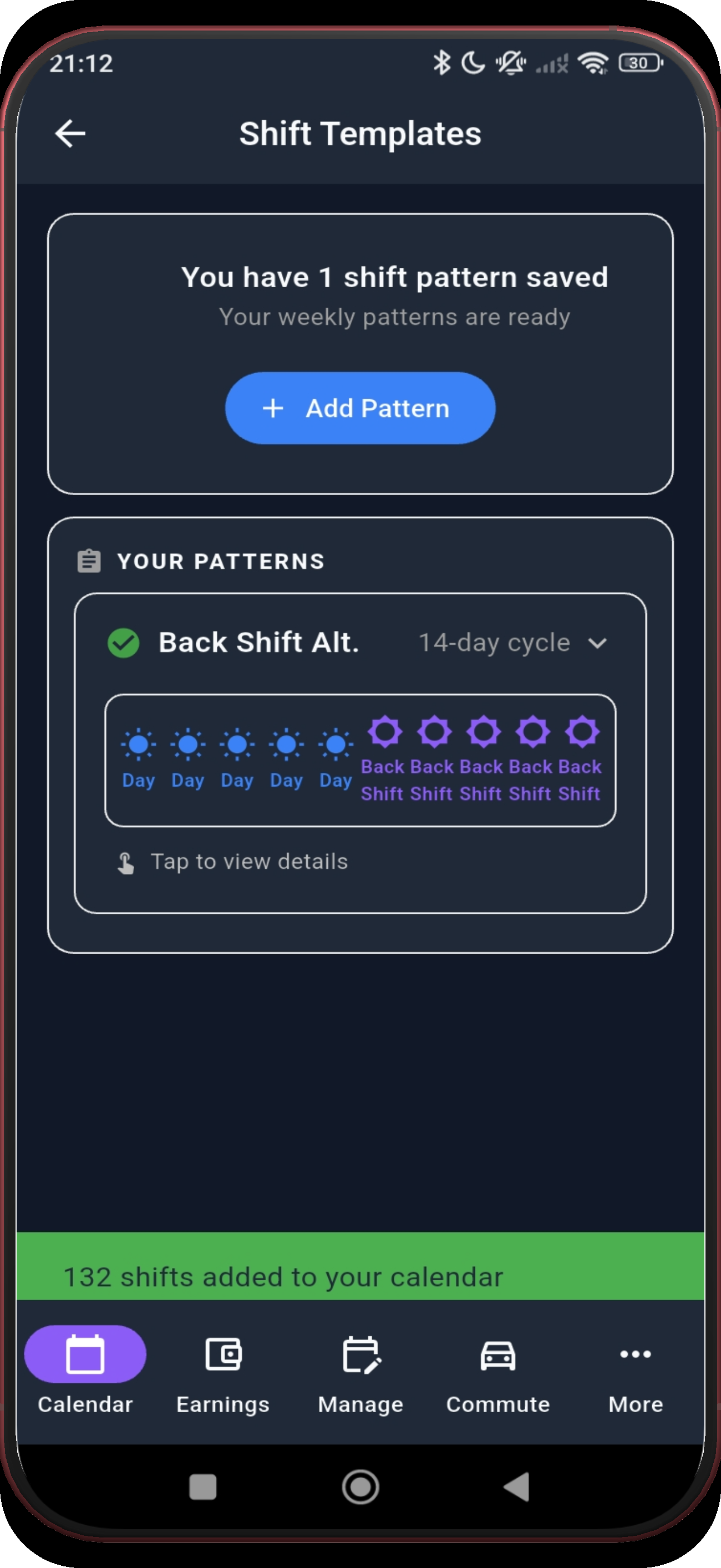
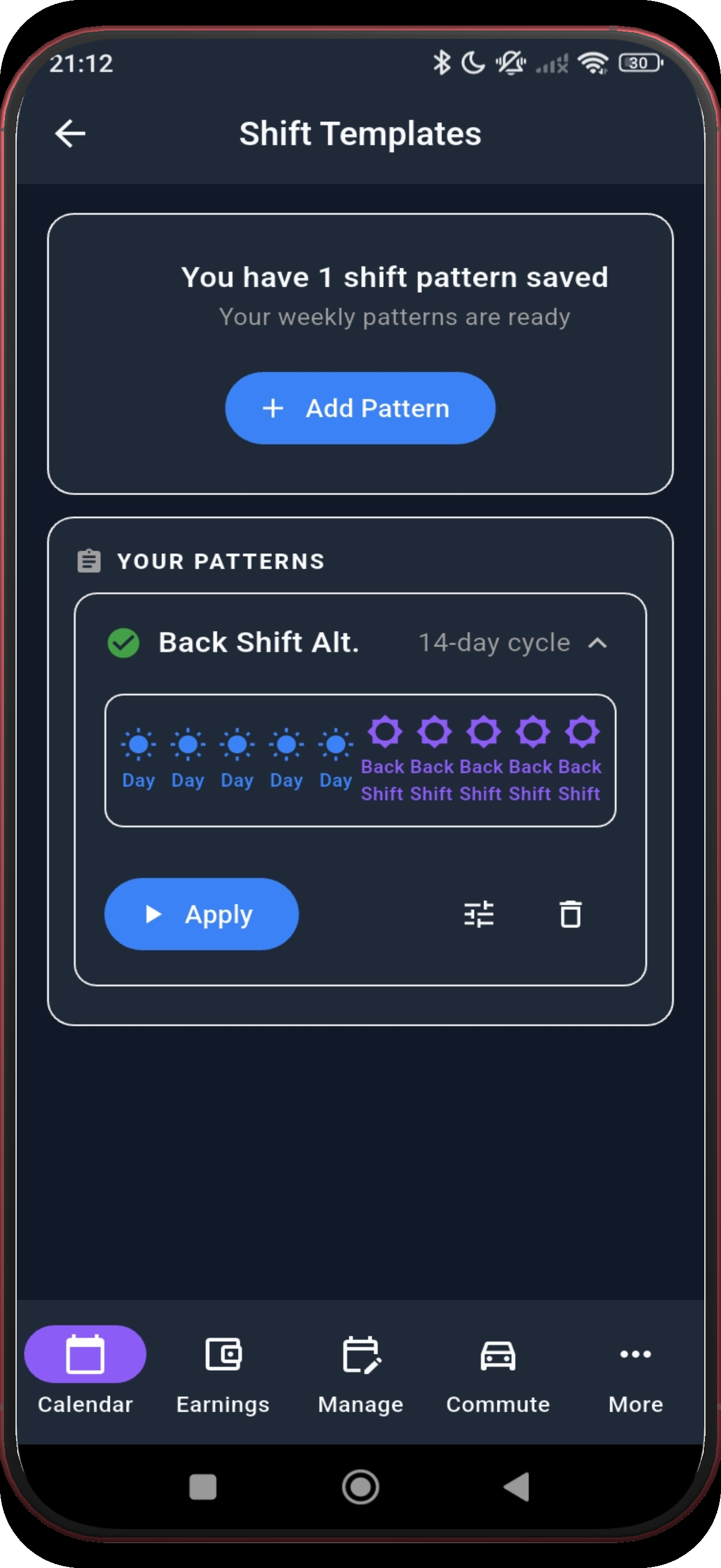
The expanded card shows the 14-day cycle and its available actions.
After the pattern is live
Once applied, the Shift Overview shows your next shift with its wake-up alarm and leave-home time already attached - for every shift in the back shift alternating cycle, not just the first one.
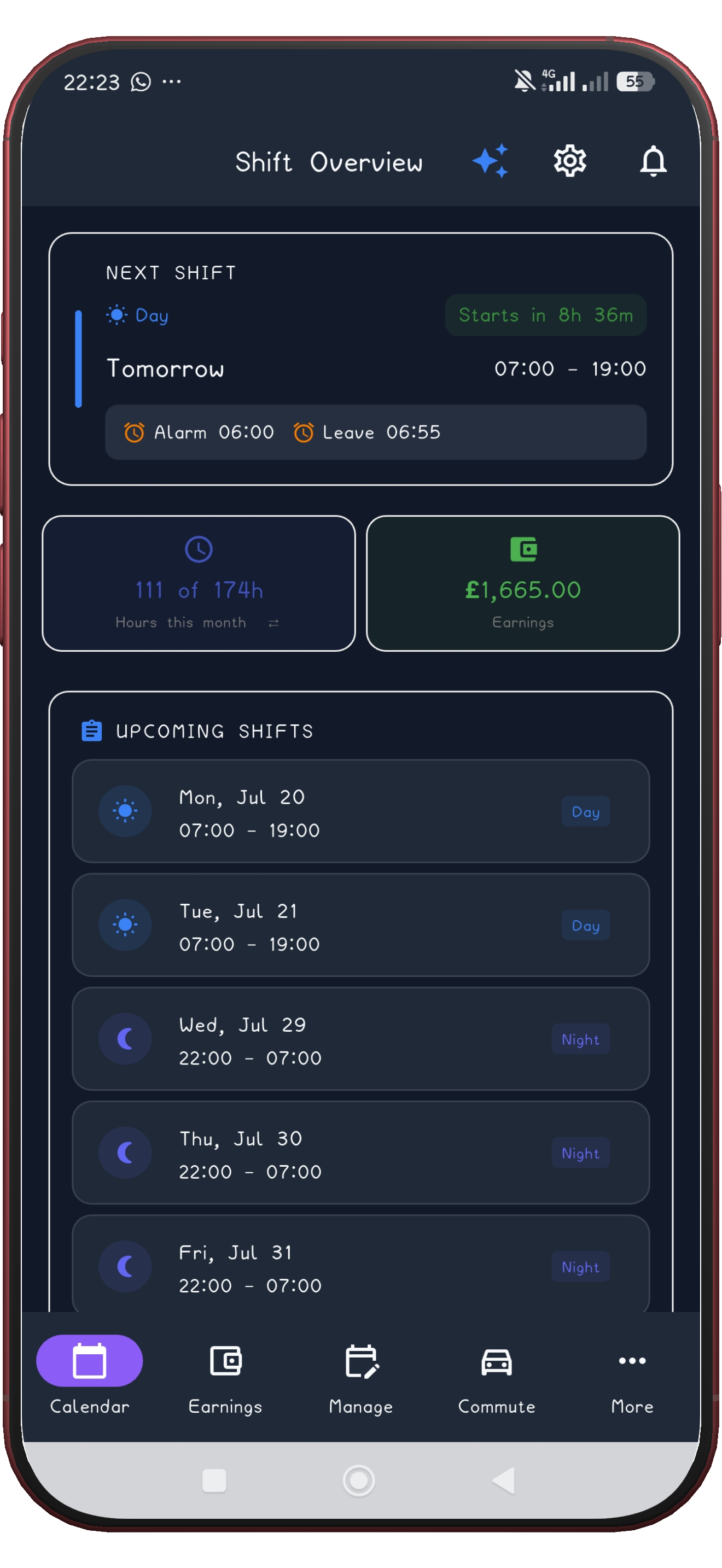
ShiftFlowr fills every future month automatically, with reminders and wake-up alarms attached to each shift.
Get ShiftFlowrFree on Android · Early access