ShiftFlowr / Continental / Setup guide

Step-by-step guide

Setting up a Continental schedule — every supplied screen, in order.

Continental here means the 2-2-2-2 forward rotation: two earlies, two lates, two nights, two rest days — an 8-day cycle.

22 real screenshots: choose the pattern, set the anchor date, select months, preview the cycle, apply it, and confirm the saved pattern.

Free on Android · Early access
Before you start

Follow the Continental flow one decision at a time

This walkthrough separates setup, preview, applied-calendar, and saved-pattern states. Intermediate preview screens stay clean; only the final Add to Calendar action is highlighted.

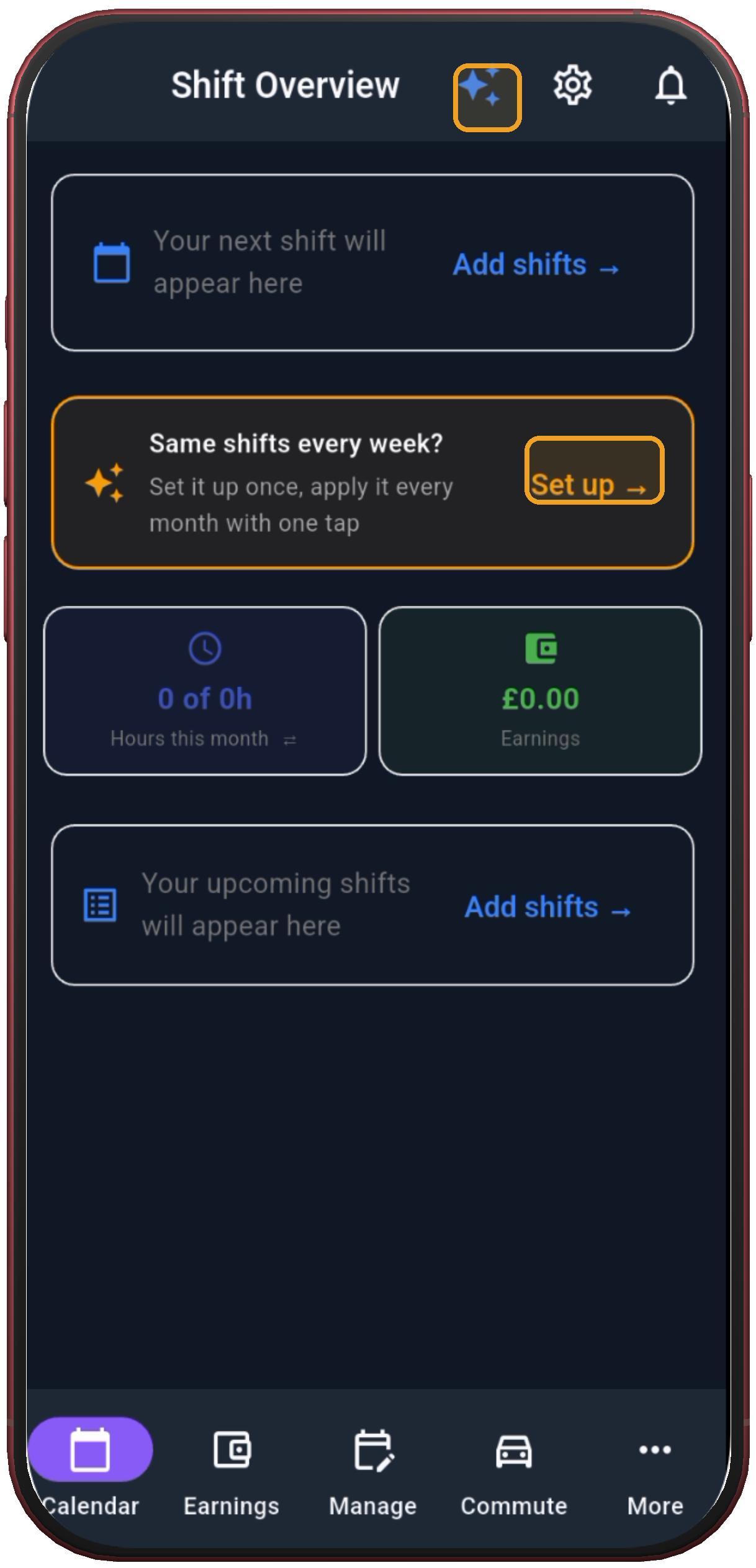
Shift Overview with Set up
1

Tap Set up

Shift Overview is the entry point for building a repeating shift pattern.

Next step ↓
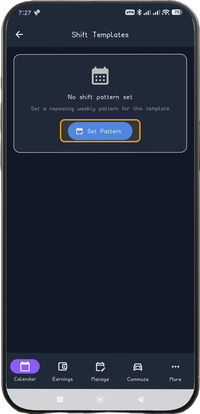
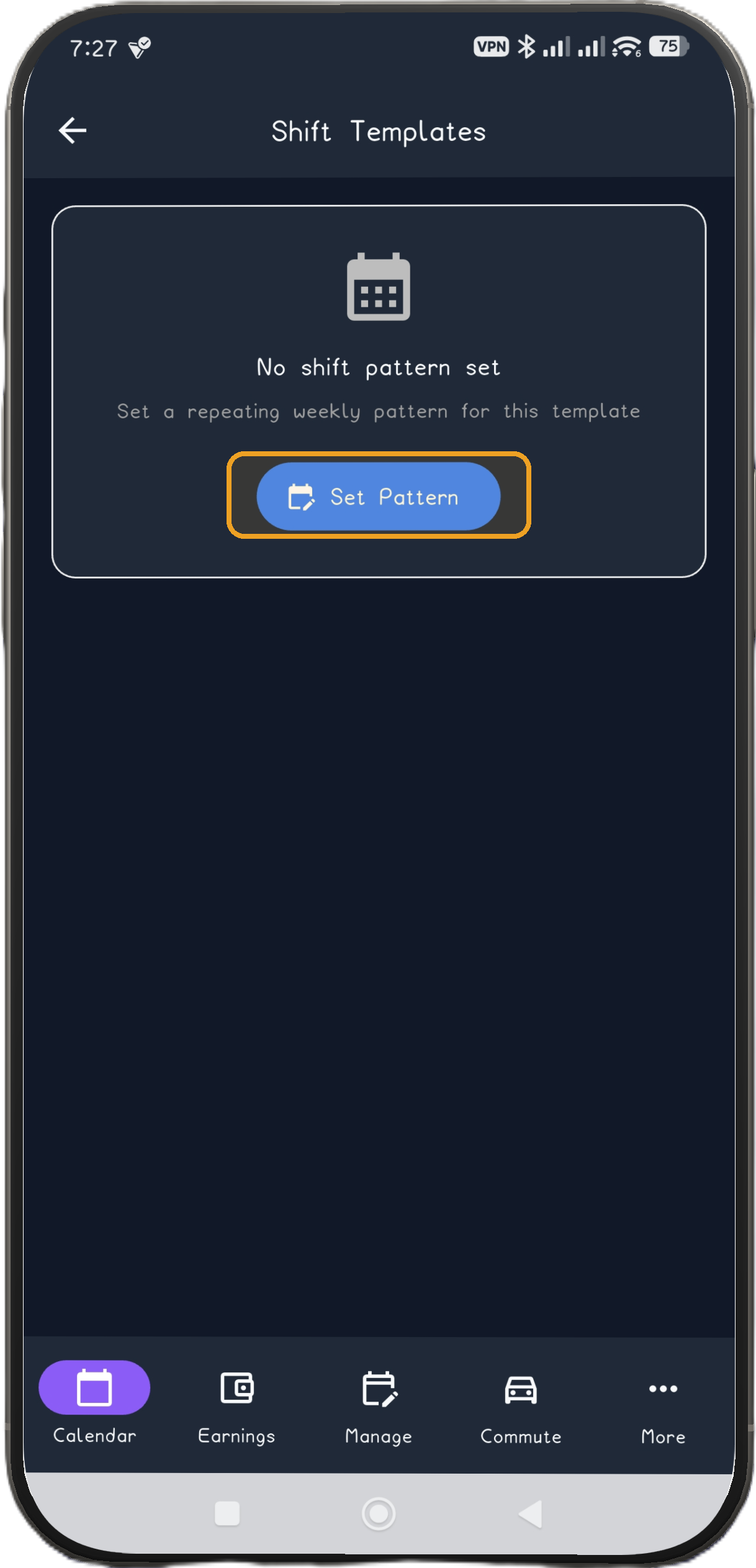
Shift Templates with Set Pattern
2

Tap Set Pattern

Open the pattern library from Shift Templates.

Next step ↓
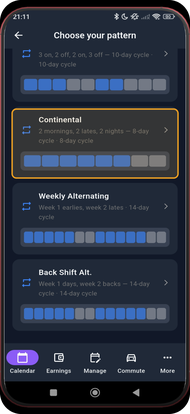
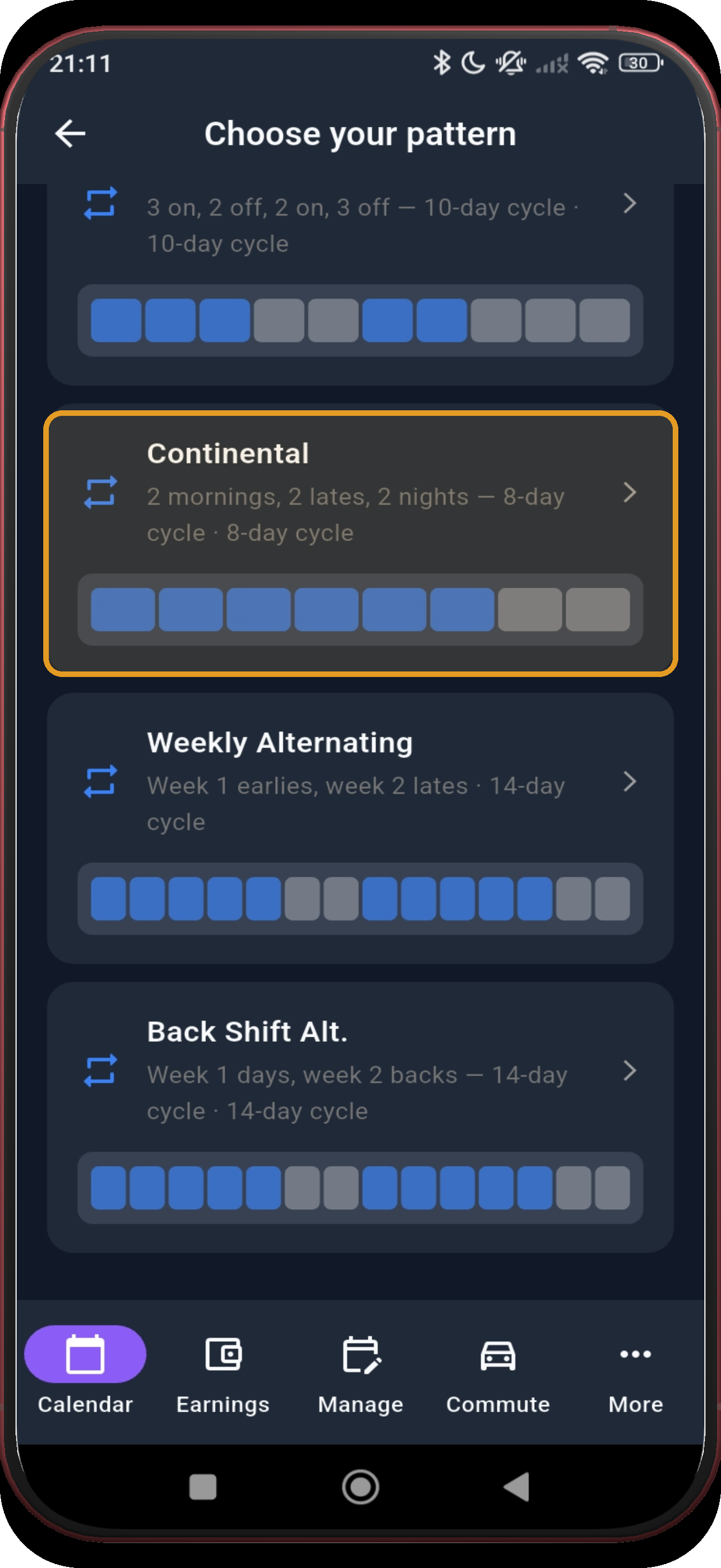
Pattern library with Continental highlighted
3

Choose Continental

Choose the Continental card: two mornings, two lates, two nights, then rest.

Next step ↓
Continental screen 4
4

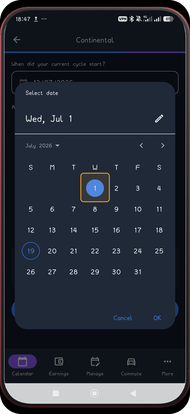
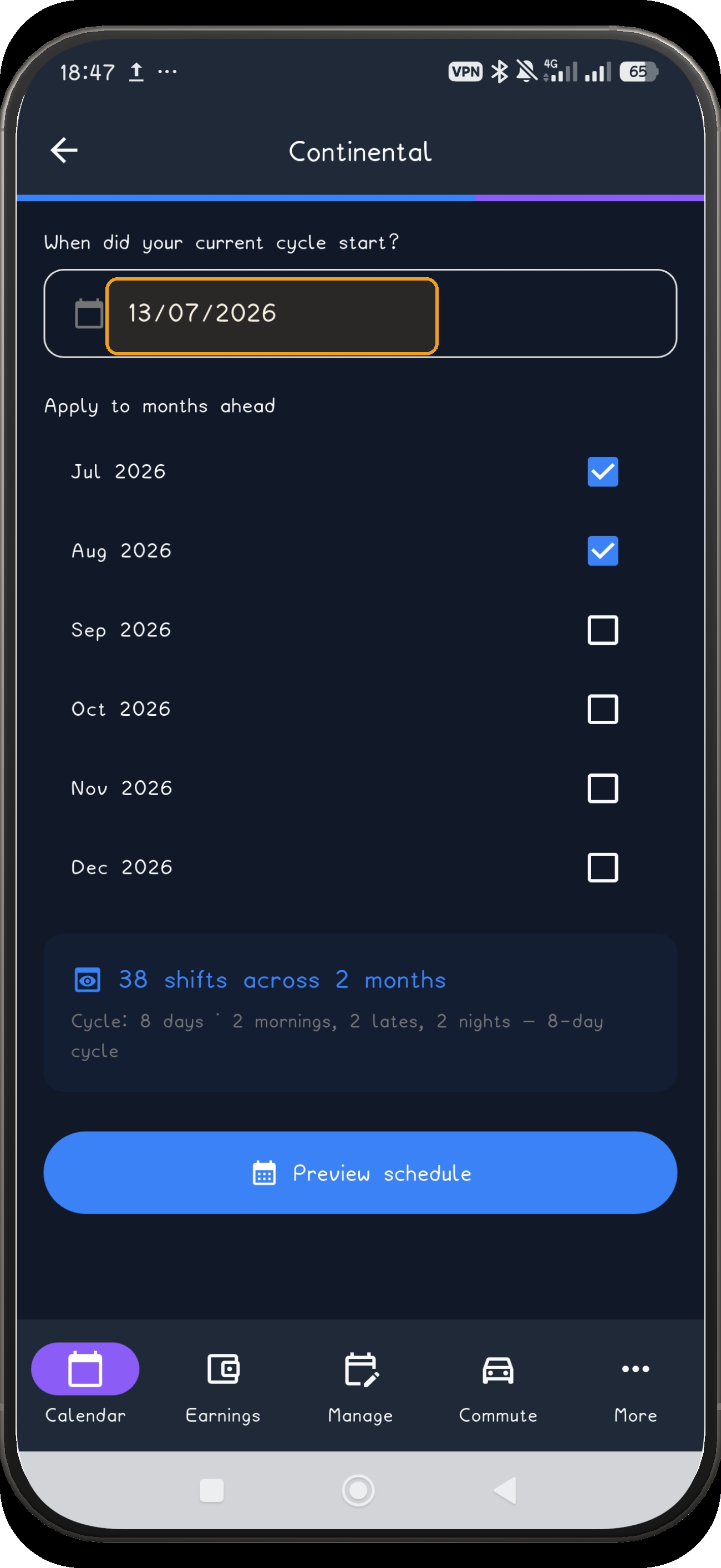
Open the anchor date

Open the anchor-date field for the current Continental cycle.

Next step ↓
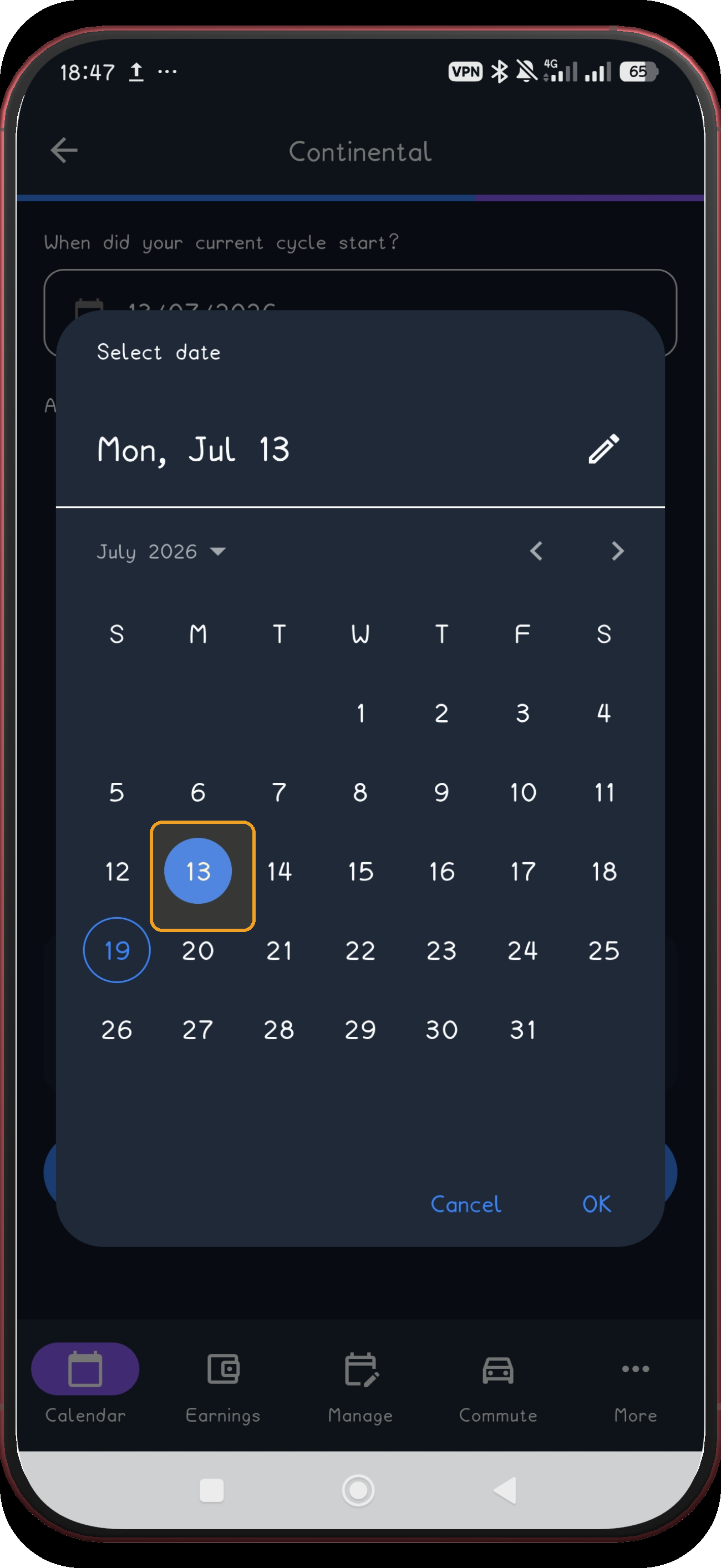
Continental screen 5
5

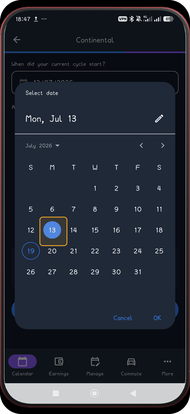
Choose the first anchor date

Tap the starting date in the picker.

Next step ↓
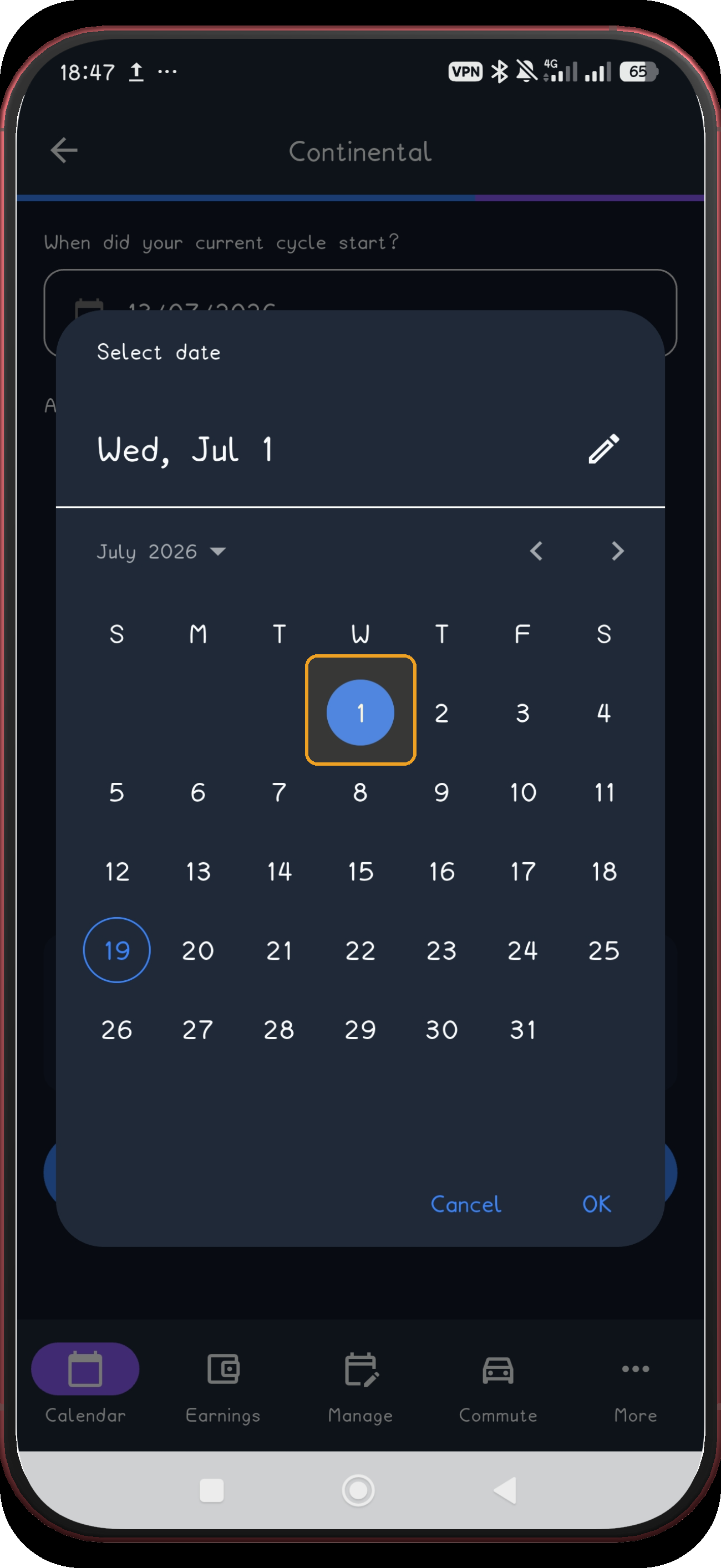
Continental screen 6
6

Choose the second anchor date

Choose the final anchor date before returning to setup. The captured example settles on Wednesday 1 July 2026.

Next step ↓
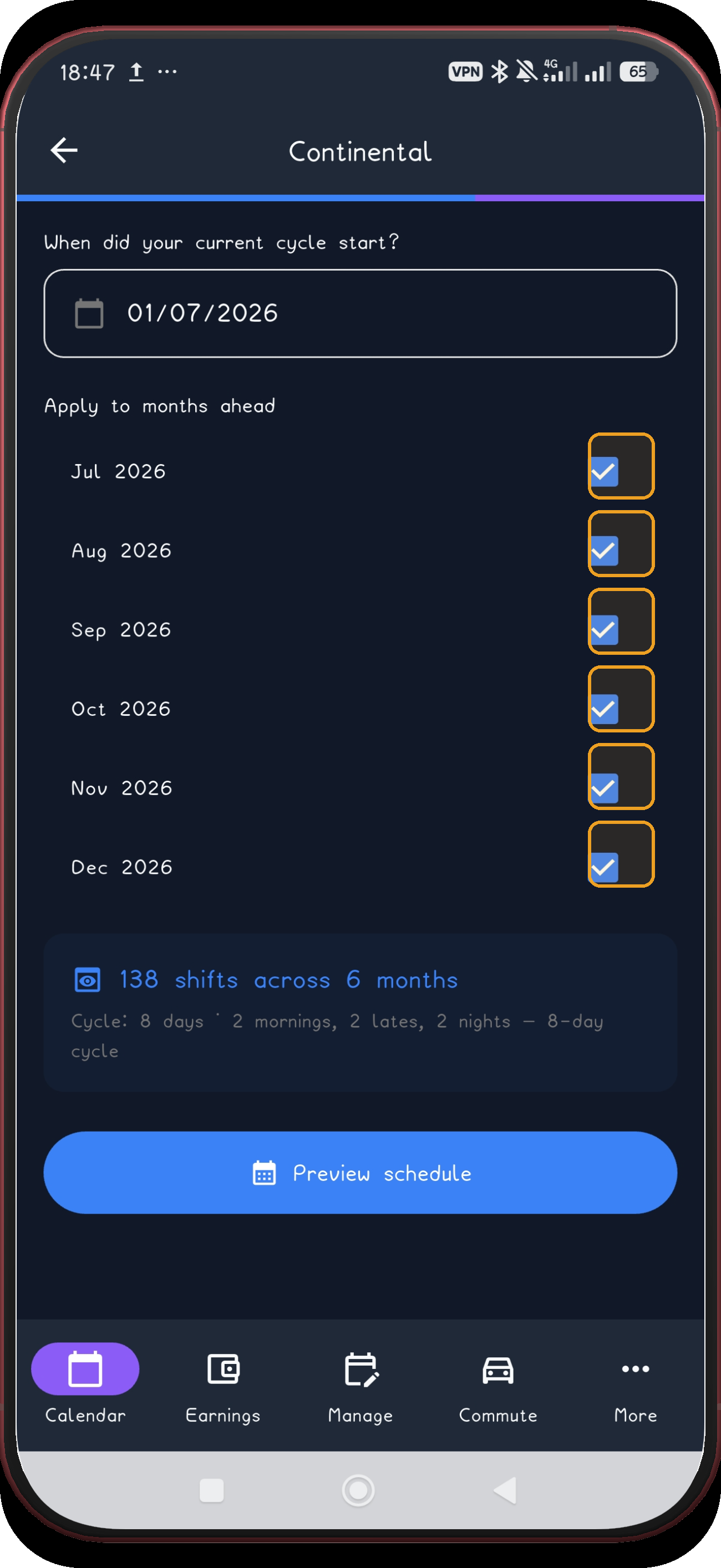
Continental screen 7
7

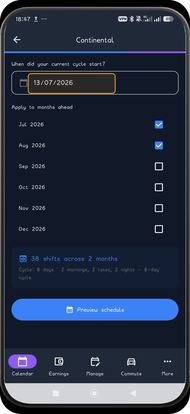
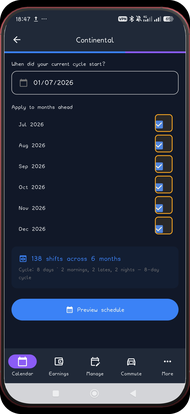
Select the months

Select the future months that should receive the pattern.

Next step ↓
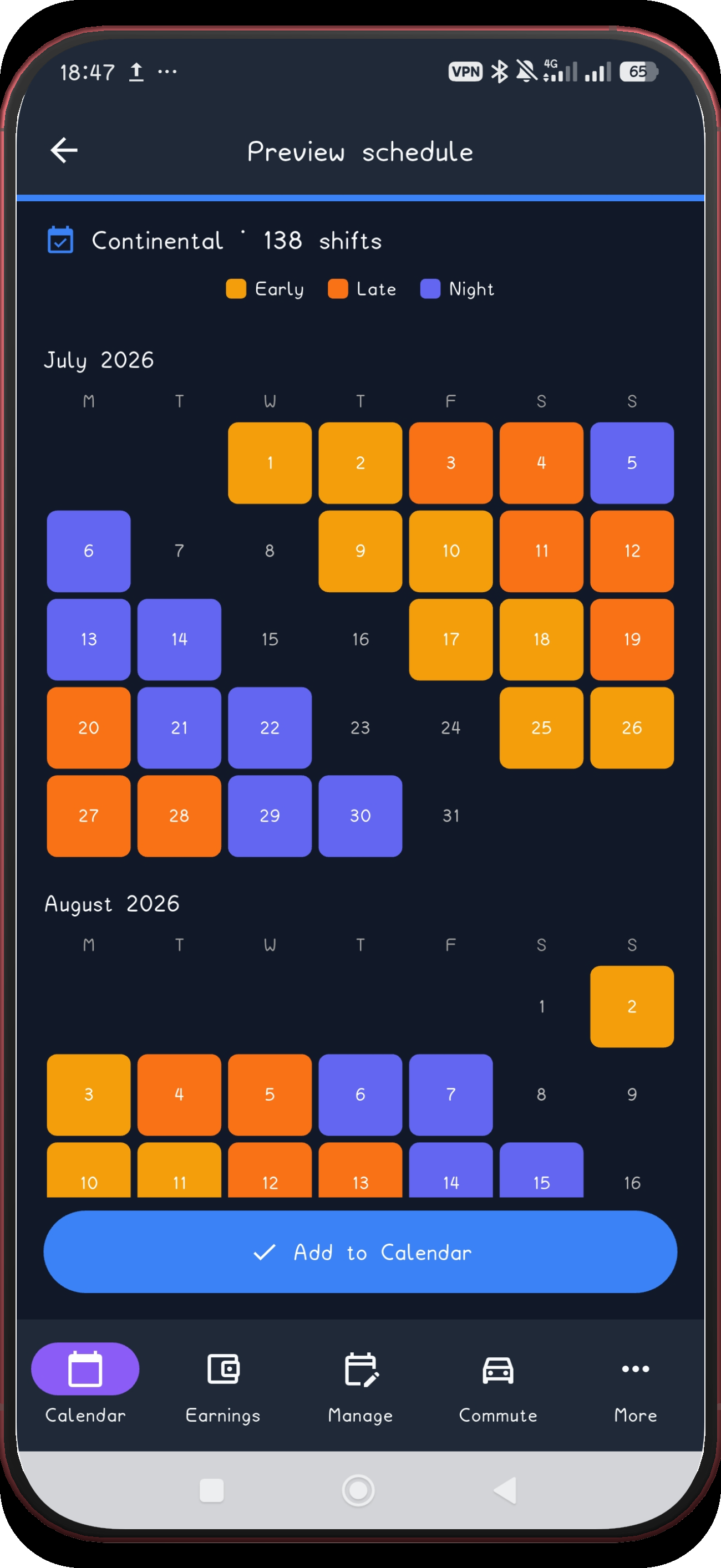
Continental screen 8
8

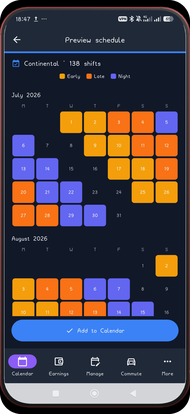
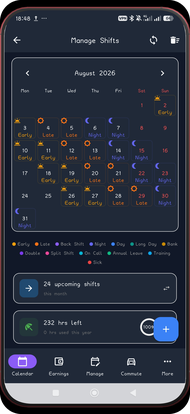
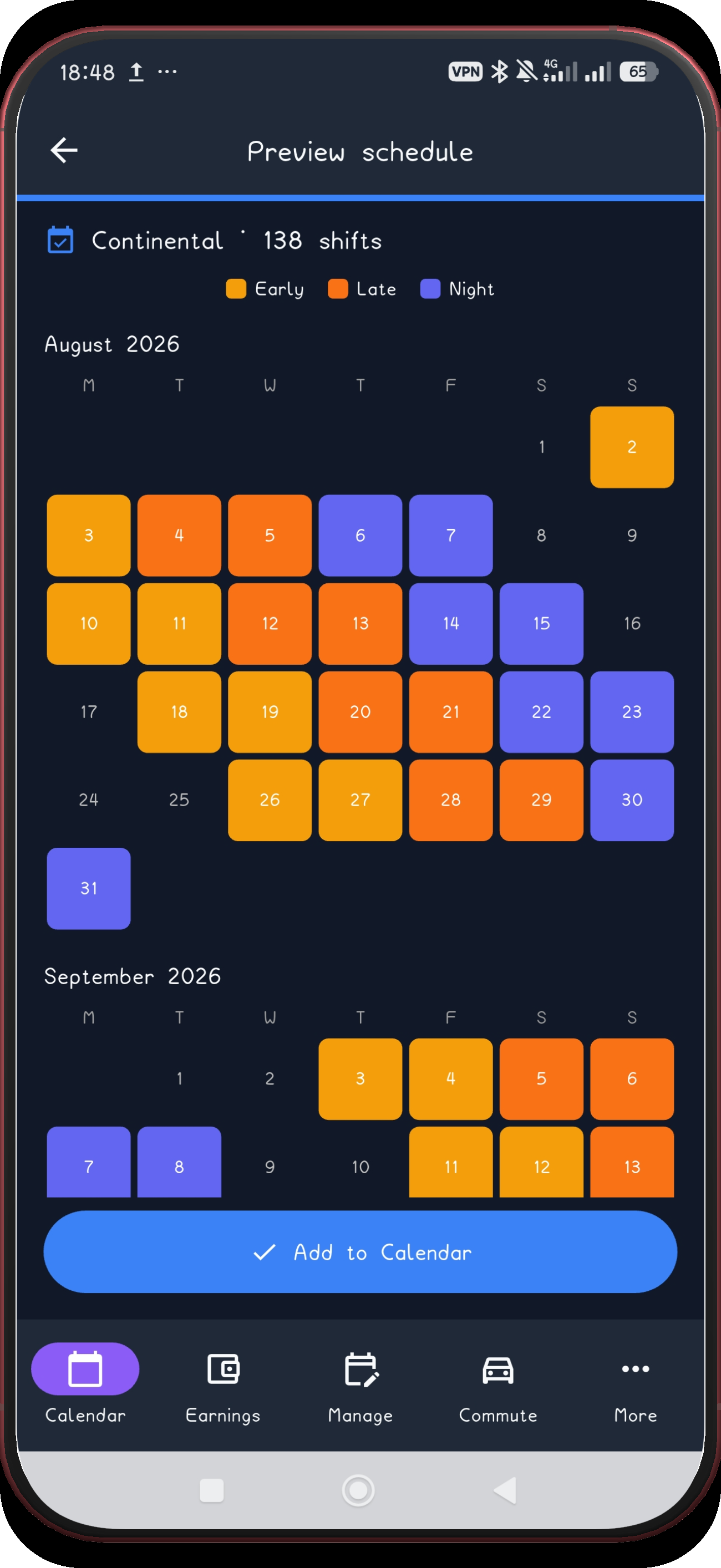
Review July and August

Review the first July and August preview pair.

Next step ↓
Continental screen 9
9

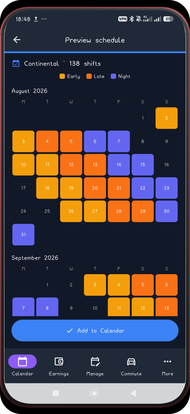
Review August and September

The next pair follows in the same preview.

Next step ↓
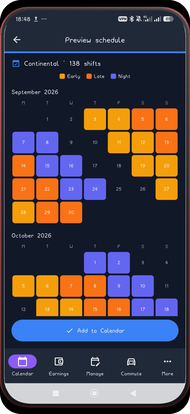
Continental screen 10
10

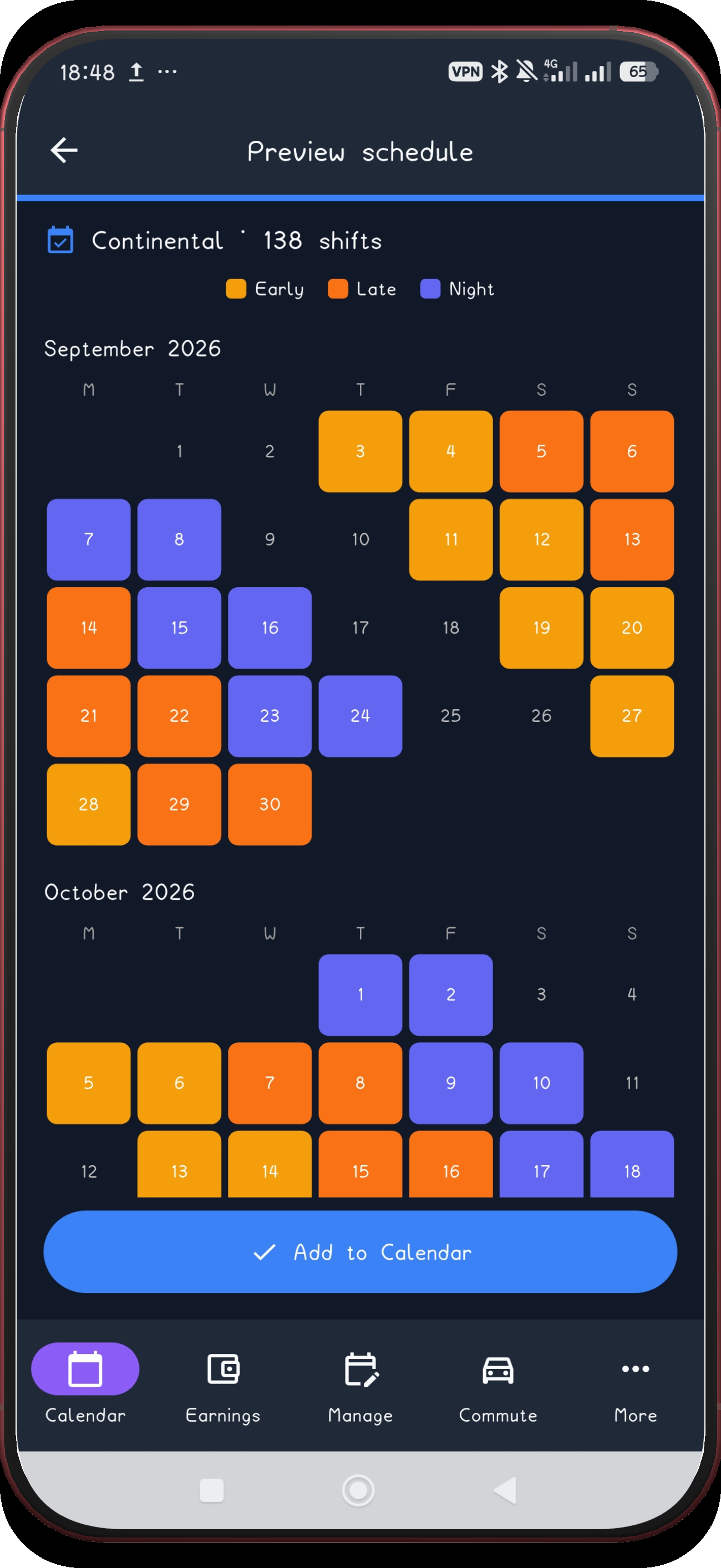
Review September and October

September and October get the same check.

Next step ↓
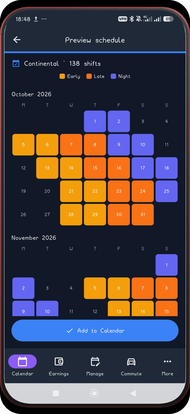
Continental screen 11
11

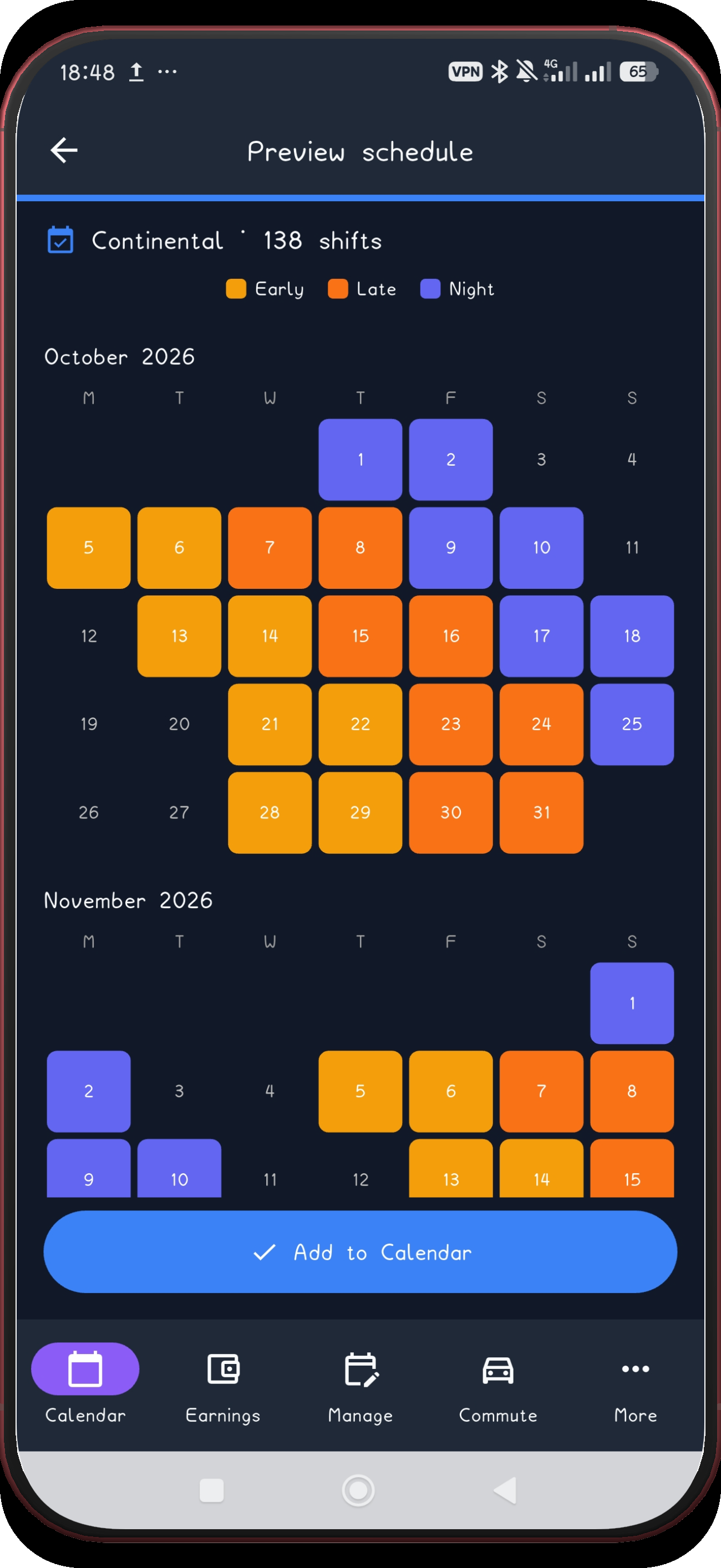
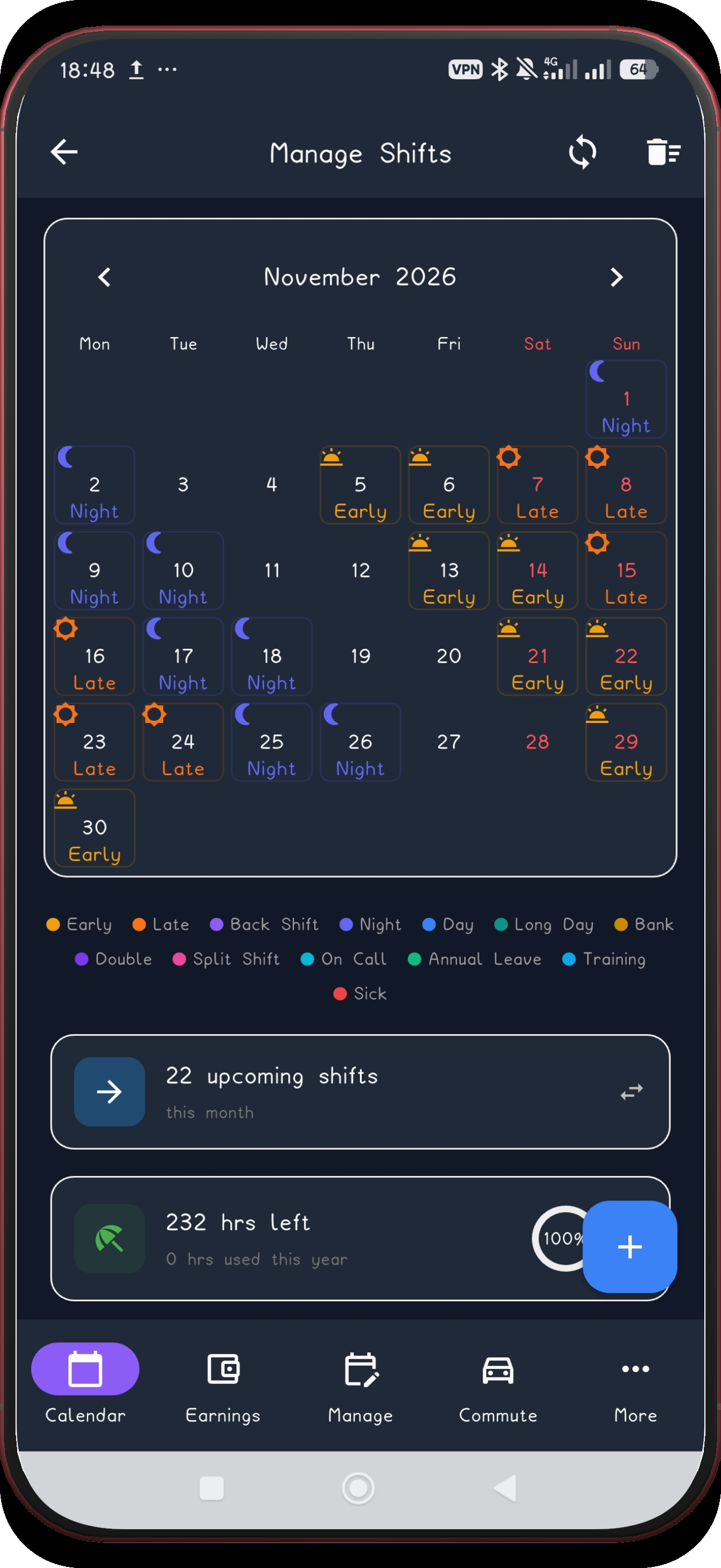
Review October and November

October and November next.

Next step ↓
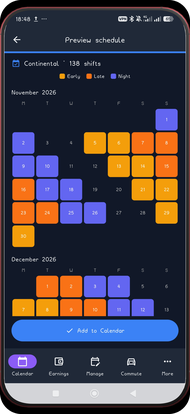
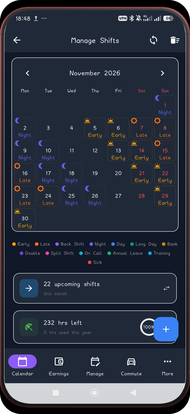
Continental screen 12
12

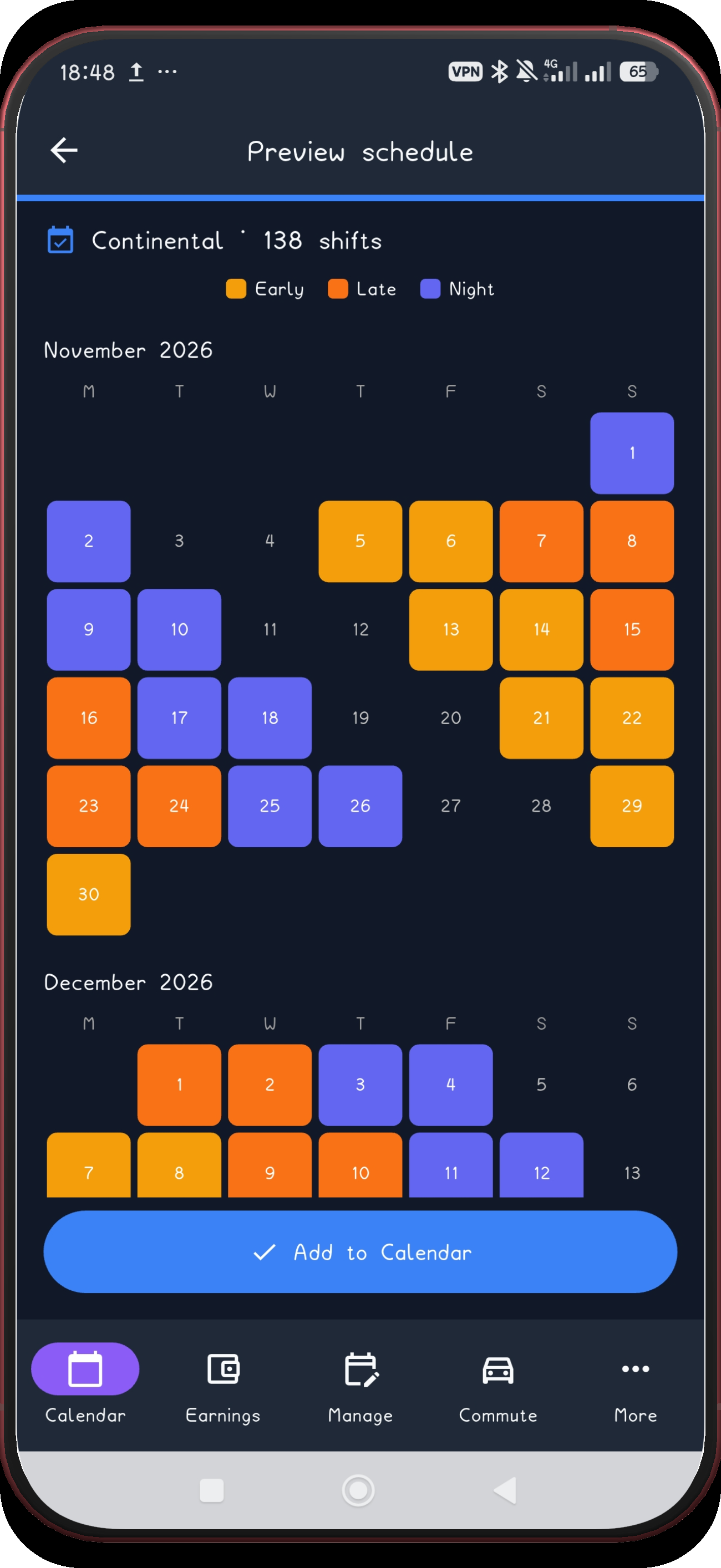
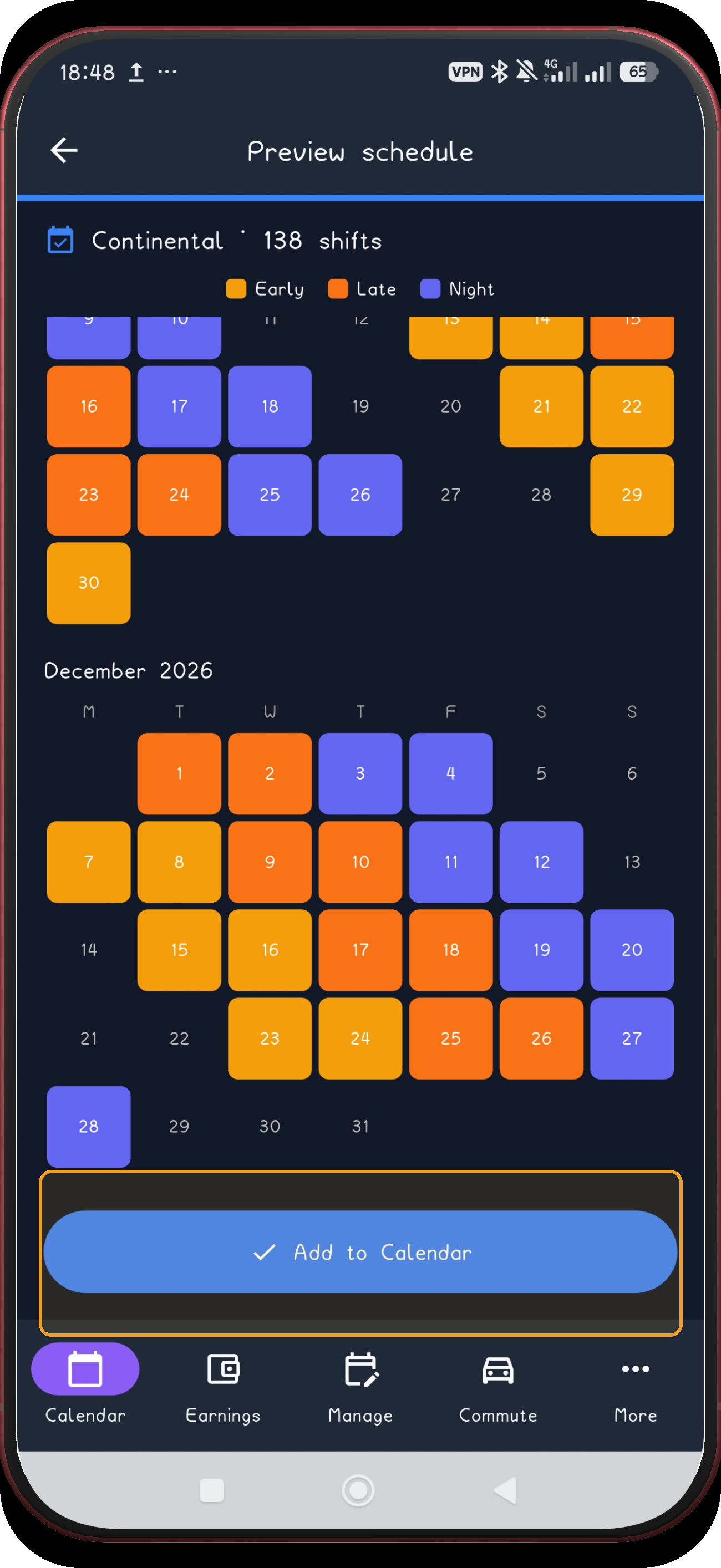
Review November and December

November and December close out the preview.

Next step ↓
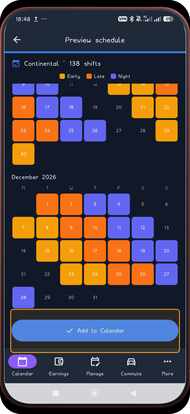
Continental screen 13
13

Add the schedule

Use Add to Calendar only after the preview matches your schedule.

Next step ↓
Continental screen 14
14

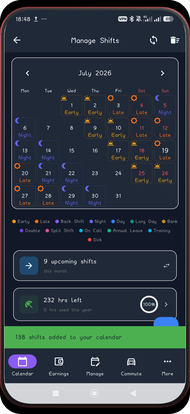
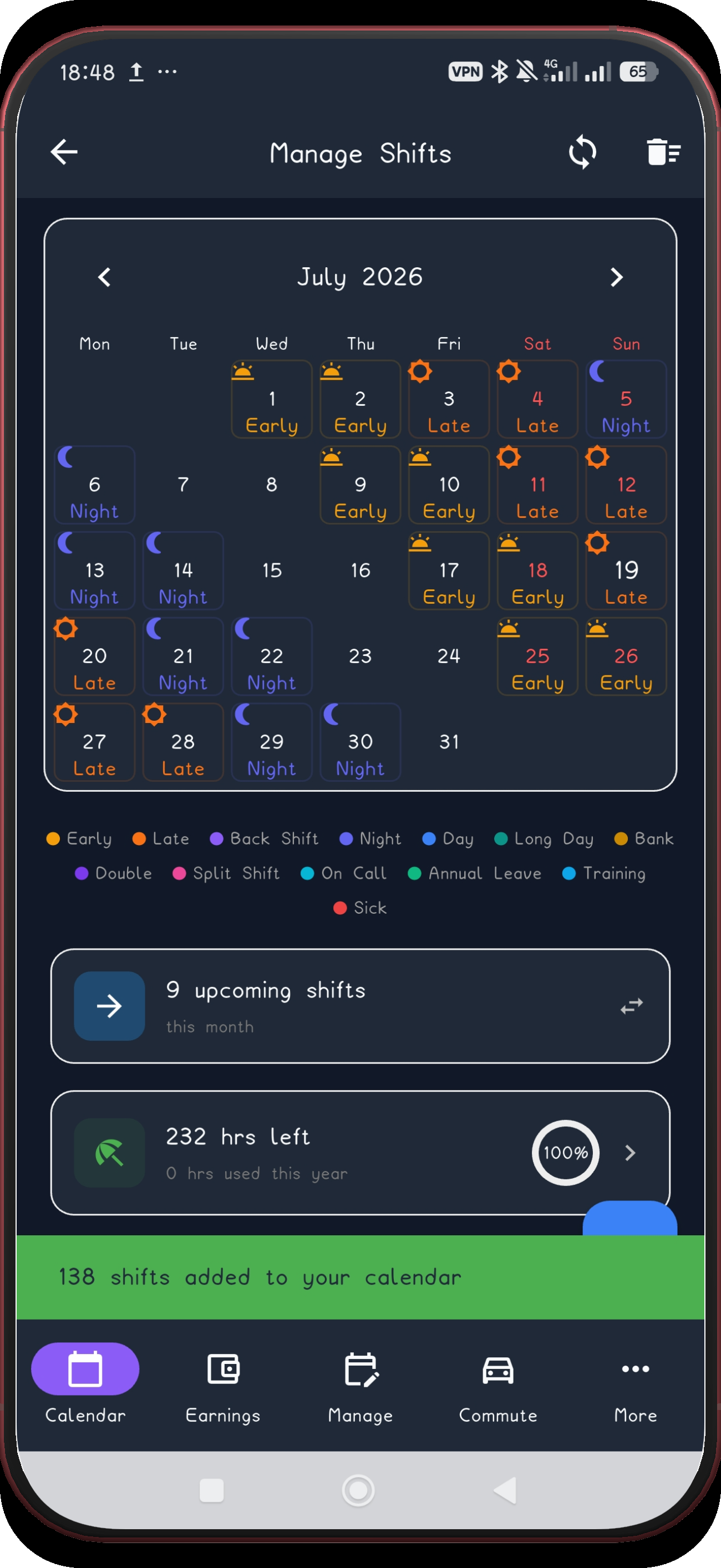
Check July

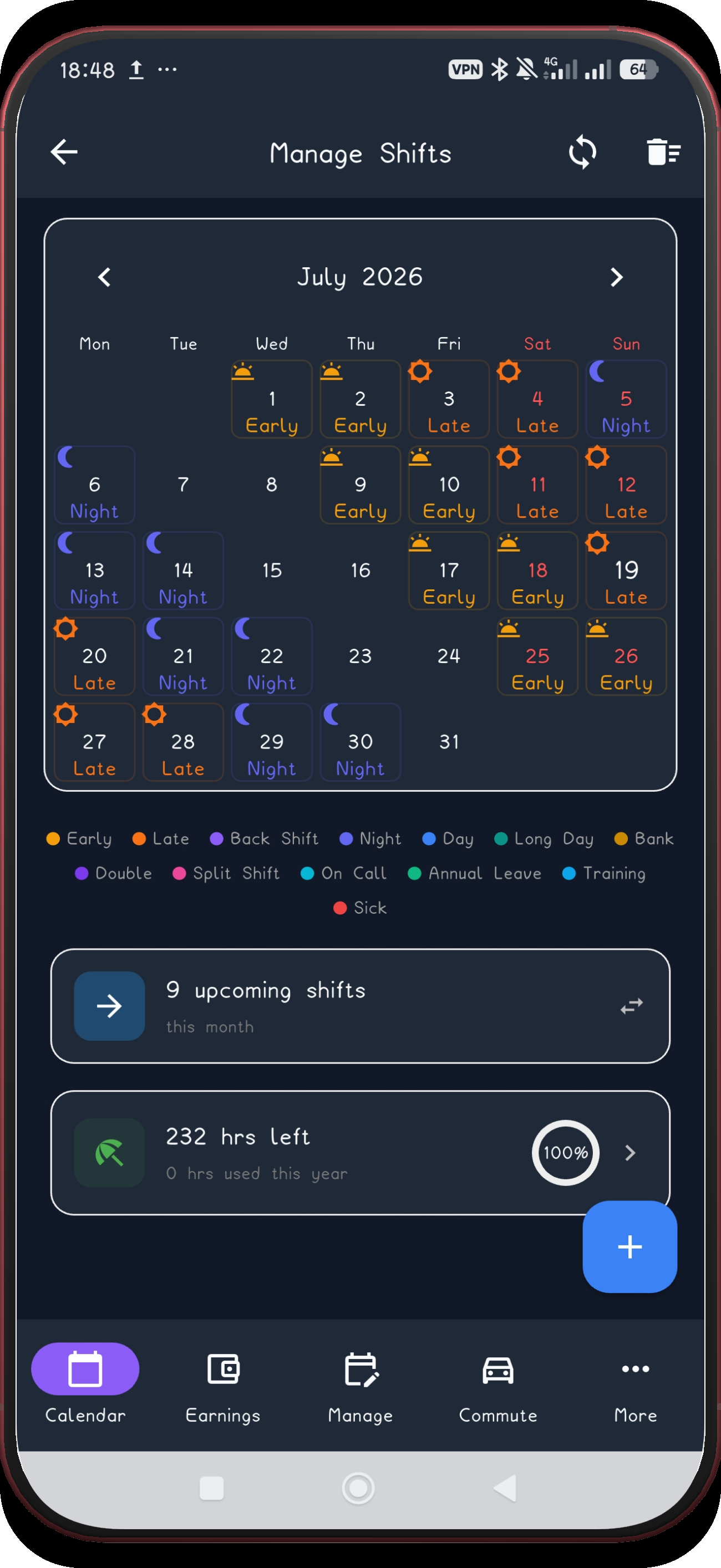
The first applied month now appears in Manage Shifts.

Next step ↓
Continental screen 15
15

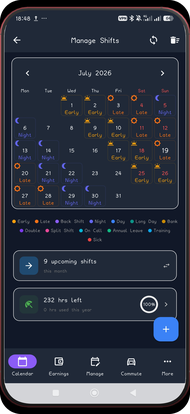
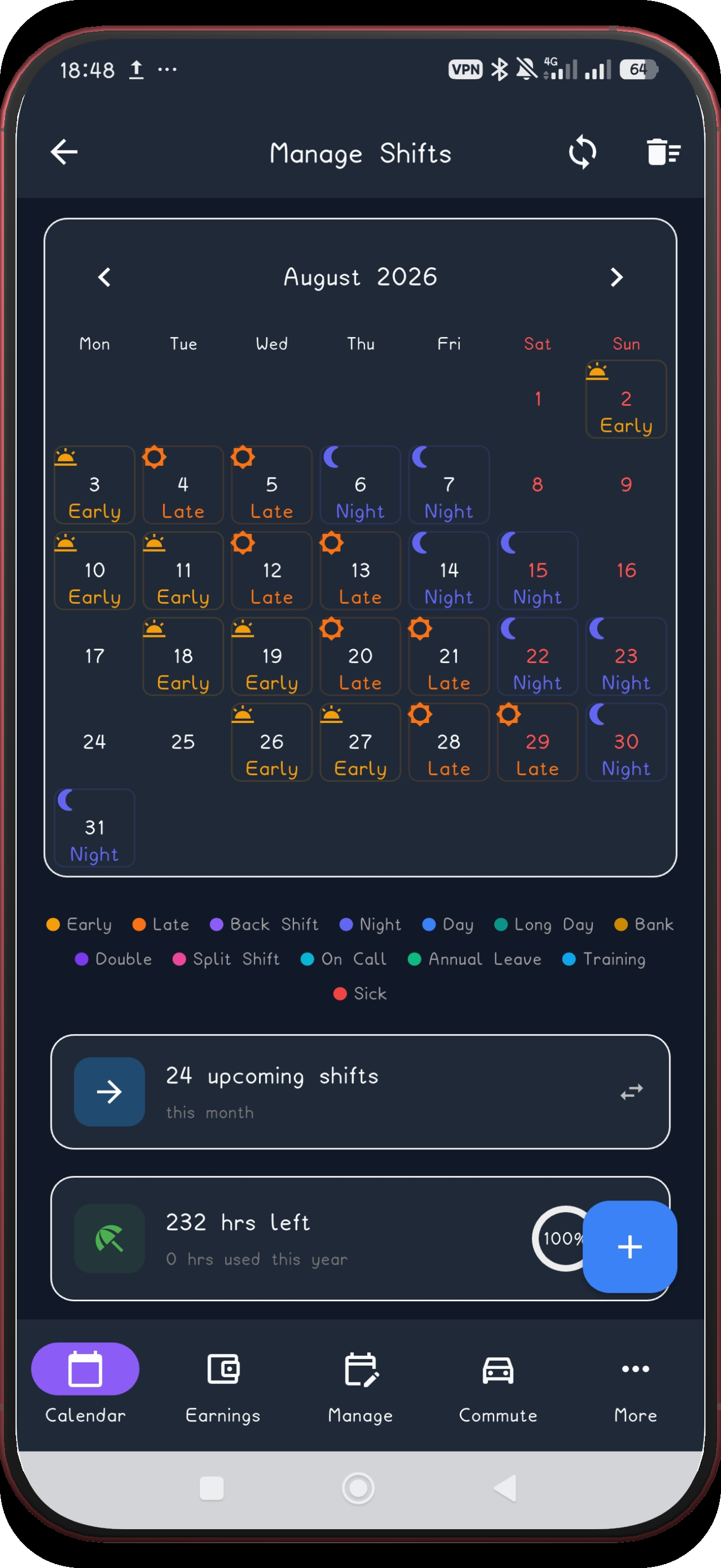
Check July continuation

Confirm the second July state as the view advances.

Next step ↓
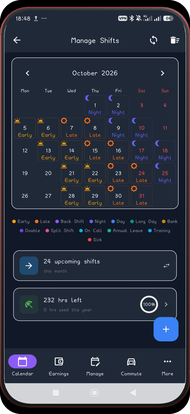
Continental screen 17
17

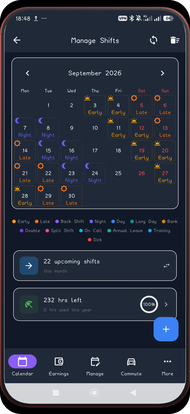
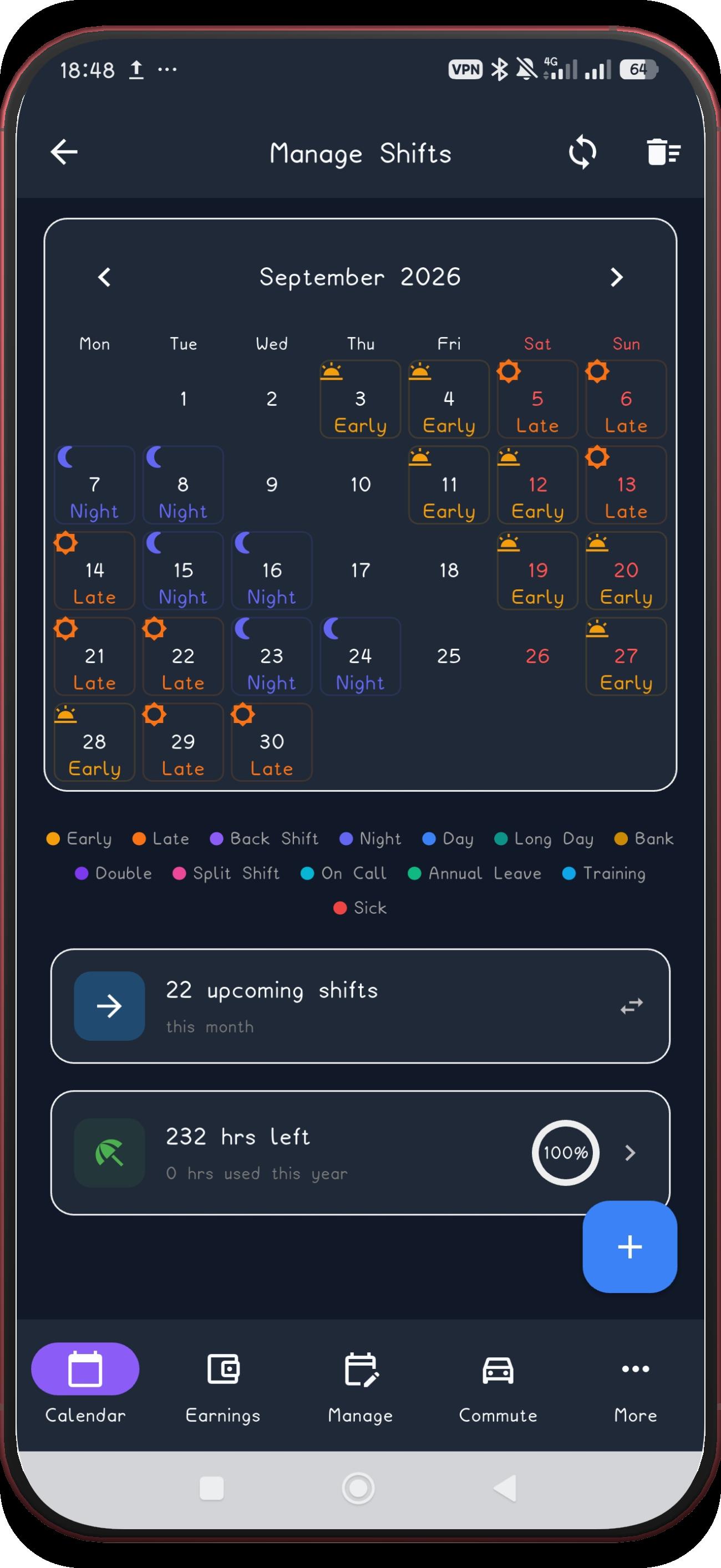
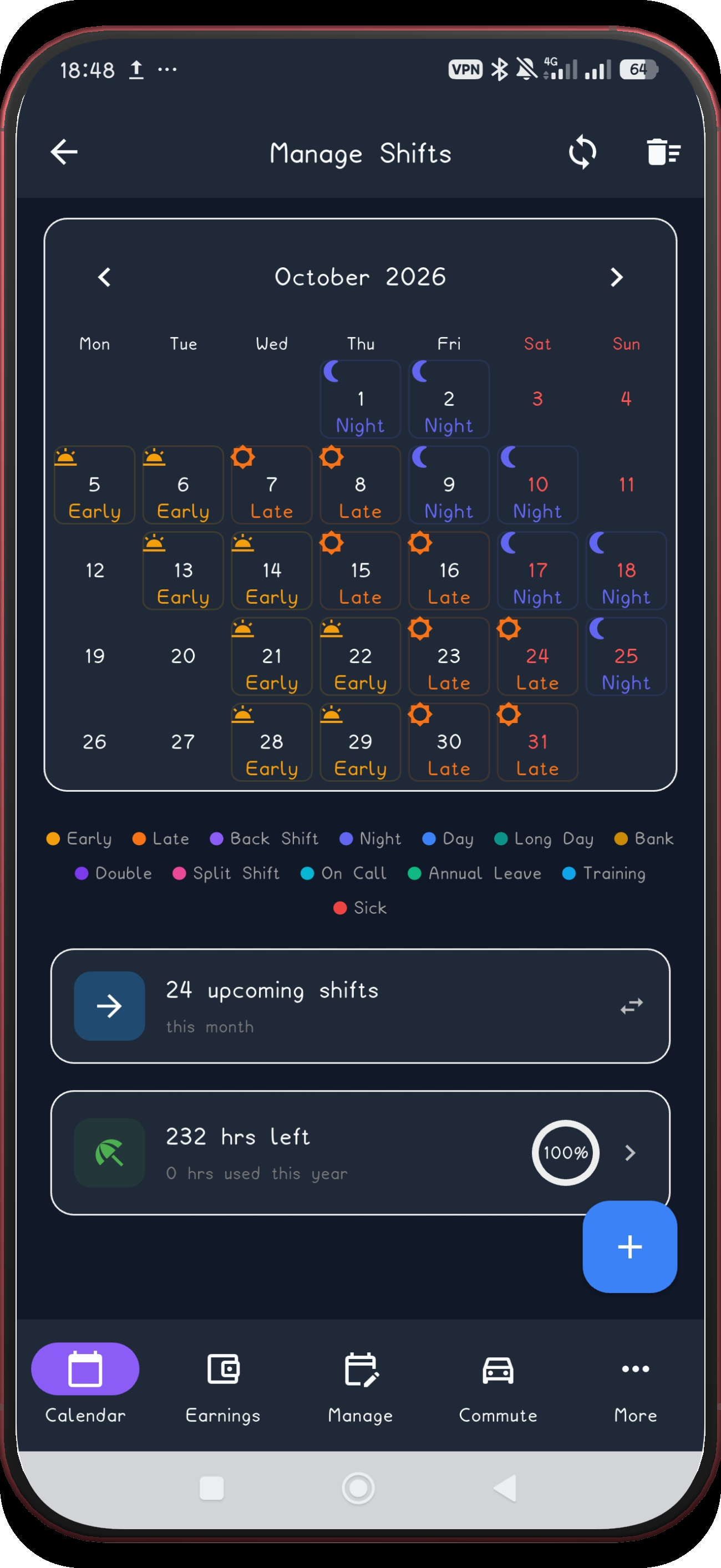
Check September

Confirm the pattern continues into September.

Next step ↓
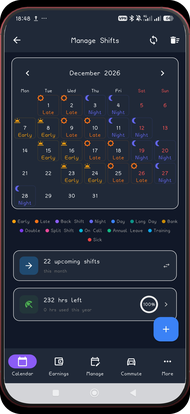
Continental screen 20
20

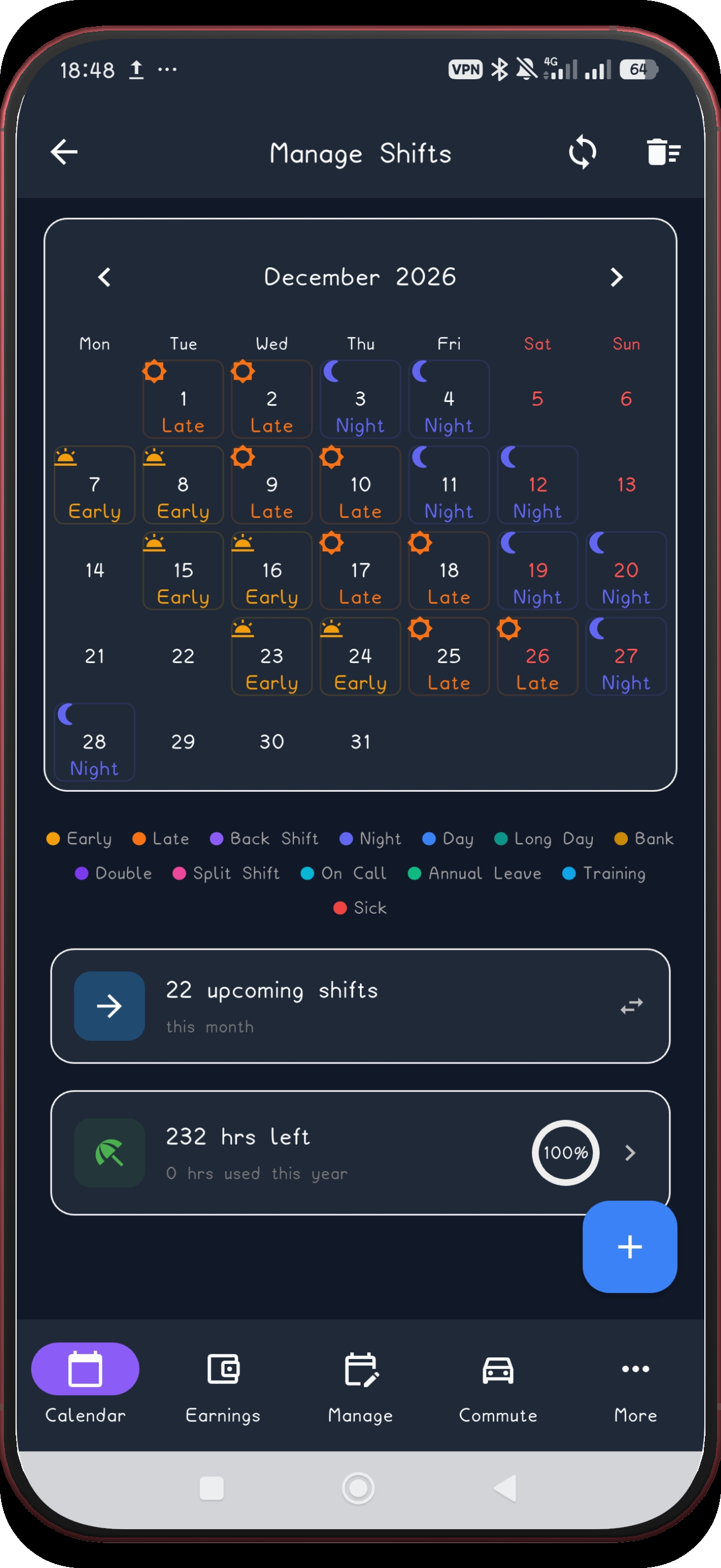
Check December

Confirm the final applied month in December.

Next step ↓
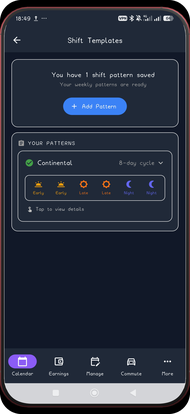
Continental screen 21
21

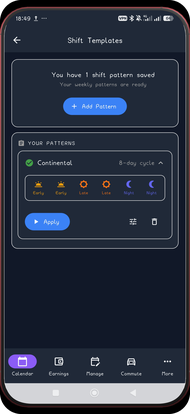
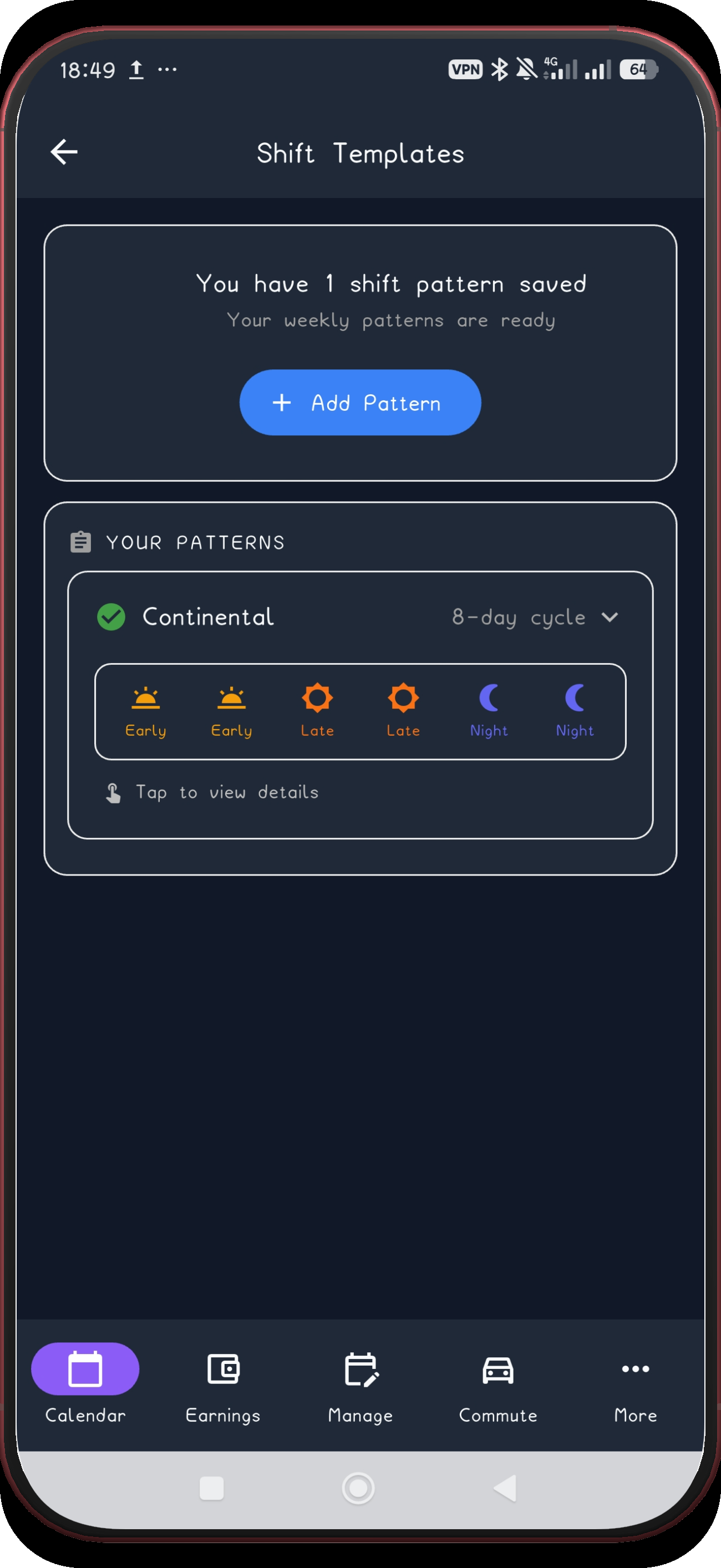
Open the saved pattern

Open the saved Continental pattern card.

Next step ↓
Continental screen 22
22

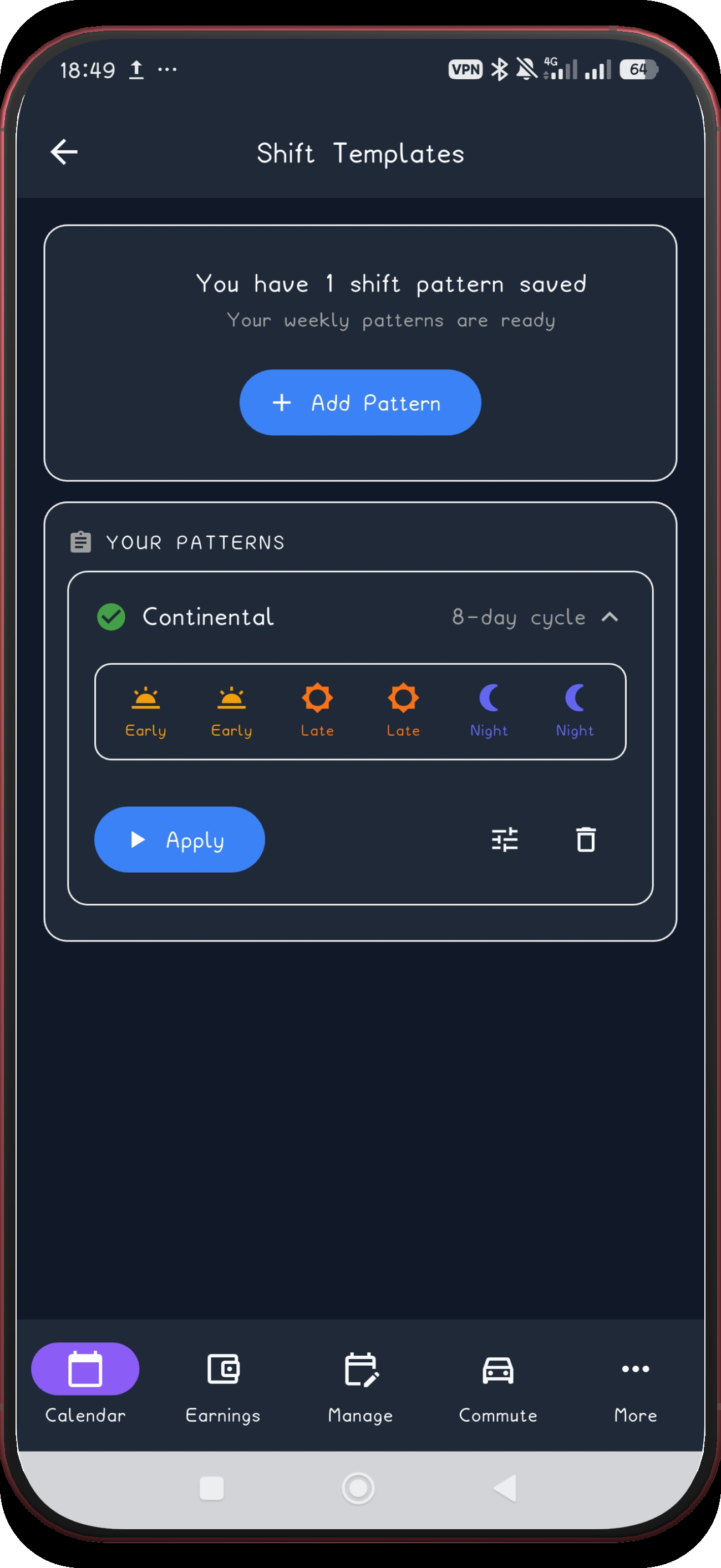
Confirm Apply is available
The expanded saved card shows its Apply action.

After the pattern is live

Every shift gets its alarm and leave time.

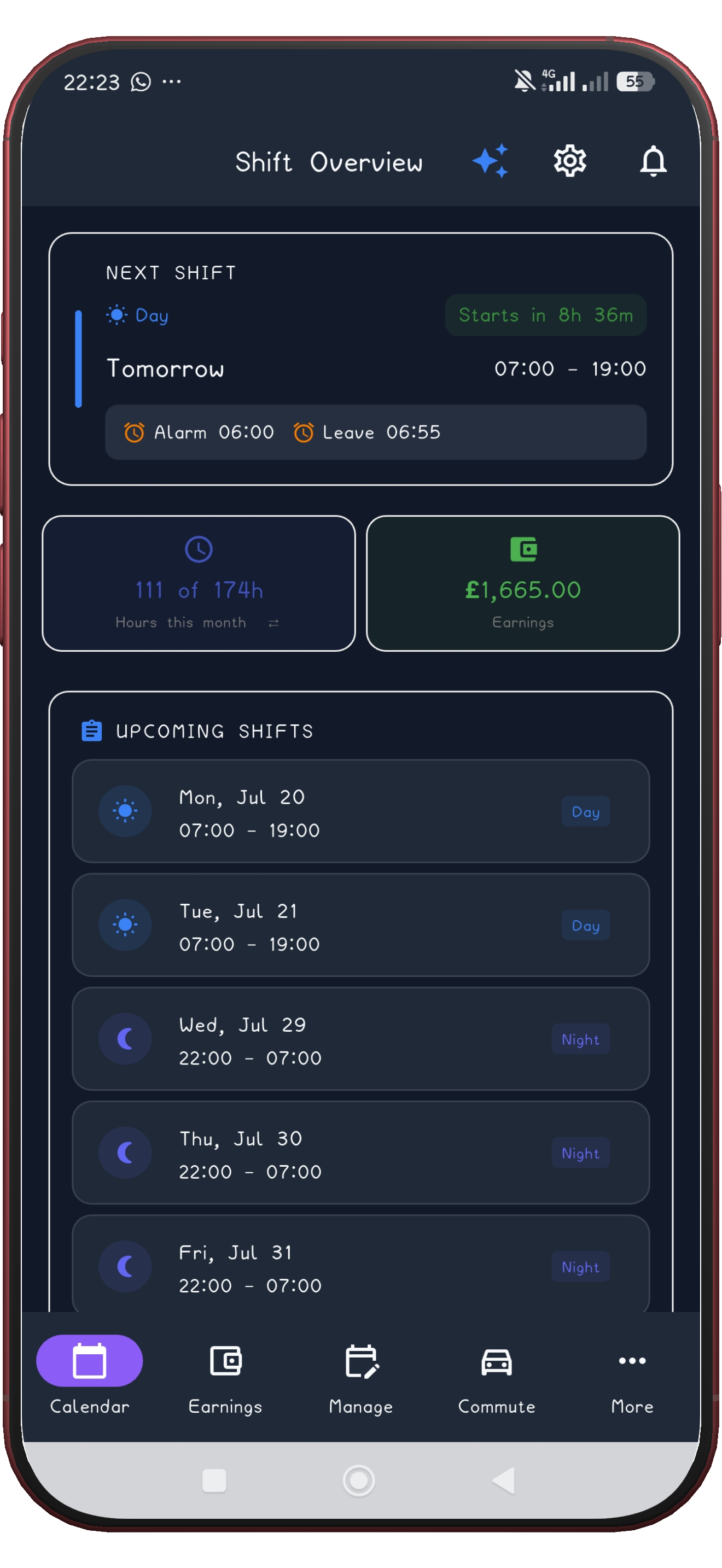
Once applied, the Shift Overview shows your next shift with its wake-up alarm and leave-home time already attached - for every shift in the Continental cycle, not just the first one.

ShiftFlowr shift overview with the Continental schedule applied, showing the next shift with alarm 06:00 and leave-home time

Build the Continental cycle once.

ShiftFlowr carries the Continental cycle into each selected month, with reminders and wake-up alarms attached to every shift.

Get ShiftFlowr