1
Next screen ↓
Start on Shift Overview
Open the repeating-pattern flow from the setup prompt on the overview screen.
Next screen ↓
ShiftFlowr / Panama 2-2-3 / Rotating setup
Rotating 56-day guide
The 2-2-3 work and rest cycle repeats every 14 days. In this rotating version, the shift type changes after four weeks, so the full Day/Night cycle lasts 56 days.
Before you start
Choose the date on which your current eight-week Day/Night rotation began, not today's date. If your crew starts with Nights, choose Nights as the first four-week block.
Open the repeating-pattern flow from the setup prompt on the overview screen.
Keep Rotating selected, choose whether the first four-week block is Days or Nights, then tap the eight-week rotation start field.
Check the anchor date (Wednesday 1 July 2026 in the captured example), select every month you want to generate, then tap Preview schedule.
Inspect July and August. Continue through the remaining preview screens before adding anything.
Inspect September and October and verify the blue Day and purple Night blocks.
Finish with November and December. When all six months are correct, tap Add to Calendar.
Screens 9–13
These calendar views show how Day and Night shifts land across the generated months. Open any screen full size to inspect the dates.
Review the first month of the applied schedule.
Confirm the rotation continues into August.
Check the generated September schedule.
So does October.
And November.
Return to Shift Templates. The rotating Panama pattern is saved automatically; tap its row to view the controls.
The expanded 56-day pattern can be applied to later months, edited or deleted without rebuilding the rotation.
After the pattern is live
Once applied, the Shift Overview shows your next shift with its wake-up alarm and leave-home time already attached - for every shift in the Panama rotating cycle, not just the first one.
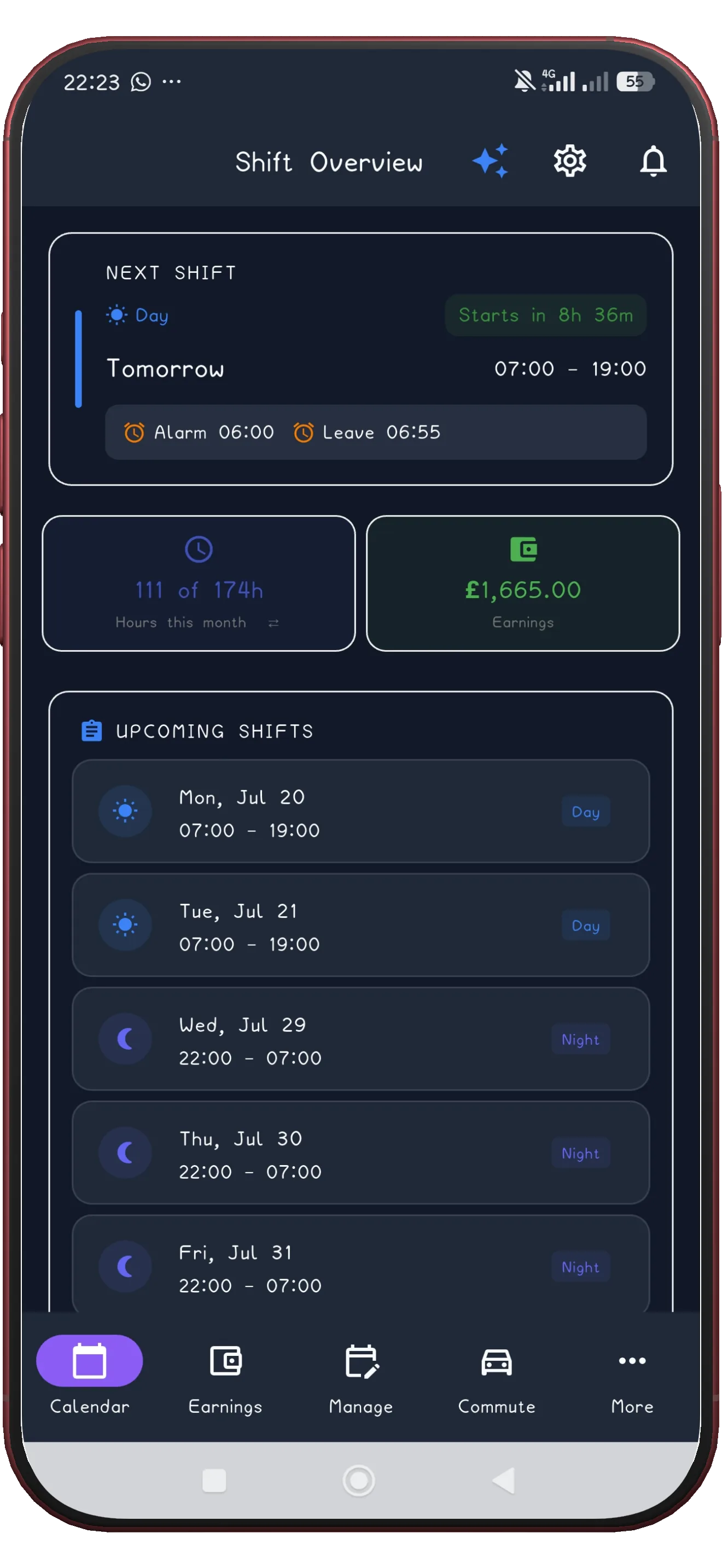
Preview the full rotation before adding it, then reuse the saved pattern for future months, with reminders and wake-up alarms attached to every shift.
Get ShiftFlowr