1
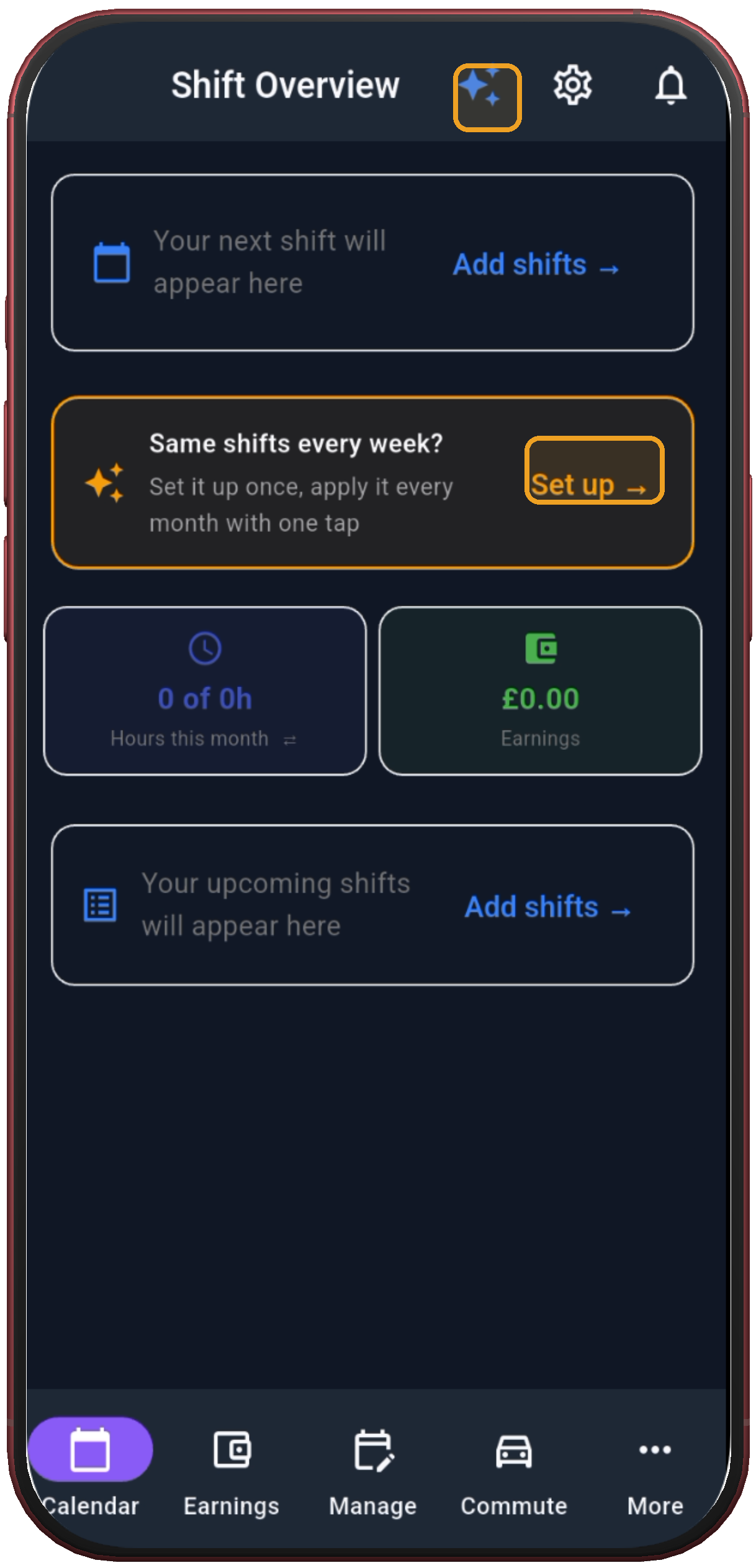
Tap “Set up”
On Shift Overview, the banner offers to build your schedule once and apply it every month.
Next step ↓ShiftFlowr / Panama (2-2-3) / Setup guide
Step-by-step guide
Panama 2-2-3 is a 14-day cycle: two shifts on, two off, three on, two off, two on, then three off — every other weekend fully off. Nine real screenshots: pick the preset, choose Fixed shift, set the 14-day anchor date, preview, and apply.
Free on Android · Early access
Before you start
The screenshots below use Panama as the example, but the flow — pick a preset, set your anchor date, preview, apply — is identical for 4-on-4-off, DuPont, Pitman, the NHS 3-week rotation and the rest of the pattern library. Only step 3 changes: pick whichever pattern matches your own schedule instead of Panama.
On Shift Overview, the banner offers to build your schedule once and apply it every month.
Next step ↓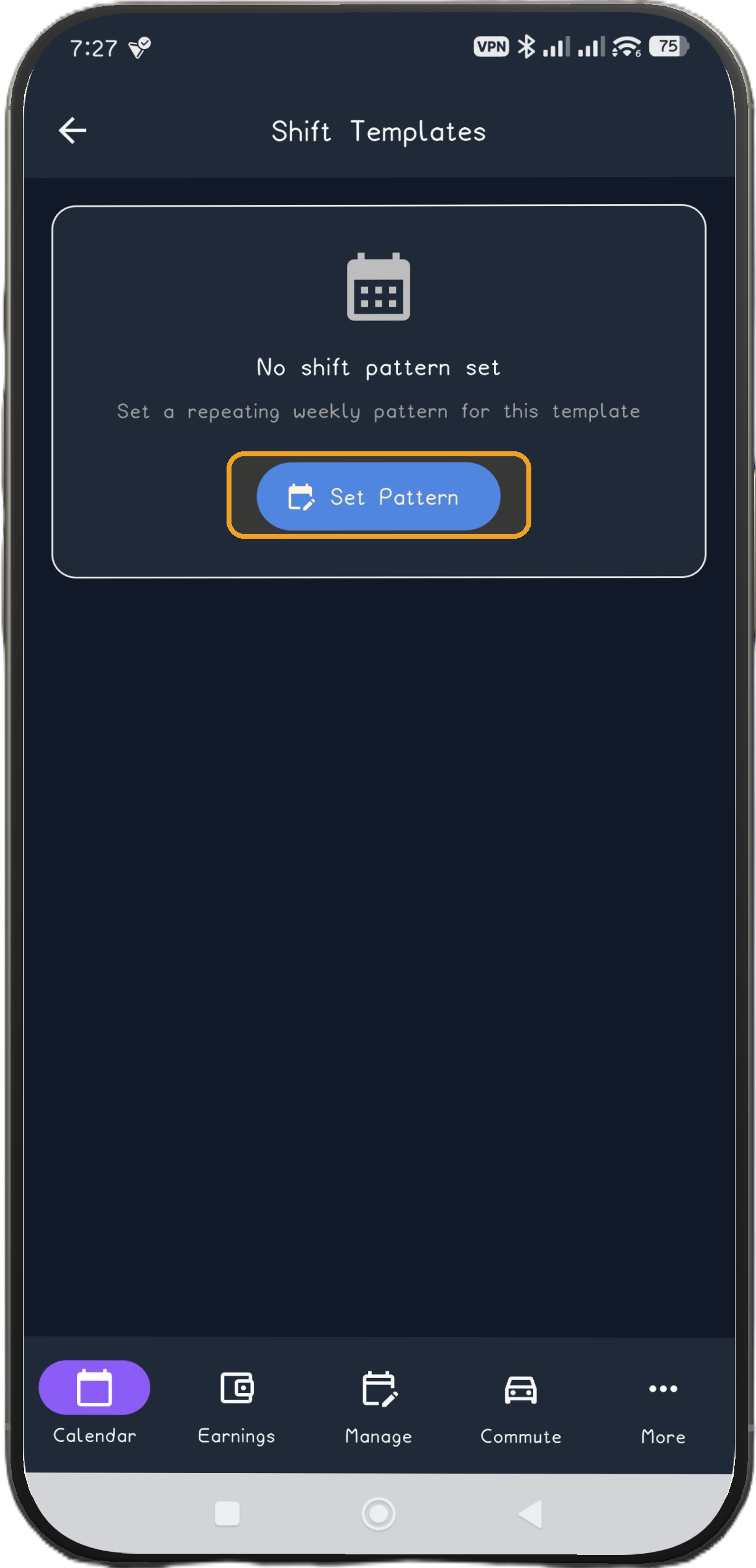
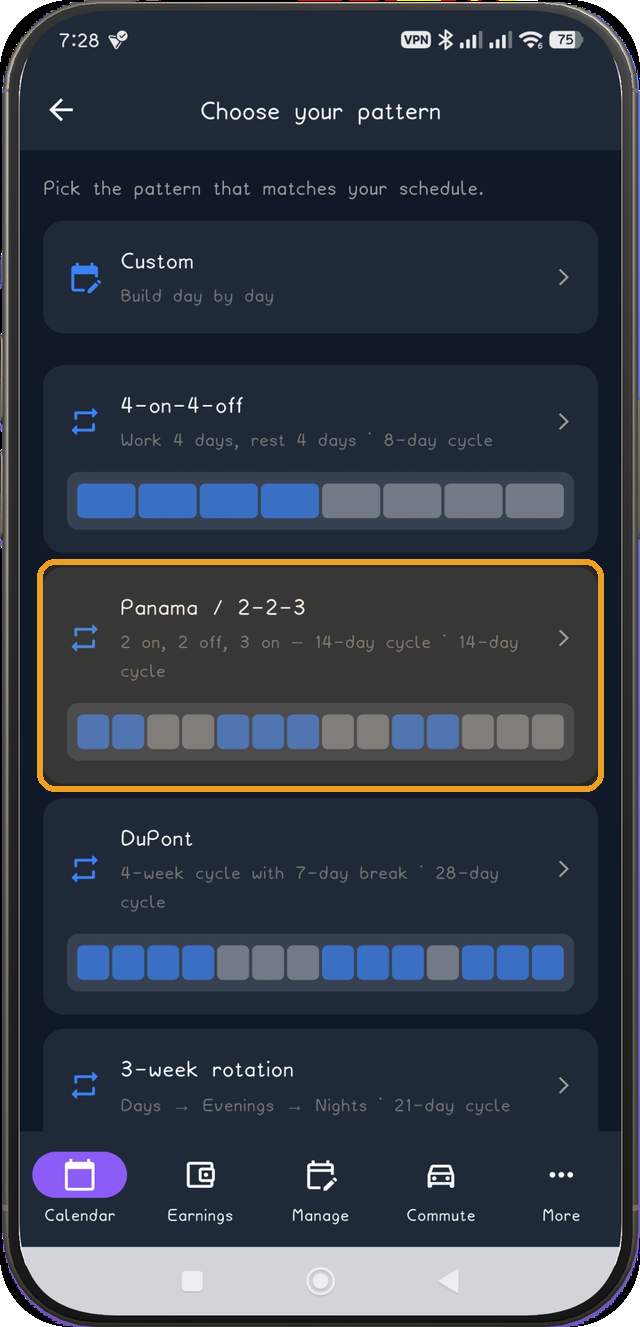
2 on, 2 off, 3 on — a 14-day cycle. Built in alongside 4-on-4-off, DuPont, Pitman and more.
Next step ↓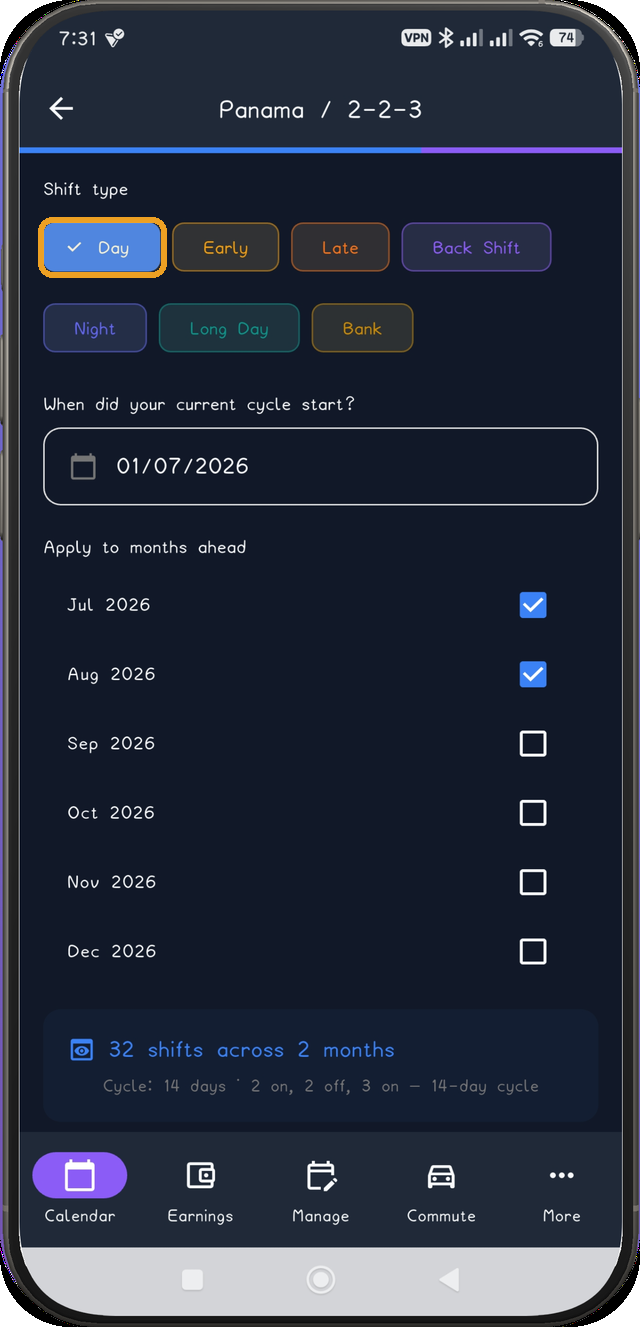
Select Fixed shift, then choose the one shift type used throughout this 14-day pattern.
Only on patterns with a day/night fork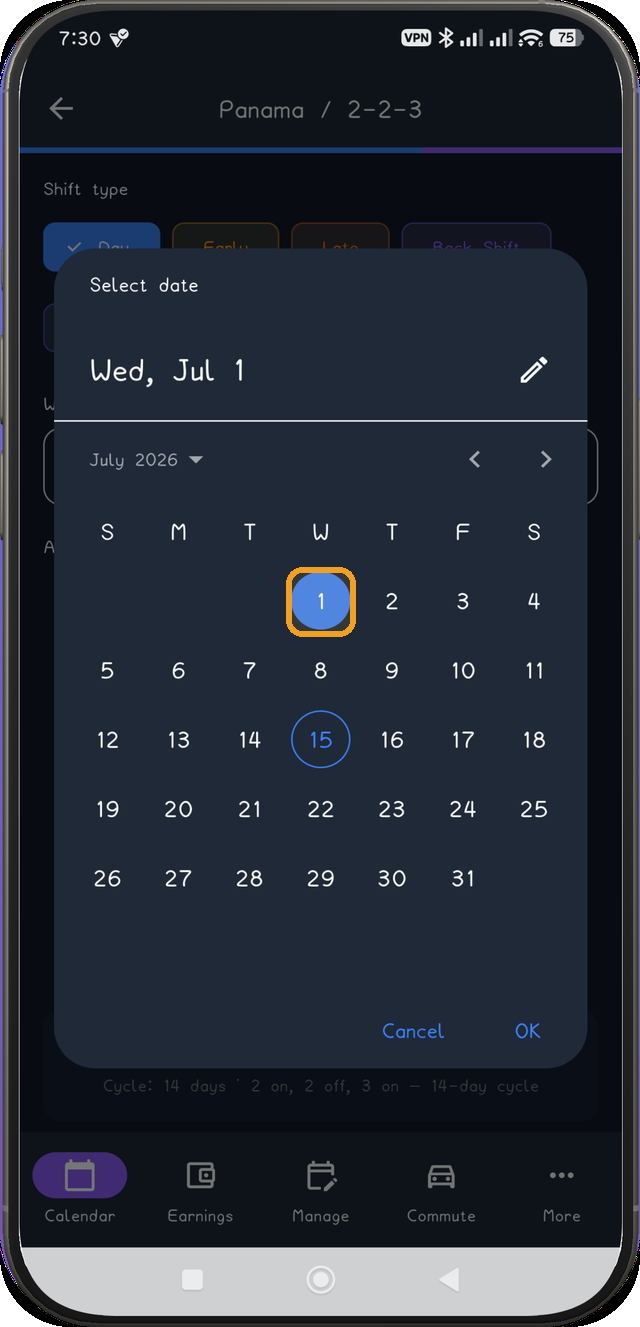
Tap the anchor-date field to open this calendar, choose the real start date, then tap OK.
Next step ↓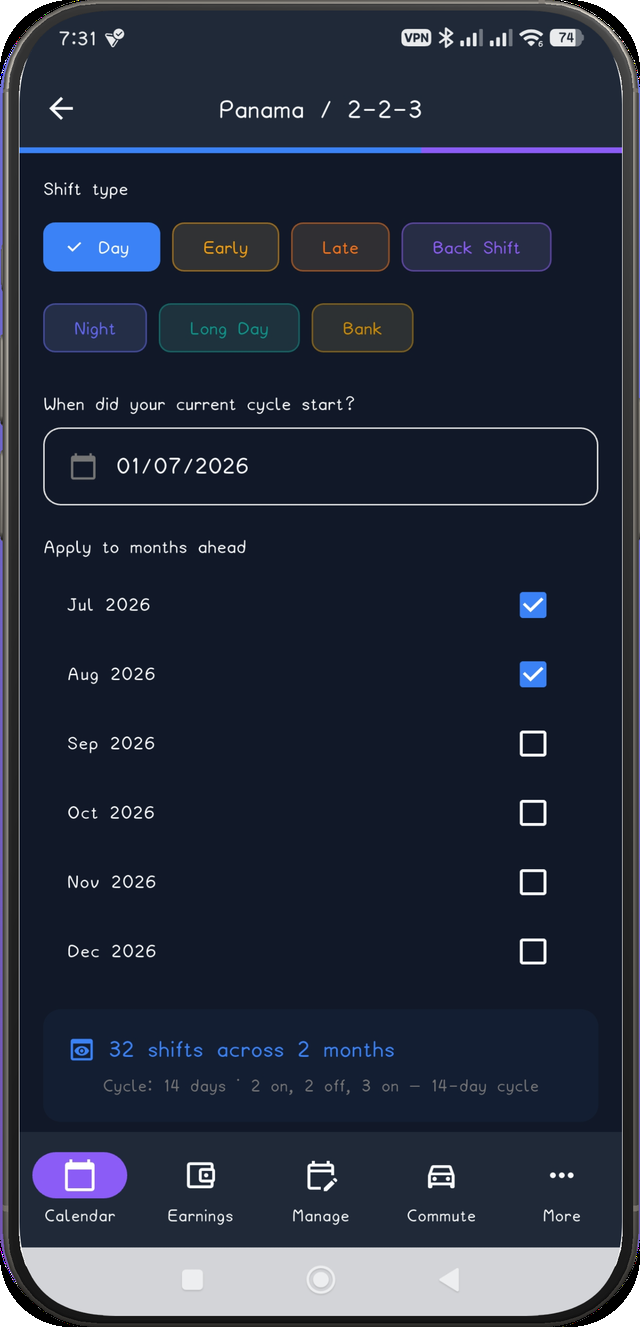
Once you tap OK, the live shift count recalculates before you commit to anything. The captured example confirms Wednesday 1 July 2026.
Next step ↓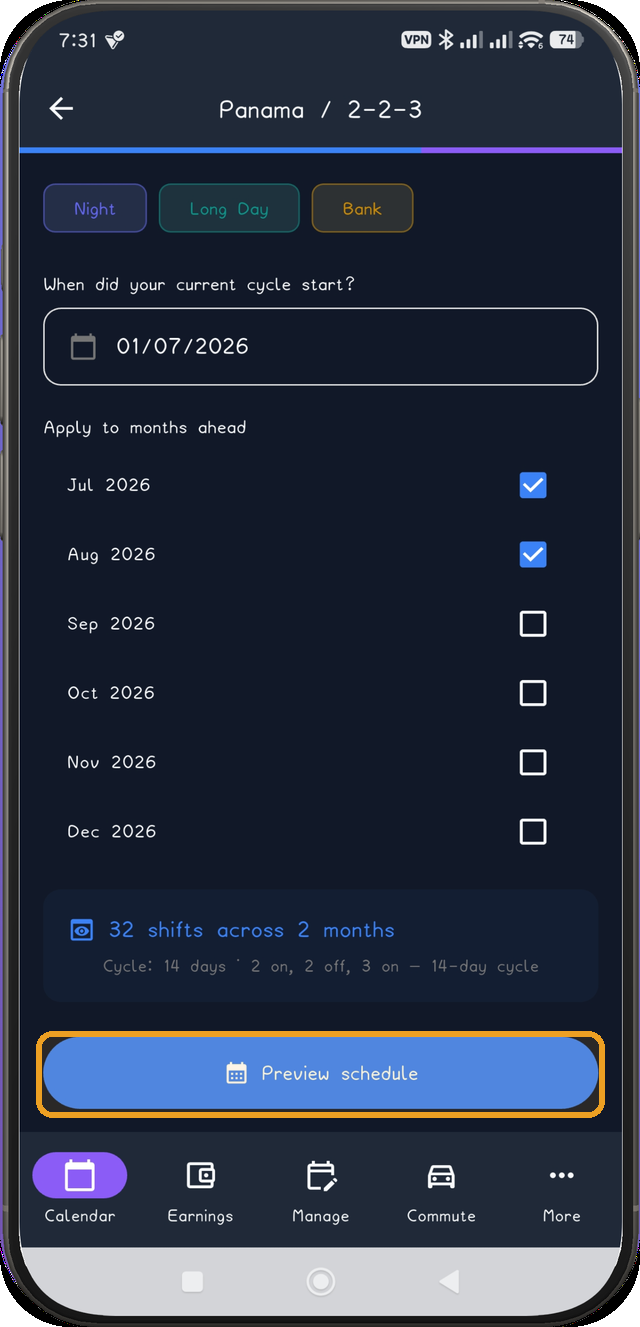
Every generated day previews first, so you can check it before it touches your calendar.
Next step ↓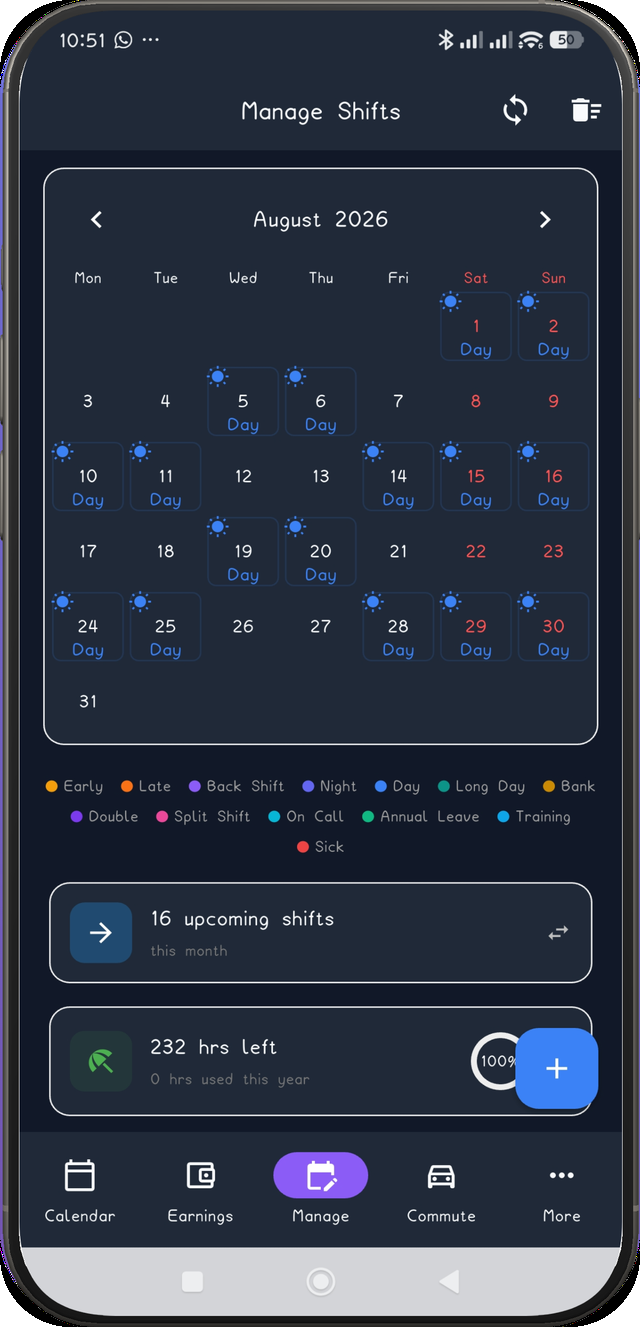
Tap Add to Calendar and the month fills itself — Manage Shifts shows the applied pattern, with reminders and wake-up alarms attached automatically.
Next step ↓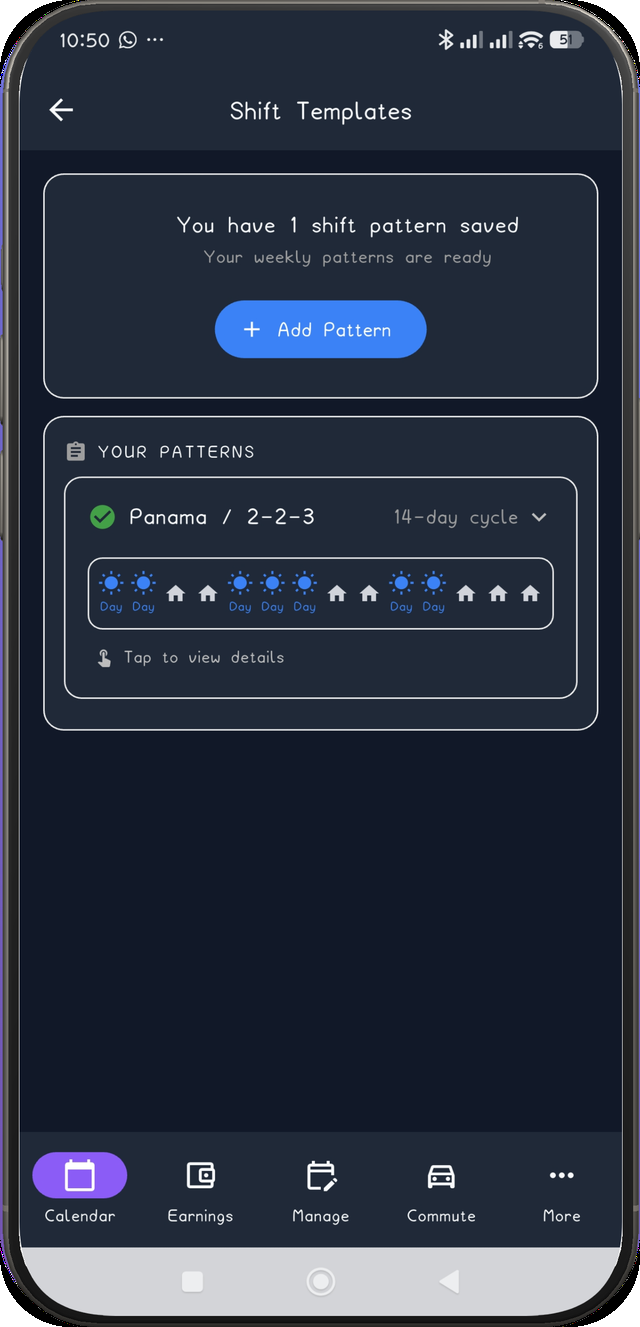
Under Shift Templates → Your Patterns, the fixed Panama pattern is saved and ready to reapply next month with one tap.
After the pattern is live
Once applied, the Shift Overview shows your next shift with its wake-up alarm and leave-home time already attached - for every shift in the Panama cycle, not just the first one.
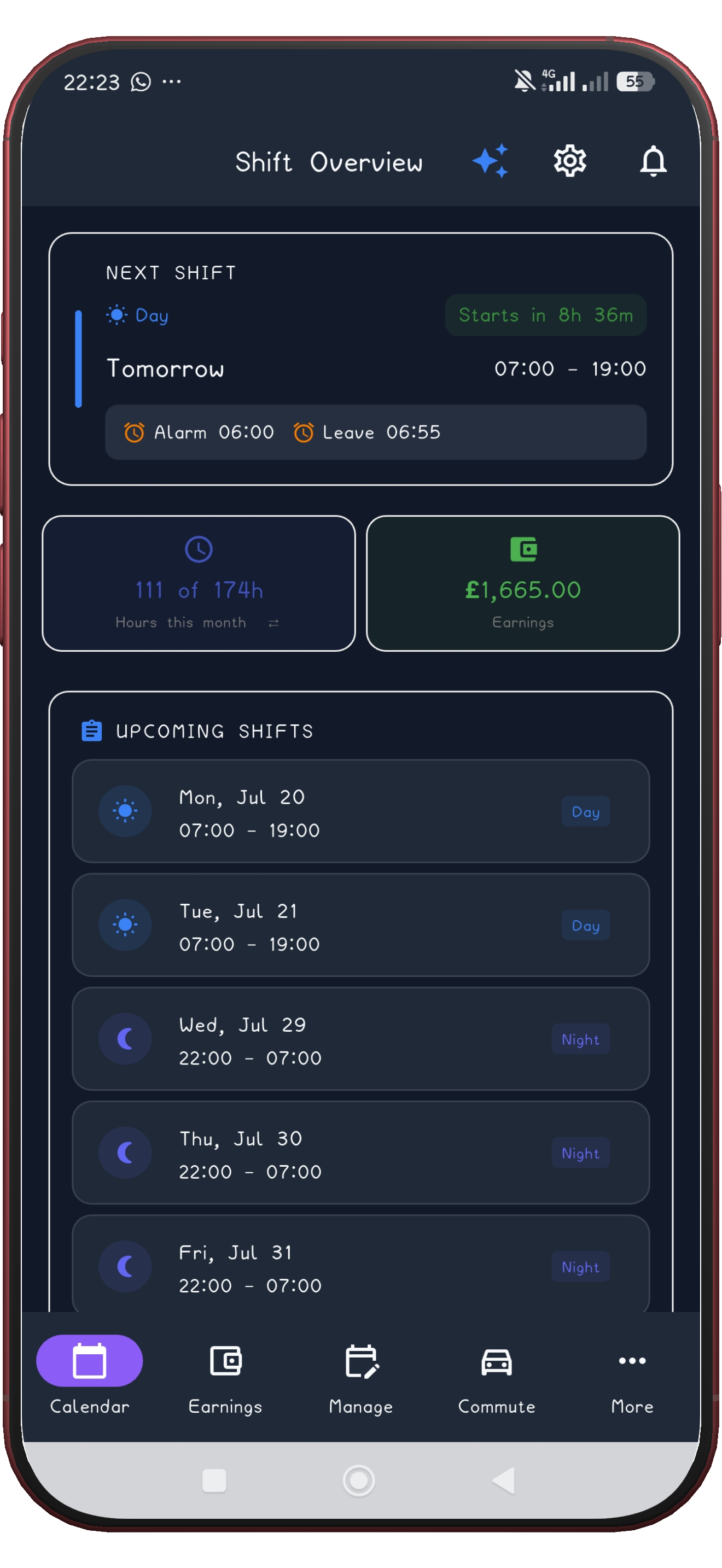
ShiftFlowr fills every future month automatically, with reminders and wake-up alarms attached to each shift.
Get ShiftFlowrFree on Android · Early access